Tired of juggling multiple passwords just to clock in or check your payslip? Workday SSO lets employees log in once using their existing work credentials — no extra passwords, no frustration. Learn how single sign-on works, how to fix common login issues, and how AI-powered tools make your Workday experience even better.
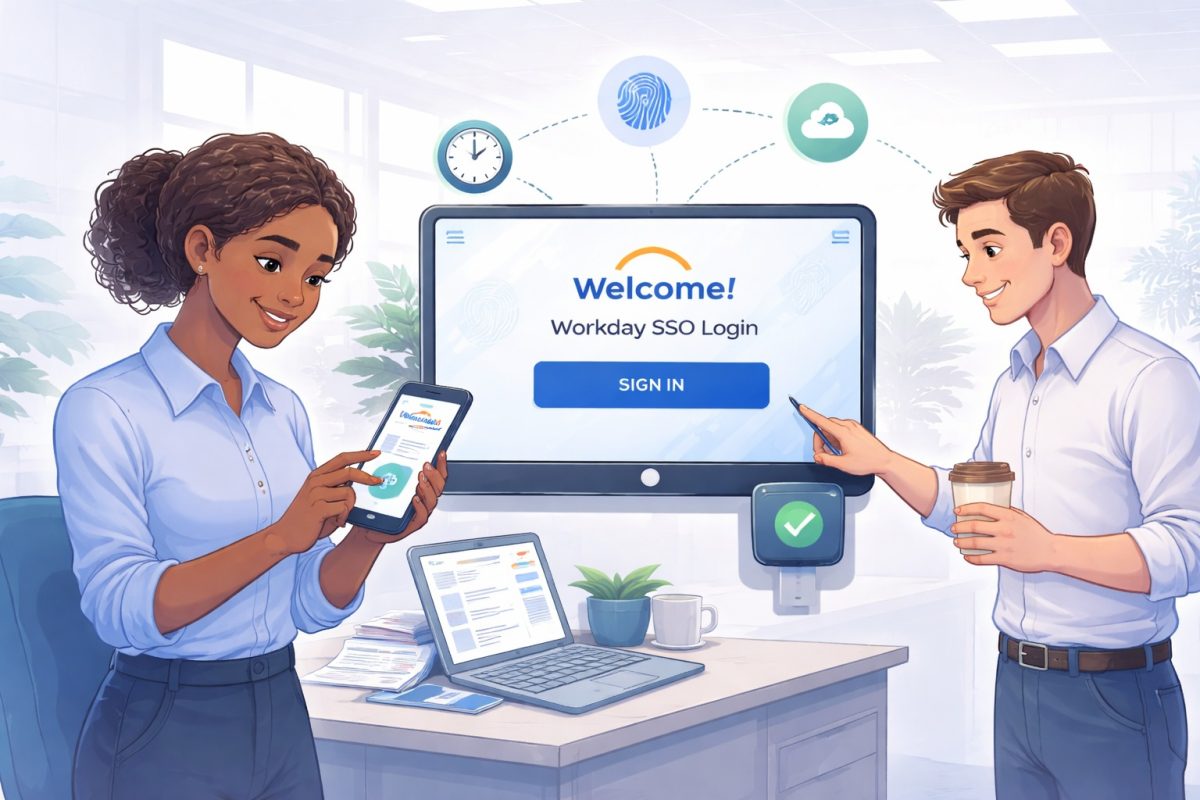
Table of Contents
- What Is Workday SSO and Why Does It Matter for Employees?
- How Employees Actually Log Into Workday with SSO
- Common SSO Problems Employees Face — and How to Solve Them
- Why SSO Alone Is Not Enough for Time Tracking
- How AI-Powered Tools Extend the Workday SSO Experience
- The Compounding Effect: SSO + AI Integration
- Frequently Asked Questions About Workday SSO
- Making the Most of Your Workday Investment
If you have ever started your workday by typing in three different passwords just to clock in, check your payslip, or request time off — you already know the frustration. Between remembering unique login URLs, navigating multi-factor authentication prompts, and waiting for IT to reset yet another forgotten password, the actual work gets delayed before it even begins.
This is one of the most common complaints among employees who use enterprise HR platforms. And it is completely avoidable.

Workday single sign-on — commonly called Workday SSO — is designed to eliminate exactly this kind of friction. When it is set up correctly, employees sign in once using the same credentials they use for email or any other company app, and they instantly have access to everything: payroll, time tracking, benefits, absence requests, and more. No repeated logins. No password juggling.
But SSO is just the starting point. The real productivity gains come when the tools connected to that login are just as seamless as the login itself. This article walks through how Workday SSO works for employees, what can go wrong and how to fix it, and how the right integrated tools — including an AI-powered time clock and an HR automation assistant — can take your Workday experience from functional to genuinely effortless.
What Is Workday SSO and Why Does It Matter for Employees?
Single sign-on is a method of authentication that allows a user to log in once and gain access to multiple applications without needing to log in again for each one. Think of it like a master key for your digital work tools.
In the context of Workday, SSO works by separating two responsibilities:
- Workday acts as the service provider — it holds your HR data, payroll information, time records, and more.
- Your company’s identity provider (IdP) — such as Okta, Microsoft Entra ID (formerly Azure AD), or another corporate directory — handles the actual authentication.
When an employee tries to access Workday, the platform redirects them to the company’s login page. Once the employee enters their corporate credentials (and completes any required multi-factor step), the identity provider sends a confirmation back to Workday, and access is granted. The employee never needs a separate Workday username or password.
According to Okta’s identity research, the average employee manages more than a dozen app logins at work. SSO directly reduces this burden and, critically, reduces the risk of weak or reused passwords — one of the most common causes of security breaches.
For HR and IT teams, SSO also means fewer password reset tickets, faster onboarding for new hires, and cleaner offboarding when employees leave (deactivating one identity account removes access everywhere).
How Employees Actually Log Into Workday with SSO
The exact experience varies slightly by company, but the general flow looks like this:
Step 1 — Find your company’s Workday login URL.
This is not the generic workday.com homepage. Most organizations have a custom sign-in page, often something like yourcompany.workday.com. HR or IT should provide this during onboarding. If you are unsure, check your company intranet, welcome email, or ask your HR team directly.
Step 2 — Click “Sign in with your company credentials” or a similar SSO button.
On most Workday SSO setups, you will see an option to log in via your organization’s identity provider rather than entering a Workday-specific password.
Step 3 — Enter your corporate email and password.
This is the same login you use for Microsoft 365, Google Workspace, Slack, or whatever your company uses as its primary platform.
Step 4 — Complete multi-factor authentication if prompted.
This might be an authenticator app code, a push notification, or an SMS. MFA adds a critical layer of security and is increasingly standard.
Step 5 — You are in.
From here, you have access to everything Workday offers — time tracking, payslips, benefits, PTO requests, org charts, and more — without logging in again during that session.
On mobile, the experience is similar. Workday has a mobile app, and if your company has configured SSO for mobile, you will authenticate through the same identity provider before accessing the app.
Common SSO Problems Employees Face — and How to Solve Them
Even well-configured SSO setups can hit bumps. Here are the most frequently encountered issues and what to do about them:
Redirect loops. If you click “Log in” and keep getting bounced back to the login page without ever getting in, it is usually a browser cookie or session issue. Try clearing your browser cache, opening an incognito window, or using a different browser. If the problem persists, it may be a misconfiguration that your IT team needs to address.
MFA fatigue. Some employees get prompted for multi-factor authentication too frequently — sometimes every session or even more often. This often comes down to how your company’s identity provider is configured. IT can typically adjust session persistence settings so that trusted devices are remembered for a set period. If this is happening, raise it with IT rather than just tolerating it.
“We can’t find your account” errors. This usually means the email address or username entered doesn’t match what’s provisioned in the identity provider. Double-check that you are using your full work email (not a nickname or alias) and that your account has been properly set up in the system.
No SSO option on the login page. If you only see a form for a Workday username and password, your company may not have fully rolled out SSO yet, or you may be visiting the wrong URL. Contact HR or IT for the correct sign-in link.
Mobile app not accepting SSO. The Workday mobile app requires the company’s SSO to be specifically enabled for mobile. If desktop SSO works but mobile doesn’t, this is a configuration gap — flag it with your IT department.
Resources like Microsoft’s Entra ID documentation and Okta’s Workday integration guide provide detailed technical setup instructions for IT administrators who need to configure or troubleshoot SSO.
Why SSO Alone Is Not Enough for Time Tracking
SSO solves the login problem. But what happens after employees get in?
For many organizations — especially those with frontline workers, field teams, distributed workforces, or hourly employees — the native Workday time tracking experience has limitations. Workday is a powerful HCM platform, but it is primarily built for desk-based workers with reliable internet access and company-issued devices.
This leaves gaps for:
- Warehouse and manufacturing workers who need to clock in and out quickly at a shared kiosk
- Field technicians who work in areas with spotty internet
- Healthcare staff working rotating shifts who need a fast, touchless way to punch in
- Remote employees whose location needs to be validated for compliance purposes
- Employees who want to check their PTO balance, view their schedule, or submit a missed punch without emailing HR
This is where purpose-built integrations come in — tools that connect directly to Workday and extend its capabilities to match the real-world conditions your workforce operates in.
How AI-Powered Tools Extend the Workday SSO Experience
Once employees are authenticated via SSO and inside the Workday ecosystem, the quality of their experience depends on what tools are available to them. Here is where modern AI-powered workforce tools are changing the game.
Smarter, More Flexible Time Tracking
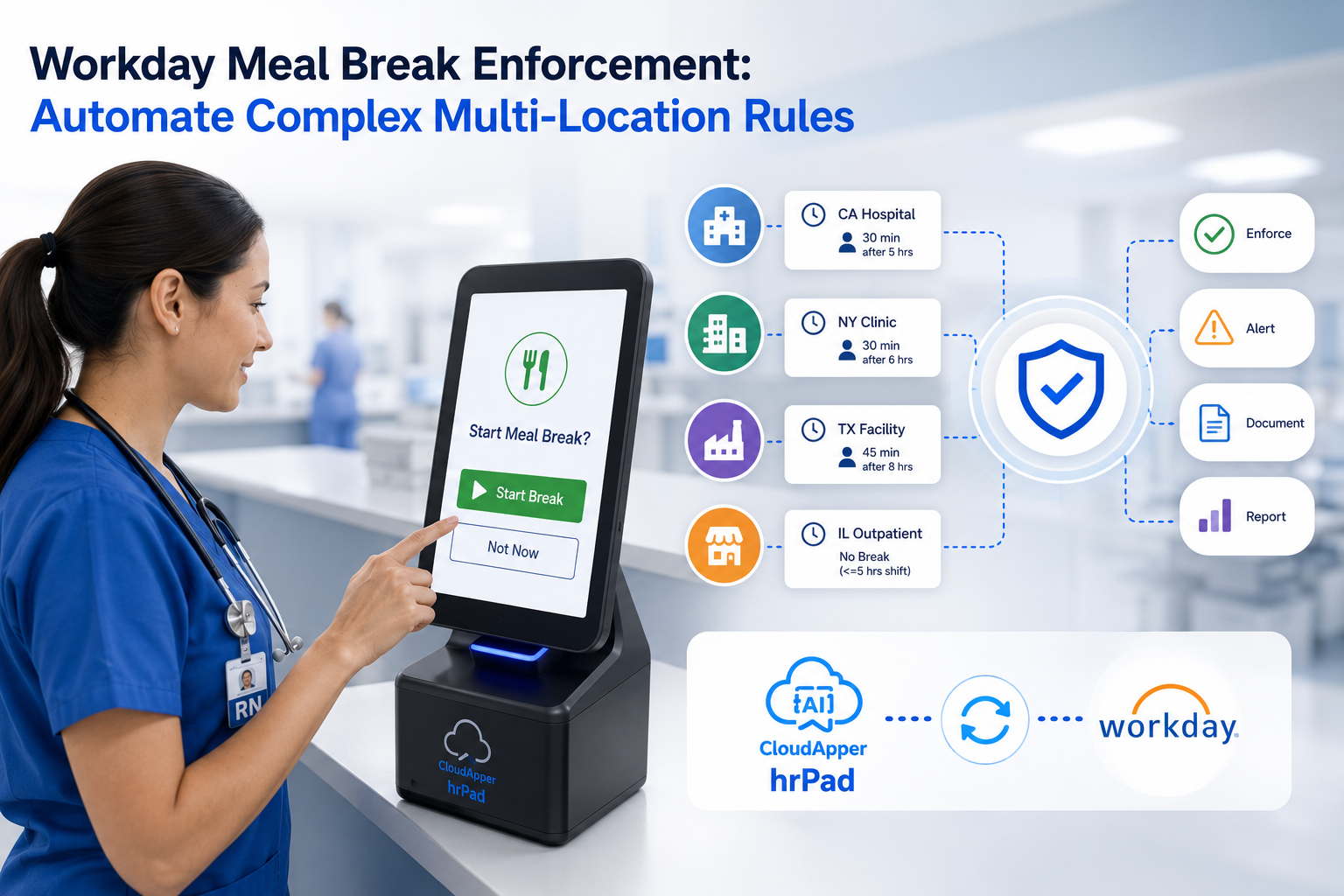
The CloudApper AI TimeClock is built specifically to integrate with Workday and eliminate the hardware and software gaps that standard time tracking leaves behind.
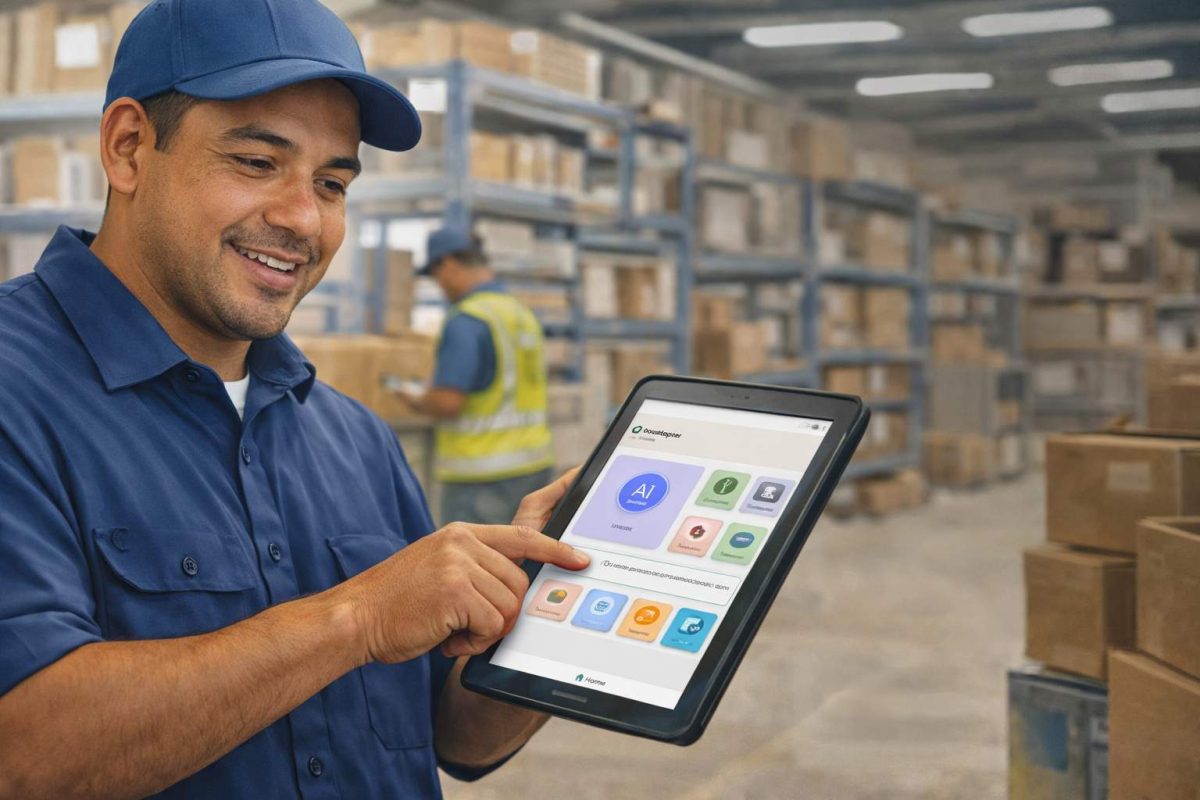
Rather than requiring expensive proprietary time clocks or asking employees to navigate Workday’s mobile interface every time they start a shift, CloudApper turns any Android tablet or iPad into a full-featured biometric time clock. Employees use facial recognition to clock in and out — no badge to forget, no PIN to remember, no touching shared surfaces.
Key capabilities that matter for real workforces:
Facial recognition clock-ins mean no buddy punching (where one employee clocks in for another), a chronic problem in shift-based environments. The SHRM estimates that time theft costs US employers billions annually — biometric verification addresses this at the root.
Geo-fencing ensures that remote or field workers can only clock in when they are physically within an approved location boundary. This is essential for compliance in industries where labor law requires accurate location-based timekeeping.
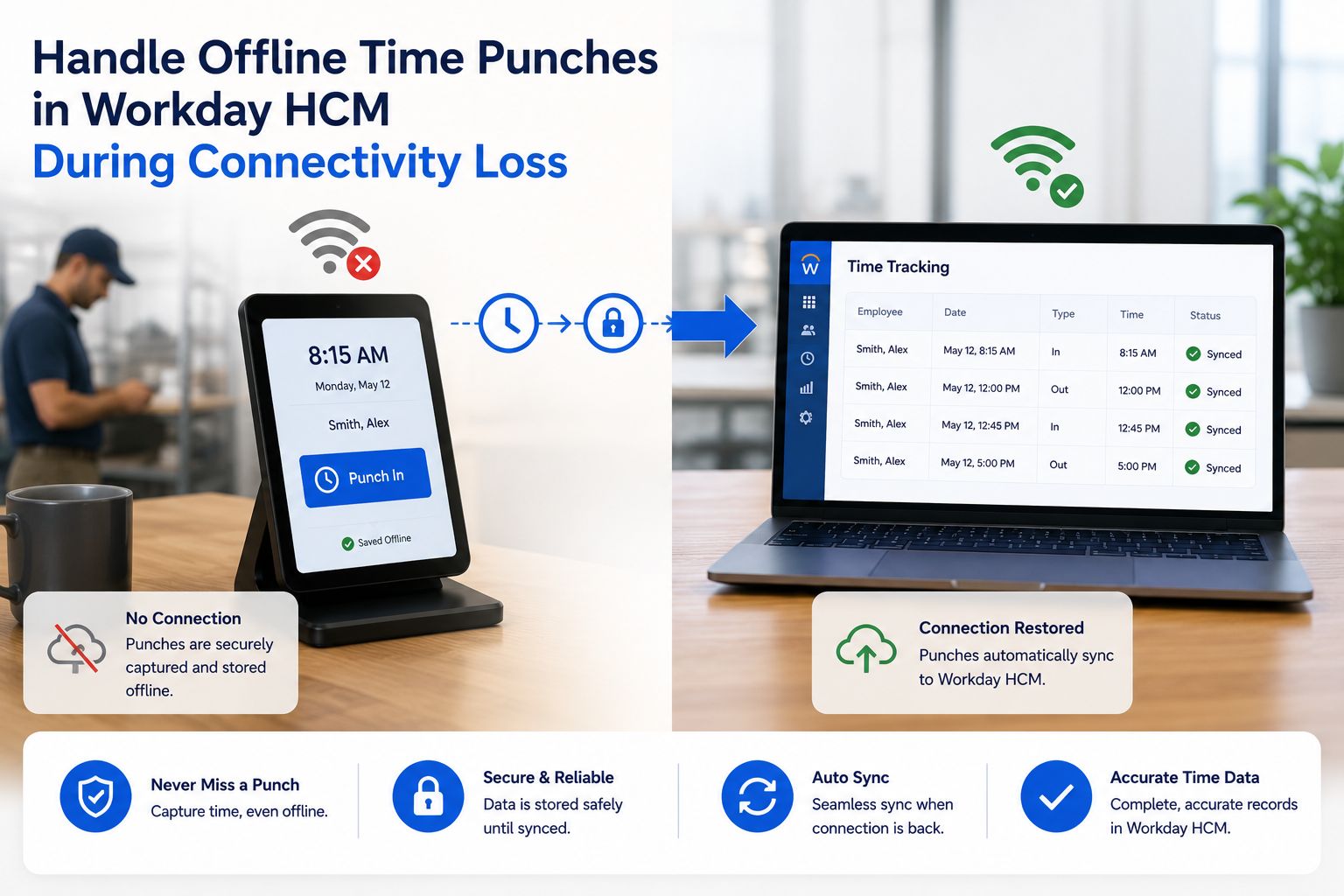
Offline mode captures time punches even when there is no internet connection and syncs them automatically when connectivity is restored. For field teams or employees in dead zones, this is critical.
Real-time sync to Workday means that time data flows directly into Workday Time Tracking and Payroll without manual entry, reducing errors and speeding up payroll processing.
The result: employees spend zero extra effort on time capture, and payroll teams work with accurate, verified data.
AI-Powered HR Self-Service
One of the hidden costs of any HR platform is the volume of routine questions employees ask their HR teams. “How many vacation days do I have left?” “When does my benefits enrollment close?” “What’s the process for a leave of absence?” These questions are answerable in seconds — but when employees don’t know where to look, they email HR, who then has to respond one by one.
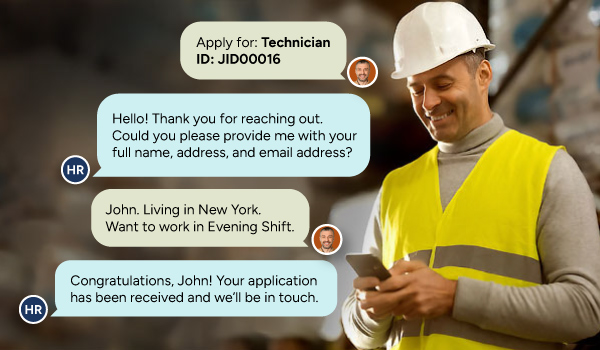
The CloudApper HRGPT is a 24/7 AI HR assistant that integrates with Workday and answers these questions instantly. Employees can ask in plain, conversational language — the same way they’d text a colleague — and get accurate, policy-based answers drawn from the company’s own HR data.
For HR teams, this means a significant reduction in repetitive administrative tasks. For employees, it means getting answers at 11pm when they are reviewing their benefits options, not waiting until Monday morning.
This kind of always-on access is especially valuable for globally distributed teams operating across different time zones, and for shift workers who may not have easy access to HR during regular office hours.
AI-Driven Recruitment
Hiring is one of the most time-intensive processes in any organization. From screening resumes to scheduling interviews to answering candidate questions, the traditional recruitment workflow is full of manual steps that delay hiring decisions and create poor candidate experiences.
The CloudApper AI Recruiter integrates with Workday to automate these early-stage steps. It can screen applicants conversationally, answer candidate questions in real time, schedule interviews automatically based on hiring manager availability, and surface the most qualified candidates to the recruiting team — all without requiring a human to handle each interaction manually.
For HR and talent acquisition teams, this means faster time-to-hire, better candidate experience, and hiring managers who spend their time on final decisions rather than administrative back-and-forth.
The Compounding Effect: SSO + AI Integration
Here is what the full picture looks like when these pieces come together:
A new hire completes onboarding. IT provisions their account in the company’s identity provider. From day one, they access Workday with a single sign-in — their work email and password. No separate HR platform credentials to remember.
From that single authenticated session, they can:
- Clock in and out via facial recognition on a shared tablet
- Check their PTO balance by asking the AI HR assistant a quick question
- See their time card and submit a correction if something is wrong
- Receive updates about their benefits enrollment window
The HR team, meanwhile, sees accurate time data synced automatically to Workday Payroll. They spend less time answering routine questions and more time on work that actually requires human judgment.
At CloudApper, this kind of end-to-end integration is exactly what we build for. Whether you’re managing 50 employees or 50,000 across multiple locations, the goal is the same: make every interaction with your HR platform feel as simple as unlocking a phone.
Frequently Asked Questions About Workday SSO
Does Workday support single sign-on?
Yes. Workday supports SAML 2.0-based SSO and integrates with major identity providers including Okta, Microsoft Entra ID, Ping Identity, and others. Setup is typically handled by IT or your Workday implementation partner.
Can I use my Microsoft or Google account to log into Workday?
If your company uses Microsoft 365 or Google Workspace as its identity provider and has configured SSO, then yes — your Microsoft or Google credentials can be used to authenticate into Workday. The exact setup depends on how your IT department has configured the integration.
What should I do if my Workday SSO stops working?
Start by clearing your browser cache and trying again. If the issue persists, contact your IT helpdesk — SSO failures are almost always a configuration or account provisioning issue that only IT can resolve.
Is Workday SSO secure?
Yes. SSO combined with MFA is considered a strong security posture by cybersecurity standards. It reduces the risk of weak passwords and ensures that access is tied to a centrally managed identity that IT can revoke immediately if needed. Organizations like NIST recommend MFA as a baseline security measure for enterprise applications.
Does Workday have a mobile app for time tracking?
Yes, Workday has a mobile app, but for organizations that need more flexibility — such as shared kiosk setups, biometric clock-ins, or offline time capture — an integrated solution like CloudApper AI TimeClock provides capabilities the standard mobile app doesn’t offer.
How does Workday SSO work for employees who work in the field or remotely?
SSO itself works the same regardless of location, as long as there’s internet access. The challenges for field workers are more about time capture and self-service access. Tools that support offline mode, geo-fencing, and mobile-first design — integrated directly with Workday — address these use cases more completely.
Making the Most of Your Workday Investment
Workday is one of the most powerful and widely adopted HR platforms in the world, trusted by organizations across industries in the US, UK, Australia, Canada, and beyond. But technology is only as useful as the experience it creates for the people using it every day.
SSO is a foundational step — it removes the login friction that quietly erodes productivity and creates security vulnerabilities. But the organizations that see the highest ROI from Workday are the ones that pair it with tools designed for how their workforce actually works: not just office-based employees with desktop access, but shift workers, field teams, remote employees, and everyone in between.
If your organization is exploring ways to strengthen the Workday experience — whether through smarter time tracking, AI-powered HR self-service, or faster hiring — the integrations built by CloudApper.ai are designed with exactly that goal in mind.
Start with seamless login. Build toward a seamless experience for everything that comes after.

What is CloudApper AI Platform?
CloudApper AI is an advanced platform that enables organizations to integrate AI into their existing enterprise systems effortlessly, without the need for technical expertise, costly development, or upgrading the underlying infrastructure. By transforming legacy systems into AI-capable solutions, CloudApper allows companies to harness the power of Generative AI quickly and efficiently. This approach has been successfully implemented with leading systems like UKG, Workday, Oracle, Paradox, Amazon AWS Bedrock and can be applied across various industries, helping businesses enhance productivity, automate processes, and gain deeper insights without the usual complexities. With CloudApper AI, you can start experiencing the transformative benefits of AI today. Learn More
- Useful Links:
- Agentic AI
- No-Code/Low-Code
- Custom Software
- HCM Personalization
- iPaaS
- FedRAMP
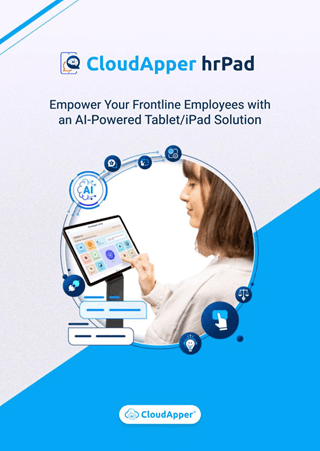
Brochure
CloudApper hrPad
Empower Frontline Employees with an AI-Powered Tablet/iPad Solution
Download Brochure
CloudApper AI Solutions for Workday

- Works with







- and more.
Similar Posts
How to Prevent Duplicate Worker and Pre-Hire Records in Workday…
How to Handle Offline Time Punches in Workday During Connectivity…