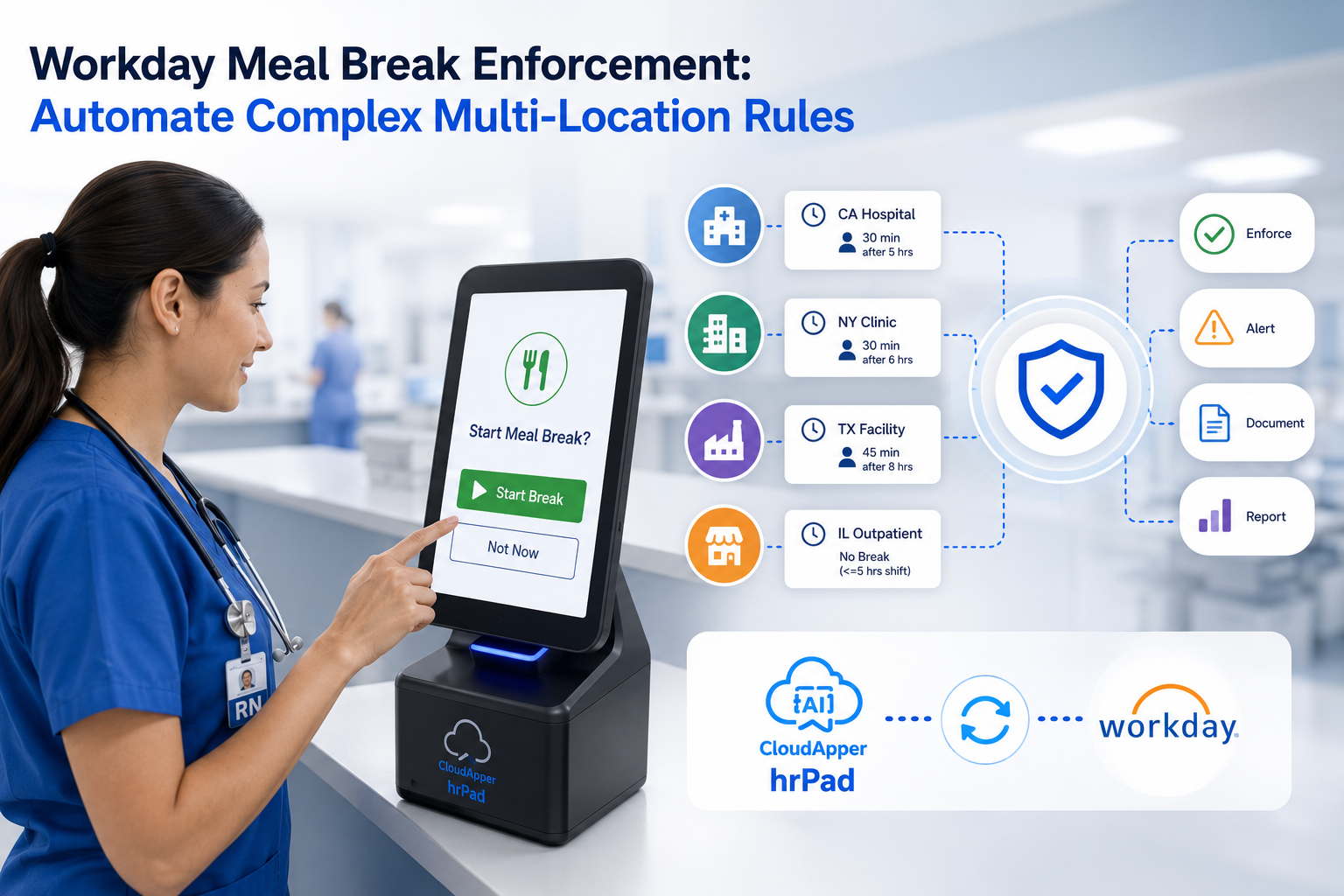
Stop wasting payroll hours on manual CSV exports. This article explains how Workday customers can replace the export-reformat-upload cycle with a real-time, two-way time data sync that automatically sends punches, PTO, and accruals into Workday, reducing payroll errors, eliminating file handling, and keeping payroll data continuously accurate.

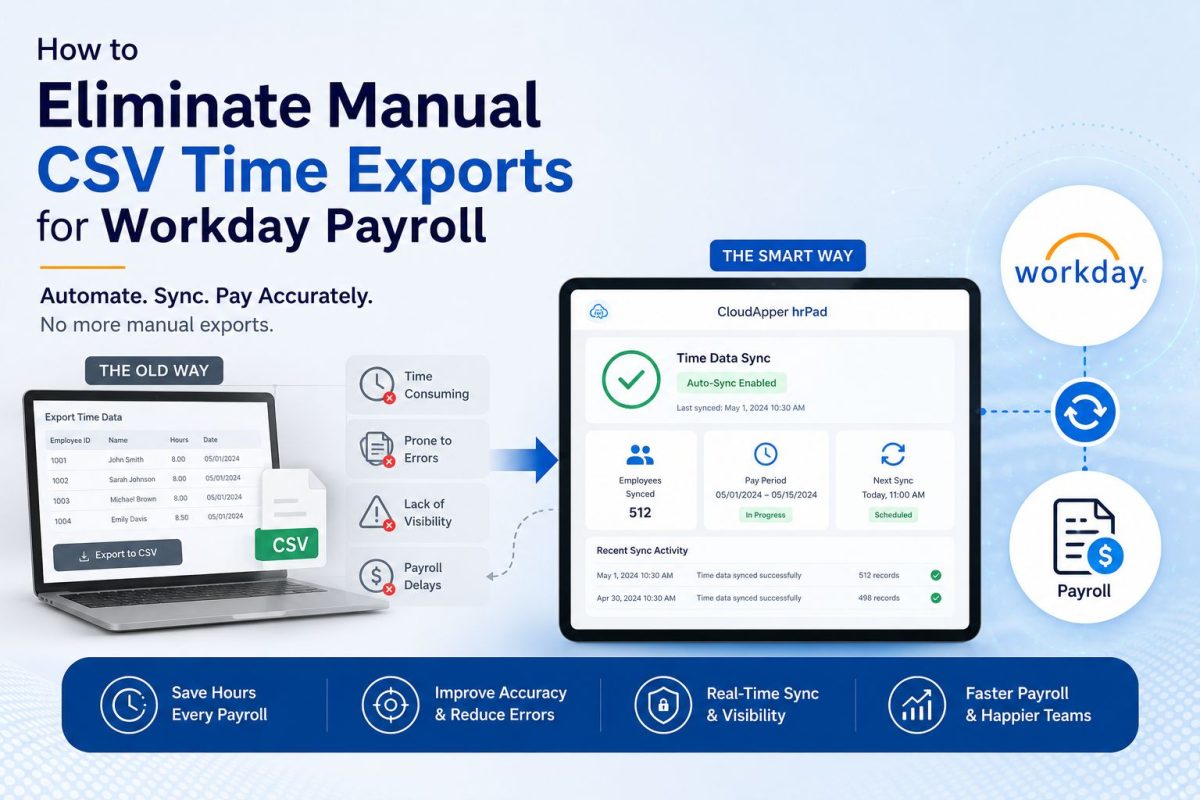
Table of Contents
- What Is the Manual CSV Export Problem in Workday Payroll?
- Why This Challenge Happens
- The Business Impact
- How to Eliminate Manual CSV Exports: A Step-by-Step Approach
- Best Practices
- How CloudApper hrPad Helps
- Example Workflow Scenario
- Frequently Asked Questions
- Conclusion
Most enterprise systems were built to store what happened, not to move it. Time gets captured in one place, payroll lives in another, and a person in the middle spends every pay period bridging the two by hand. That gap between where work is recorded and where it needs to land is where hours quietly disappear.

For a lot of Workday customers, that bridge is a CSV file. Someone pulls raw punch data off a local clock or a standalone system, opens it in a spreadsheet, cleans up the columns so they match what the import expects, saves it in the right format, and uploads it before the payroll deadline. It works. It also consumes real hours, invites avoidable errors, and puts a manual step between accurate time data and accurate pay.
This article walks through why that pattern is so common, what it costs, and how to move to a model where time data flows into Workday continuously instead of being carried across by hand each cycle.
What Is the Manual CSV Export Problem in Workday Payroll?
The manual CSV export problem is the recurring, hands-on process of pulling time data out of a source system, converting it into a file format Workday can accept, and uploading it before payroll runs. Because it repeats every pay period and depends on a person getting every column and value right, it becomes a predictable source of delay and error.
Workday itself is capable of ingesting time data. It offers inbound APIs for time-clock integration and supports file-based loads through tools like the Enterprise Interface Builder (EIB). The friction usually isn’t Workday’s ability to receive the data. It’s how the data gets prepared and delivered when the original capture happens somewhere Workday doesn’t natively reach: a machine on a local network, an on-premise clock, a departmental spreadsheet, or a legacy system that only knows how to spit out a file.
In those cases, the file becomes the integration. And a file created by hand every week is a fragile way to run payroll.
Why This Challenge Happens
A few common conditions push organizations into the manual export routine:
- Time is captured outside Workday’s direct reach. Frontline sites, plants, and field locations often log hours on local devices or clocks that aren’t wired into the Workday tenant. The data exists, but it has to be moved.
- Source formats don’t match the import template. Column order, date formats, employee identifiers, and pay codes rarely line up between the capture system and what Workday expects, so someone reshapes the file each time.
- Batch habits linger. Many payroll processes grew up around periodic uploads. Once a weekly export ritual exists, it tends to stay, even after better options become available.
- Connectivity is unreliable at the edge. Warehouses, production floors, and remote crews may not have steady network access, so data gets held locally and shipped in bulk later.
None of this reflects a shortcoming in the HCM. It reflects the reality that time is generated in messy, distributed places, and getting it into a clean, payroll-ready state has traditionally meant a person doing the moving.
The Business Impact
The cost of the manual export cycle rarely shows up as a single line item, which is exactly why it persists. It hides across several areas:
| Impact Area | What It Looks Like in Practice |
| Wasted HR/payroll hours | Staff spend part of every cycle exporting, cleaning, and re-uploading data instead of on higher-value work. |
| Error risk | A shifted column, a wrong date format, or a stale file version can produce incorrect pay and downstream corrections. |
| Payroll delays | The upload becomes a deadline dependency. If the file isn’t ready, payroll waits. |
| Weak audit trail | Manual handling makes it harder to prove exactly when and how time data entered the system. |
| Reconciliation overhead | When numbers don’t match, someone has to trace the discrepancy back through the file and the source. |
Multiply a few hours per cycle across a year and several sites, and the export routine turns into a standing tax on the payroll team, plus a recurring risk to pay accuracy.
How to Eliminate Manual CSV Exports: A Step-by-Step Approach
The goal is to remove the file as the bridge and let time data flow into Workday on its own. Here’s a practical sequence enterprises follow to get there.
Step 1: Map where time actually originates
List every place hours are captured today: kiosks, clocks, mobile apps, local systems, spreadsheets. You can’t automate a flow you haven’t traced. This inventory usually reveals more manual touchpoints than teams expect.
Step 2: Identify every manual handoff
For each source, note who exports, who reformats, and who uploads. Each of these is a step you’re aiming to retire. Pay attention to the reformatting step in particular, since that’s where most errors are introduced.
Step 3: Define what “payroll-ready” means in Workday
Confirm the exact fields Workday needs: worker identifiers, in/out times, pay codes, cost centers, and any attestation or labor data. This becomes the target the integration has to satisfy automatically.
Step 4: Replace the file with a continuous connection
Instead of preparing and uploading a file each cycle, connect the capture point directly to Workday so entries write through as they happen. This is where the manual routine actually disappears, because there’s no longer a batch to build.
Step 5: Make it two-way
Payroll data isn’t only inbound. Schedules, PTO balances, eligibility, and approvals need to flow back to the point of capture so employees and managers see accurate information. A one-directional feed still leaves gaps that get patched by hand.
Step 6: Handle offline gracefully
For sites with unreliable connectivity, entries should queue locally and sync automatically once the connection returns, so spotty networks never force you back into manual bulk uploads.
Step 7: Validate, then decommission the old routine
Run both processes in parallel for a cycle or two, confirm the automated data matches, and then retire the export ritual with confidence.
Best Practices
- Validate at the point of capture, not after upload. Catching a missing punch or a wrong cost center when the employee clocks in is far cheaper than fixing it in a payroll correction.
- Keep Workday as the system of record. The aim isn’t to move payroll logic out of Workday. It’s to feed Workday cleaner data, faster, without a person in the middle.
- Preserve a clear audit trail. Automated, timestamped entries are easier to defend in an audit than manually assembled files.
- Standardize pay codes and identifiers early. Most import pain traces back to mismatched codes. Aligning them up front prevents recurring cleanup.
- Plan for the edge cases. Mid-period hires, transfers, and role changes are where automated flows earn their keep, so confirm they’re handled before go-live.
How CloudApper hrPad Helps
Once the manual export routine is mapped out, the fix is to close the gap between where time is captured and where payroll lives, without adding a person to carry data across it. That’s the role CloudApper hrPad plays for Workday customers.
hrPad turns any iOS, Android, or Windows tablet into a self-service kiosk that connects directly to your Workday environment. Employees clock in and out, request PTO, check balances, and view schedules right at the point of work. Behind that simple interface is a shared intelligence layer that syncs with Workday in real time, so every punch, request, and approval writes through as it happens rather than waiting in a file for the next upload.
That real-time, two-way sync is what removes the CSV step entirely:
- Punches, PTO, and accruals flow directly into Workday as they’re captured, so there’s no export, no reformatting, and no batch upload before payroll.
- Data moves in both directions, so schedules, balances, and eligibility stay accurate at the kiosk while time and leave flow back into Workday.
- Offline capture is built in. When connectivity drops at a plant or remote site, entries queue locally and sync automatically once the connection is restored, so a weak network never sends the team back to manual uploads.
- Validation happens at clock-in, catching issues like job changes or cost center transfers before they reach payroll.
Workday stays your authoritative system of record throughout. hrPad adds capability around it and never writes to or alters your core tenant configuration. CloudApper’s own deployment data points to meaningful gains from this shift, including roughly an 80% reduction in missed punches across hrPad customers, which is exactly the kind of manual cleanup the export routine was compensating for.
For enterprises, the payoff isn’t only a cleaner data pipeline. It’s the payroll team getting cycle hours back, fewer corrections to chase, and pay data that’s continuously accurate rather than accurate only after someone finishes the file.
Example Workflow Scenario
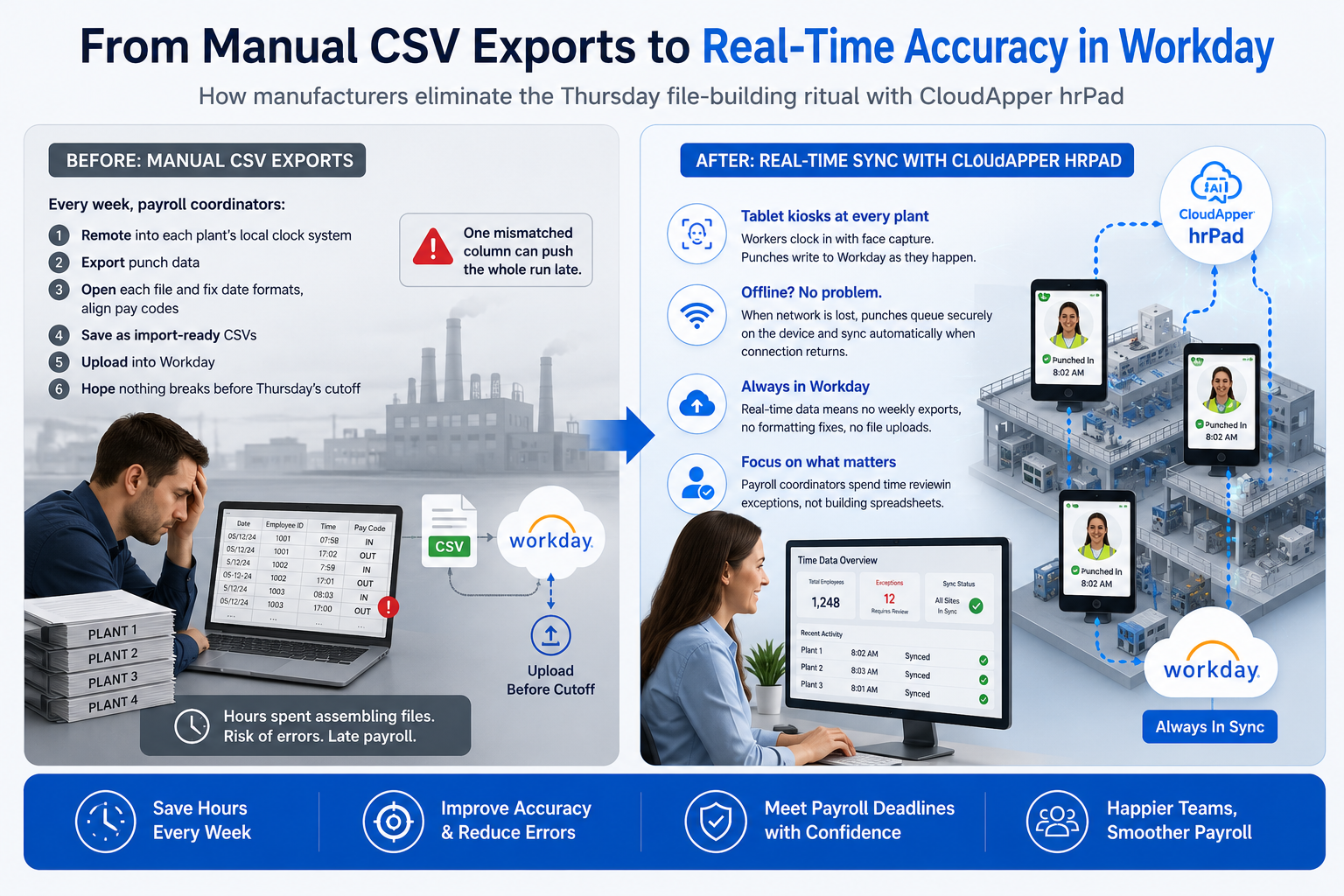
Consider a manufacturer running production across several plants. Today, each site logs punches on a local clock. Every week, a payroll coordinator remotes into each system, exports the punch data, opens each file to fix date formats and align pay codes, saves everything as import-ready CSVs, and uploads them into Workday before Thursday’s cutoff. A single mismatched column can push the whole run late.
After moving to hrPad, the plant clocks are replaced by tablet kiosks connected to Workday. Workers clock in with face capture, and each punch writes to Workday as it happens. When a line at one plant loses network access mid-shift, punches queue on the device and sync the moment the connection returns. The Thursday file-building ritual is gone. The coordinator spends that time reviewing exceptions instead of assembling spreadsheets, and payroll runs on data that was already accurate before the deadline arrived.
Frequently Asked Questions
Can Workday import time data on its own? Yes. Workday supports inbound time-clock integration through its APIs and file-based loads through tools like EIB. The manual effort usually comes from preparing and delivering that data when time is captured in a system Workday doesn’t natively reach, not from Workday’s ability to receive it.
Why do so many teams still export to CSV manually? Because time is often captured on local or standalone systems whose formats don’t match Workday’s import template. Reshaping the file by hand each cycle becomes the default bridge, especially where a periodic upload habit already exists.
What’s the risk of keeping the manual export process? The main risks are wasted payroll hours, formatting and version errors that lead to incorrect pay, deadline dependency that can delay payroll, and a weaker audit trail because data is handled manually.
How does real-time sync remove the CSV step? When the capture point connects directly to Workday, entries write through as they occur. There’s no batch to export, reformat, or upload, so the file that used to serve as the integration is no longer needed.
Does this change our Workday configuration? No. A well-designed extension like CloudApper hrPad runs alongside Workday and feeds it data. It doesn’t modify or write to your core tenant configuration, and Workday remains your system of record.
What happens when a site loses internet connectivity? With hrPad, punches are stored locally and sync to Workday automatically once the connection returns, so low-connectivity locations don’t force a return to manual bulk uploads.
Conclusion
The manual CSV export routine survives not because it’s good, but because it’s familiar and it technically works. The trouble is that it puts a person, and a fragile file, between accurate time capture and accurate pay, every single cycle. That’s hours the payroll team never gets back and a risk that compounds across sites and pay periods.
Closing that gap doesn’t mean replacing Workday or reworking your tenant. It means letting time data flow into Workday continuously instead of being carried across by hand. Enterprises that make this shift stop building files and start reviewing exceptions, and they run payroll on data that was already right before the deadline.
CloudApper is the process layer that closes the gaps enterprise software leaves between the system of record and the work itself. For Workday customers, hrPad is how time capture and payroll finally move as one, without waiting on a file, and without compromise.
What is CloudApper AI Platform?
CloudApper AI is an advanced platform that enables organizations to integrate AI into their existing enterprise systems effortlessly, without the need for technical expertise, costly development, or upgrading the underlying infrastructure. By transforming legacy systems into AI-capable solutions, CloudApper allows companies to harness the power of Generative AI quickly and efficiently. This approach has been successfully implemented with leading systems like UKG, Workday, Oracle, Paradox, Amazon AWS Bedrock and can be applied across various industries, helping businesses enhance productivity, automate processes, and gain deeper insights without the usual complexities. With CloudApper AI, you can start experiencing the transformative benefits of AI today. Learn More
- Useful Links:
- Agentic AI
- No-Code/Low-Code
- Custom Software
- HCM Personalization
- iPaaS
- FedRAMP

Brochure
CloudApper hrPad
Empower Frontline Employees with an AI-Powered Tablet/iPad Solution
Download Brochure
CloudApper AI Solutions for Workday


- Works with








- and more.
Similar Posts
How to Prevent Duplicate Worker and Pre-Hire Records in Workday…
How to Handle Offline Time Punches in Workday During Connectivity…