Table of Contents
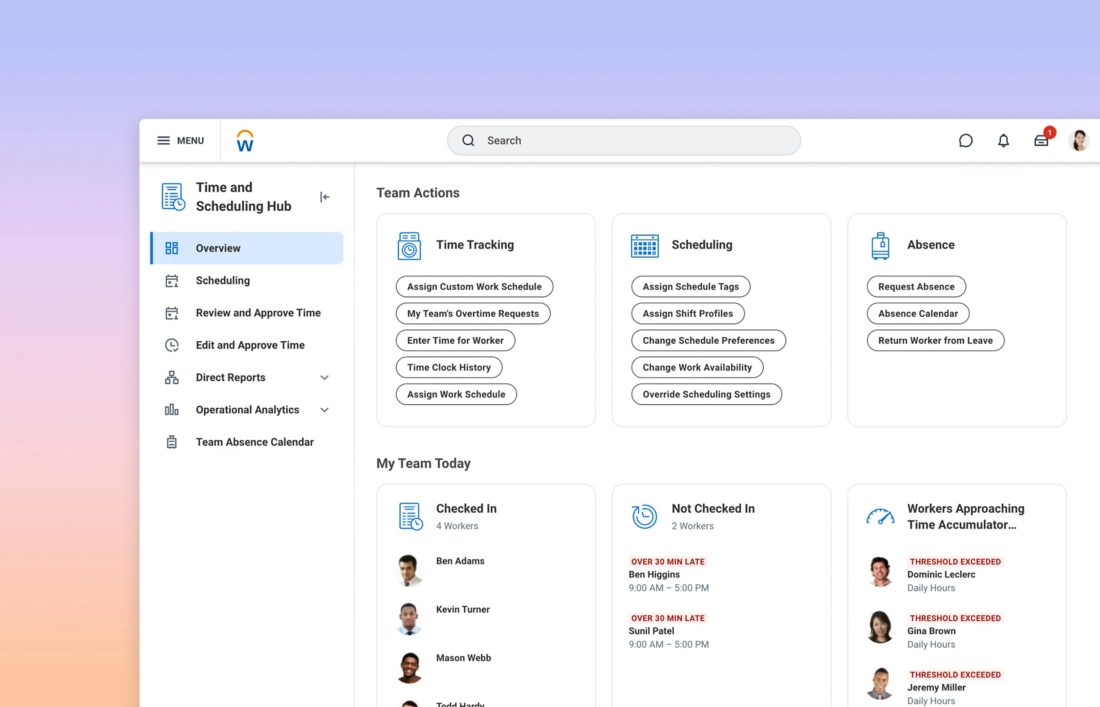
After switching to Workday, it’s frustrating when certain employees don’t start earning their paid time off (PTO) as expected. This usually stems from a disconnect between absence plan rules and the employee’s setup, especially right after implementation. Here’s how to diagnose and resolve it step by step.
Verify Absence Plan Enrollment
Start by confirming each affected employee is enrolled in the right PTO plan. Run the Assign Eligible Absence Plans task from the employee’s profile. This pulls in plans based on their profile and flags any gaps.
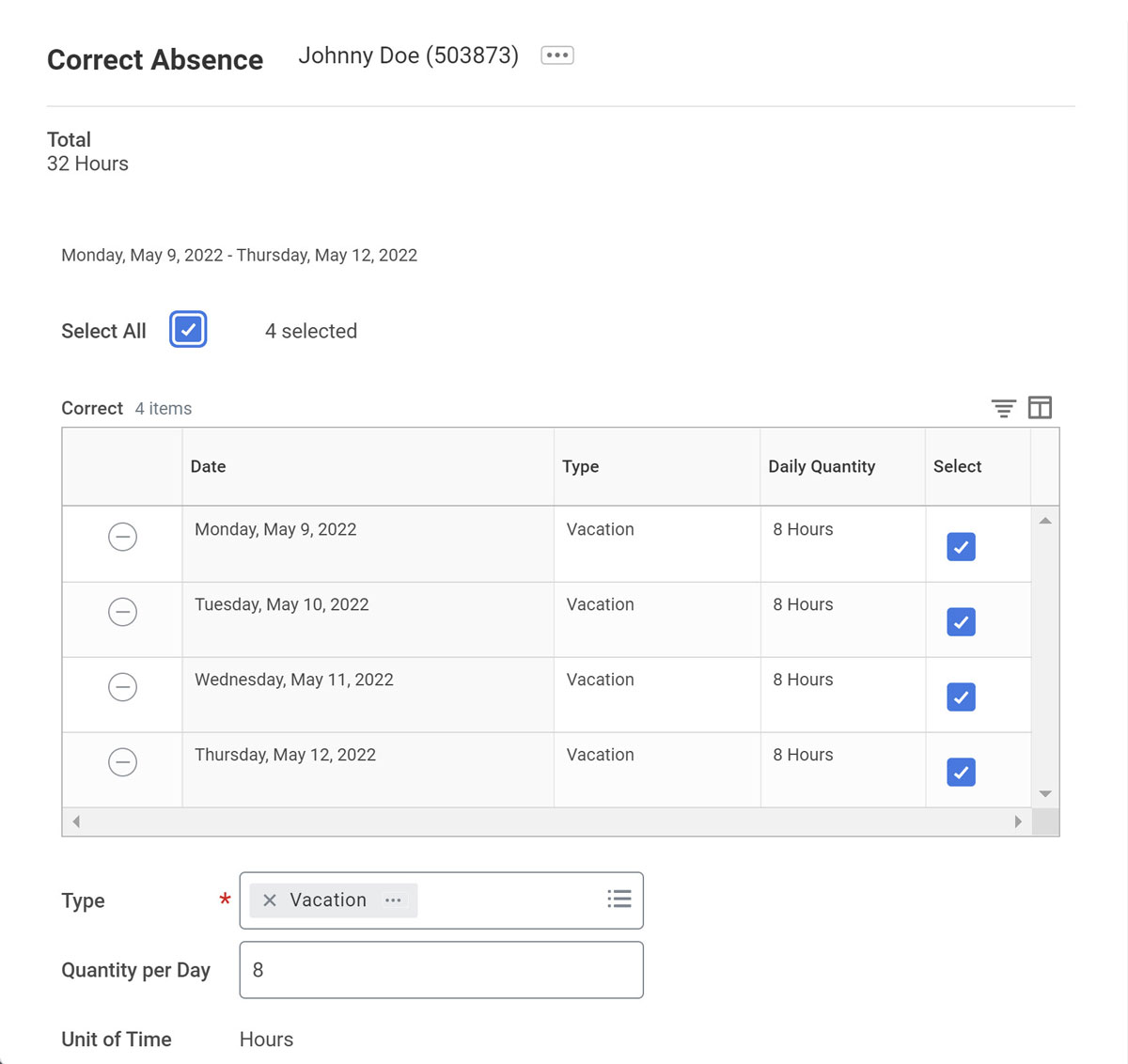
If no plan shows up, the worker isn’t eligible yet. Double-check the plan’s effective date—it must align with or follow the hire date. New hires often miss accruals if the plan kicks in later, like the first full pay period post-go-live.
Check Eligibility Rules Closely
Workday ties eligibility to specifics like job profile, worker type (full-time vs. part-time), location, or even cost center/country. A mismatch here blocks enrollment.
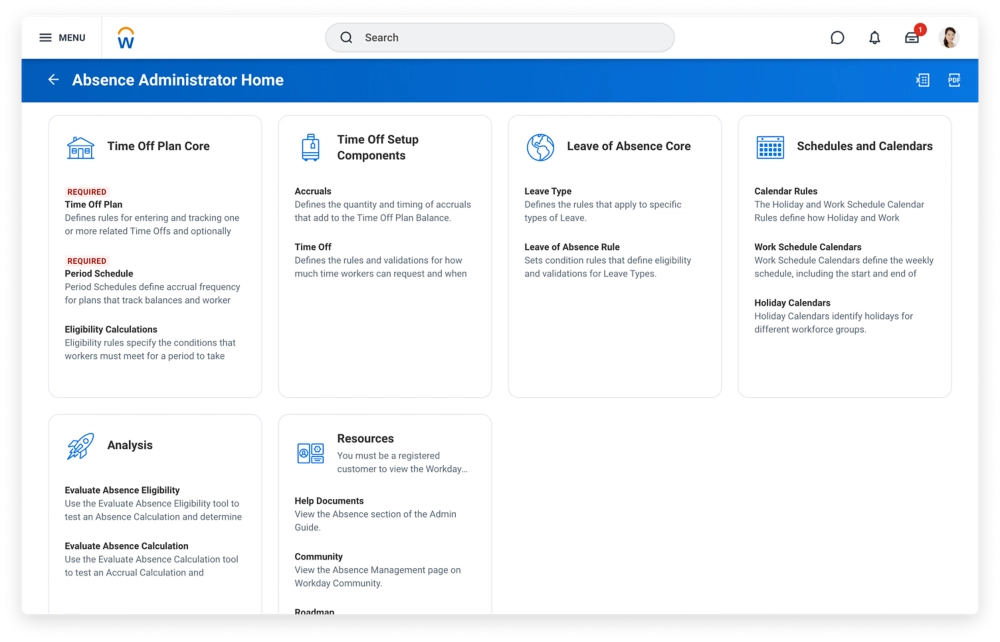
For instance, if rules reference the job’s country but the employee works remotely elsewhere, PTO won’t trigger. Review the Eligibility Rules in the absence plan setup. Look for overrides on the employee’s record that might exclude them, such as custom conditions for new hires or mid-period changes.
Test with Evaluate Absence Calculation to spot zeros in the accrual directory—common culprits include unmet scheduling rules or years-of-service tiers starting at zero.
Align Dates and Accrual Triggers
Timing is critical. Ensure the hire date, plan assignment, and accrual start date sync up. PTO often accrues on payroll or monthly runs, so employees might wait until the first eligible cycle completes after go-live.
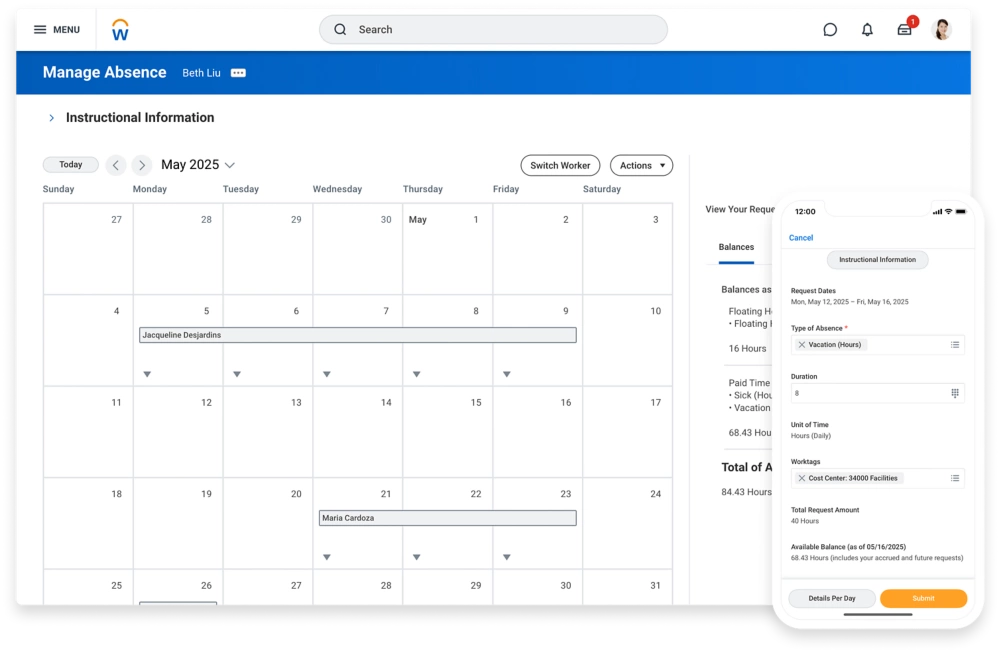
Carryover limits or max balances can also halt new accruals if prior balances hit caps. For transfers or role changes, the new setup might switch plans entirely, resetting expectations.
Quick Fixes to Restore Accruals
-
Re-run Assign Eligible Absence Plans and save to force enrollment.
-
Adjust eligibility to use flexible traits like home country over cost center for remote workers.
-
Manually grant a lump-sum accrual if needed, but fix the root rule first.
-
Run Evaluate Absence Calculation post-changes to confirm balances update.
These steps typically resolve post-go-live glitches without custom code. Test on a single employee first, then scale via security groups. Your PTO should flow smoothly once rules match reality.

What is CloudApper AI Platform?
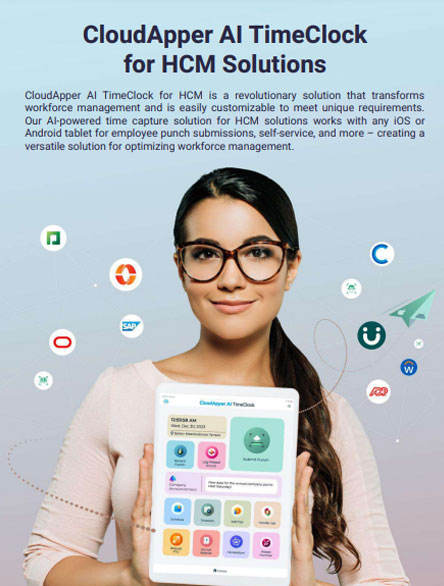
CloudApper AI is an advanced platform that enables organizations to integrate AI into their existing enterprise systems effortlessly, without the need for technical expertise, costly development, or upgrading the underlying infrastructure. By transforming legacy systems into AI-capable solutions, CloudApper allows companies to harness the power of Generative AI quickly and efficiently. This approach has been successfully implemented with leading systems like UKG, Workday, Oracle, Paradox, Amazon AWS Bedrock and can be applied across various industries, helping businesses enhance productivity, automate processes, and gain deeper insights without the usual complexities. With CloudApper AI, you can start experiencing the transformative benefits of AI today. Learn More
- Useful Links:
- Agentic AI
- No-Code/Low-Code
- Custom Software
- WorkBridge
- iPaaS
- FedRAMP