Learn how organizations can improve Workday time clock correction workflows with required comments, employee notifications, and automated audit-ready processes using CloudApper hrPad and no-code workflow automation.

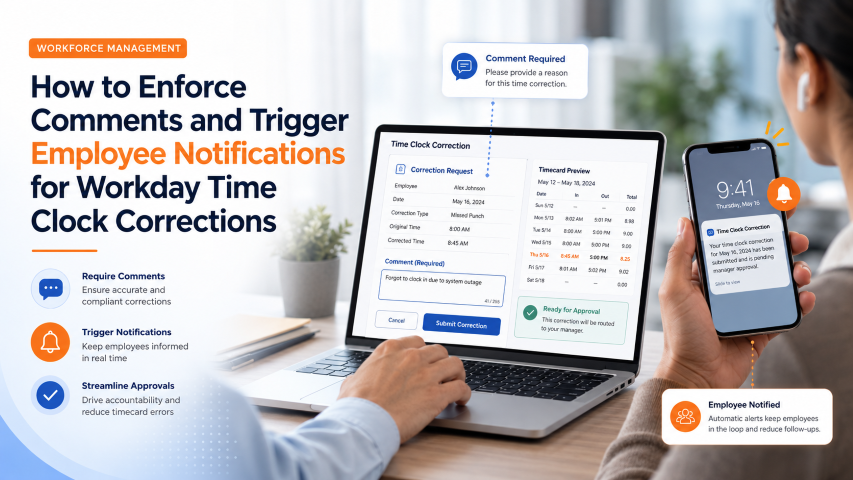
For organizations running large hourly or shift-based workforces, time clock corrections are a routine operational reality. A supervisor edits a punch. A missed clock-in gets fixed after the fact. A shift runs long and someone adjusts the block manually. These corrections happen every day — and in most cases, they are completely legitimate.
The issue is not the corrections themselves. It is what happens after them. Employees often have no idea their time record was changed. There is no notification, no explanation, no audit note they can review. From the employee’s perspective, their timesheet just looks different than it did before.

That creates trust problems. In unionized environments, it creates compliance exposure. And in regulated industries — healthcare, manufacturing, logistics, government contracting — it can compromise audit readiness.
Getting a handle on this workflow is not just an operational nicety. For many organizations, it is a genuine compliance requirement.
Understanding the Workday Configuration
Workday provides a solid mechanism for comment enforcement within Time Entry Templates. When a template is configured to require comments, workers and supervisors must provide justification when correcting time entries submitted through that template. This works well for standard time entry corrections.
The challenge arises specifically with the Edit Time Clock Event Date and Time action. This path allows supervisors or payroll administrators to modify the raw clock event — the actual punch data, not just the calculated time block — and it operates outside the comment enforcement rules set by Time Entry Templates.
When a correction is made this way, the system accepts the save with no comment required. The change is recorded, but there is no mandatory justification attached, and no notification goes to the employee whose record was altered.
For organizations that need full accountability across all correction paths — not just template-based entries — this creates a real operational gap.
Why This Matters Operationally
| Scenario | Risk Without Comment + Notification |
| Supervisor adjusts punch time after-the-fact | Employee has no record of the change or reason |
| Payroll admin corrects a clock event before processing | Audit trail incomplete; dispute resolution is harder |
| Time block changed to align with scheduled shift | Union grievance risk if employee disputes accuracy |
| Correction made near overtime threshold | Compliance exposure if change is not documented |
For HR teams, the downstream effects of undocumented time corrections are significant. Grievance investigations take longer. Payroll disputes are harder to resolve. And if a regulatory body requests documentation of how time records were maintained, gaps in the comment trail become a liability.
What Workday Can Do Natively
Before exploring workarounds and extensions, it is worth being clear about what Workday does provide out of the box.
Time Entry Templates: Comment requirements can be enforced for time corrections made through the standard time entry UI. This covers a significant portion of correction scenarios.
Audit Trails: Workday maintains a system audit log for changes to time data. HRIS and payroll teams with appropriate access can review who changed what and when — even if a comment was not required at the time of the change.
Business Process Notifications: Workday’s Business Process Framework supports notification steps for many time-related workflows. For processes routed through a formal BP, notifications to workers are configurable.
Custom Reports and Alerts: Workday’s reporting engine can be configured to surface recent clock event edits. Scheduled reports can give payroll or HR visibility into corrections that occurred within a given period.
These native options provide meaningful transparency for teams willing to build and maintain them. For many organizations, a well-configured audit report is a reasonable first step.
Best Practices for Time Correction Transparency
- Limit who can perform Edit Time Clock Event corrections. Restricting this action to payroll administrators or senior HR staff reduces the volume of undocumented changes and makes audit monitoring more manageable.
- Establish a comment convention even when it is not enforced. Some organizations train supervisors to always add a Workday inbox note or send a worker notification after a manual correction, even without a system requirement. Consistency matters more than enforcement method.
- Build correction review into your payroll close checklist. Running your audit report as part of the pre-payroll review process catches undocumented corrections before they affect pay — and before an employee dispute surfaces.
- Align correction policy with union agreements. If your workforce is covered by a CBA, review whether time correction notification requirements are specified. Some agreements require worker acknowledgment of changes to their time records.
- Use Workday’s existing BP notifications where possible. If certain correction workflows can be routed through a Business Process, the notification capabilities there are more robust and less dependent on manual steps.
When Native Configuration Reaches Its Limits
For organizations that need enforced comments and automated employee notifications — not just manual protocols or scheduled reports — native Workday configuration does have practical boundaries around the Edit Time Clock Event path.
The reason is structural. Enforcing a comment on an action that bypasses the Time Entry Template framework requires either a business process that gates the save action, a calculated field or validation that fires on that specific event type, or an external layer that intercepts the correction and applies its own rules before writing data back to Workday.
Most Workday tenants are not configured to route Edit Time Clock Event corrections through a formal Business Process. And adding custom validations to system actions in Workday typically requires significant HRIS or Workday-certified implementation resources.
That is where organizations begin looking at workflow automation approaches that sit alongside Workday and handle the enforcement and notification logic externally.
How CloudApper Solves This With hrPad and Custom Workflow Automation
CloudApper offers two complementary approaches for Workday customers who need comment enforcement and employee notifications for time clock corrections.
hrPad: Enforced Comment Collection at the Point of Correction
hrPad is CloudApper’s frontline HR kiosk solution, built to work natively with Workday Time Tracking. When time corrections are processed through hrPad rather than directly through the Edit Time Clock Event action, the CloudApper UI enforces the comment requirement before the correction is ever sent to Workday.
Here is how it works in practice: instead of a supervisor navigating directly to Edit Time Clock Event in Workday, the correction is made through hrPad’s interface. CloudApper’s configuration requires a comment field — and that field is mandatory before submission. Only after the comment is captured does hrPad sync the corrected time data back to Workday.
The result: Workday receives a clean, accurate time record, and the comment is captured and logged on the CloudApper side, with a reference synced back where applicable. Your core Workday tenant is untouched. No custom validation logic is needed in Workday itself.
Custom Workflow Automation: Automated Employee Notifications
CloudApper’s no-code workflow builder can be configured to trigger employee notifications whenever a time correction is processed through the CloudApper layer. The notification can be delivered via the hrPad kiosk interface, a mobile device, SMS, or through a configurable channel — without requiring any changes to Workday’s Business Process Framework.
The workflow logic is straightforward:
- Supervisor initiates a time correction via hrPad
- CloudApper requires and captures a comment
- The correction and comment are synced to Workday
- CloudApper triggers an automated notification to the affected employee with the correction details and reason
Employees see what changed, why it changed, and when. Supervisors have a documented record. Payroll has a complete audit trail — all without a single developer involved in the configuration.
For organizations with more complex requirements — multi-tier approval routing before a correction is finalized, automated escalation if a correction falls outside a defined threshold, or integration with a third-party scheduling or ERP system — CloudApper’s custom workflow builder handles those scenarios through the same no-code visual platform.
Example Workflow: Manufacturing Plant, Assembly Line Operations
Consider a manufacturing environment where floor supervisors manage biometric time clock corrections for assembly line workers. The plant runs multiple shifts, workers share kiosk stations, and corrections to clock events are common — missed punches, shift overlaps, job code reassignments.
Before: Corrections are made directly in Workday via Edit Time Clock Event. No comment is required. Workers do not receive any notification that their time was adjusted. At payroll close, the HR team runs a manual review and occasionally discovers undocumented changes.
After CloudApper hrPad deployment:
- Supervisors make all corrections through the hrPad interface on the kiosk
- CloudApper requires a comment before the correction is submitted
- The corrected time and comment sync to Workday automatically
- The affected worker receives a notification on the kiosk at their next login, showing what was changed and why
- The HR team has a full correction log accessible through CloudApper’s reporting dashboard, with all data reflected in Workday
The audit trail is complete. The employee experience is transparent. And the Workday tenant configuration remains exactly as it was.
FAQ Section
Can Workday require comments for Edit Time Clock Event corrections natively? Workday’s Time Entry Template comment requirement applies to standard time entry corrections but does not extend to the Edit Time Clock Event Date and Time action. Organizations that need enforced comments for this specific action typically use audit reporting, process governance controls, or an external workflow layer to capture justification before corrections are submitted.
What is the difference between a Time Entry Template correction and Edit Time Clock Event? A Time Entry Template correction adjusts time blocks submitted through Workday’s standard time entry UI and can be governed by template configuration rules, including comment requirements. Edit Time Clock Event Date and Time modifies the underlying raw clock event data directly and operates outside the template framework.
Can Workday automatically notify employees when their time block is corrected? Workday supports worker notifications through its Business Process Framework for certain time workflows. For corrections made via Edit Time Clock Event — which typically bypass formal business processes — automated notifications require either a custom business process configuration or an external workflow automation layer.
How do organizations handle time correction transparency in unionized environments? Many organizations with unionized workforces establish written policies requiring supervisors to document reasons for any time correction and notify affected workers. Some augment this with automation tools that enforce comment collection and trigger notifications at the moment of correction, reducing reliance on manual compliance.
Does CloudApper modify the Workday tenant to add these capabilities? No. CloudApper operates as a layer alongside Workday, handling comment enforcement and notification logic within its own platform before syncing corrected data back to Workday. The Workday tenant configuration, security model, and data structure remain unchanged.
What industries most commonly need enforced time correction comments? Healthcare, manufacturing, logistics, retail, and government contracting organizations face the highest demand for time correction transparency — typically driven by union agreements, regulatory audit requirements, or internal compliance standards.
Can CloudApper’s correction workflow be configured without developers? Yes. CloudApper’s workflow builder uses a visual, no-code interface. HR operations and HRIS teams configure the comment requirements, notification triggers, and sync logic without writing code or engaging IT development resources.
What is CloudApper AI Platform?
CloudApper AI is an advanced platform that enables organizations to integrate AI into their existing enterprise systems effortlessly, without the need for technical expertise, costly development, or upgrading the underlying infrastructure. By transforming legacy systems into AI-capable solutions, CloudApper allows companies to harness the power of Generative AI quickly and efficiently. This approach has been successfully implemented with leading systems like UKG, Workday, Oracle, Paradox, Amazon AWS Bedrock and can be applied across various industries, helping businesses enhance productivity, automate processes, and gain deeper insights without the usual complexities. With CloudApper AI, you can start experiencing the transformative benefits of AI today. Learn More
- Useful Links:
- Agentic AI
- No-Code/Low-Code
- Custom Software
- HCM Personalization
- iPaaS
- FedRAMP

Brochure
CloudApper hrPad
Empower Frontline Employees with an AI-Powered Tablet/iPad Solution
Download Brochure
CloudApper AI Solutions for Workday


- Works with








- and more.
Similar Posts
How to Prevent Duplicate Worker and Pre-Hire Records in Workday…
How to Handle Offline Time Punches in Workday During Connectivity…