Workday mileage reimbursement runs on expense reports with a distance-based expense item and rate table, not on quick expenses. This guide covers the five setup steps, Google Maps estimates versus actual distance, the January rate change decision, and where field mileage still lands in spreadsheets before it reaches Workday.

TL;DR
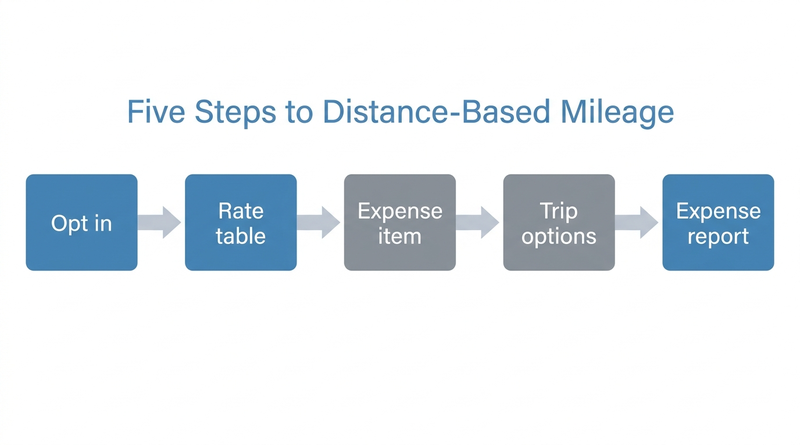
Workday mileage reimbursement runs on expense reports, because Workday documents that rate-based items such as mileage are not supported on quick expenses. The setup is five steps: opt in to Distance Calculation for Expenses, create a rate table that evaluates Distance to Expense, create the expense item, choose trip options, and route workers to expense reports. Before January, decide whether to change the rate table's effective date or issue a new expense item, and write down who approves actual distances that differ from the Google Maps estimate. For field teams whose mileage still starts in spreadsheets, CloudApper Mileage Tracker captures trips alongside Workday Expenses.
Table of Contents
- Five Steps From Opt-In to a Rate That Calculates
- The January Change and the Item Sprawl Behind It
- Estimated Distance Is Not Approved Distance
- When Field Mileage Never Reaches the Expense Report
Workday mileage reimbursement only works on an expense report: Workday documents that it does not support rate-based items such as mileage on quick expenses. A distance-based mileage expense item tied to an expense rate table does the calculation, and every January it needs a deliberate rate change. CloudApper Mileage Tracker runs alongside Workday Expenses for teams whose mileage still starts in a spreadsheet.
Five Steps From Opt-In to a Rate That Calculates
- Opt in to Distance Calculation for Expenses. Workday’s configuration example enables it under Innovation Services on the Available Services tab. Your subscription agreement may add steps.
- Create the expense rate table. Use the Create Expense Rate Table task and evaluate Distance to Expense.
- Create the expense item. Use the Create Expense Item task, apply the rate table, then open the Distance Calculation tab to require distance attributes and set the unit.
- Choose the trip options. The same tab offers trip distance including diversions, one-way daily commute distance, and round trip.
- Send workers to expense reports. When a payee enters origin and destination, Workday uses Google Maps to estimate distance and multiplies it by the table’s rate.
The January Change and the Item Sprawl Behind It
Workday documents that expense rate tables are effective-dated and take snapshots, so you can audit which rate applied. Customer practice varies: Wake Forest University told staff to use a new mileage expense item for 2026 that activates Google Maps, while the University of Arkansas at Little Rock cut its mileage items to two. Both are practitioner patterns. Decide before January whether you change the table’s effective date or issue a new item, and confirm in your tenant how in-flight reports behave. Any correction after payment follows your overpayment recovery rules.
Estimated Distance Is Not Approved Distance
Workday lets payees enter an actual distance that differs from the Google Maps estimate. That suits closed roads and detours, and it moves the dispute to the approver. Write down who holds final authority, route the claim through your business process approvals, and give payroll and AP a reason code so overrides show up in your payroll exception review. Mileage reaching payroll as an earning needs a third-party payroll connection that carries it correctly.
When Field Mileage Never Reaches the Expense Report
This is a practitioner pattern, not a documented Workday limit: drivers log trips in the vehicle, then retype them from a spreadsheet days later, so estimates and actuals drift apart. CloudApper’s mileage page names the target as “No more spreadsheet calculations or mileage disputes,” and CloudApper Mileage Tracker is built to remove that retyping step. Keep the control trail ready for a Workday audit.
Capturing Mileage Before It Becomes a Spreadsheet
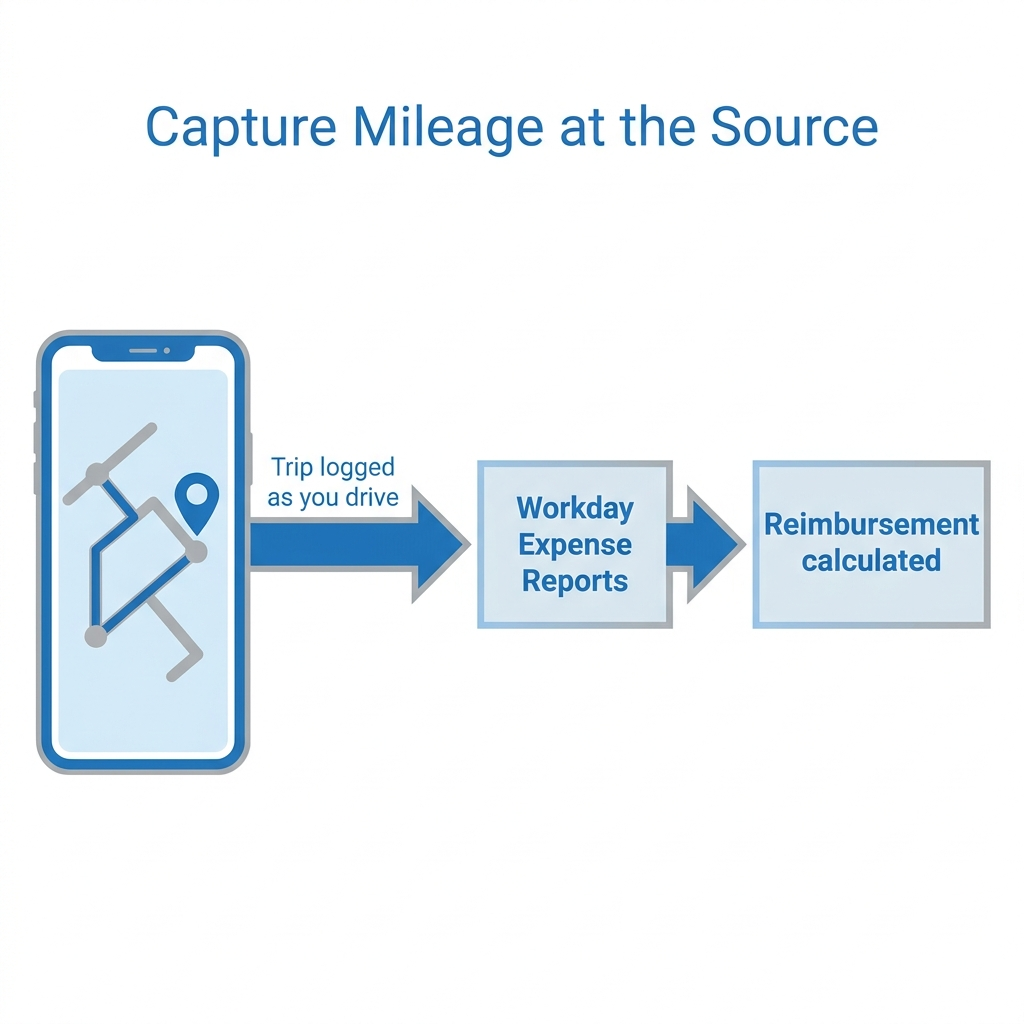
CloudApper Mileage Tracker builds on the expense items you configured. Its page describes mileage data flowing to Workday Expense Reports, so field employees record trips as they drive. CloudApper AI for HCM Personalization also lists mileage reimbursement errors among the problems it addresses.
Frequently Asked Questions
Q: Can you add mileage to a quick expense in Workday?

No. Workday documents that it does not support rate-based expense items, such as mileage, on quick expenses. Use an expense report with a distance-based expense item.
Q: How does Workday calculate mileage reimbursement?
The expense item uses a rate table that evaluates Distance to Expense. Workday estimates distance with Google Maps from the origin and destination, then multiplies it by the table’s rate.
Q: How do I enable Google Maps distance in Workday?
Opt in to Distance Calculation for Expenses under Innovation Services, then configure the Distance Calculation tab on the expense item.
Q: Can employees enter a different distance than Google Maps?
Yes. Workday documents that payees can enter an actual trip distance that differs from the estimate, so set an approval policy for overrides.
Q: How do I change the Workday mileage rate in January?
Rate tables are effective-dated and keep snapshots for audit. Some customers issue a new expense item each year. Confirm in your tenant which fits.
If mileage still passes through spreadsheets before it reaches Workday, talk with CloudApper about capturing it alongside your Workday Expenses setup.

What is CloudApper AI Platform?
CloudApper AI is an advanced platform that enables organizations to integrate AI into their existing enterprise systems effortlessly, without the need for technical expertise, costly development, or upgrading the underlying infrastructure. By transforming legacy systems into AI-capable solutions, CloudApper allows companies to harness the power of Generative AI quickly and efficiently. This approach has been successfully implemented with leading systems like UKG, Workday, Oracle, Paradox, Amazon AWS Bedrock and can be applied across various industries, helping businesses enhance productivity, automate processes, and gain deeper insights without the usual complexities. With CloudApper AI, you can start experiencing the transformative benefits of AI today. Learn More
- Useful Links:
- Agentic AI
- No-Code/Low-Code
- Custom Software
- HCM Personalization
- iPaaS
- FedRAMP
Brochure
CloudApper AI TimeClock
For accurate & touchless time capture experience.
Download Brochure
CloudApper AI Solutions for Workday



- Works with








- and more.
Similar Posts

Workday Seniority Date vs. Continuous Service Date: Which One Drives…

Workday Time Entry Cost Center Override: Why Hours Post to…