When employees can't find their worked hours in Workday, it usually comes back to one of three things: unclear navigation, a security configuration gap, or a time entry method mismatch. This guide walks Workday admins through the native solutions, common failure points, and self-service options for frontline workers who lack direct Workday access.
Table of Contents
- TL;DR
- Why Employees Can’t Find Their Hours in Workday
- How Employees View Worked Hours in Workday — The Standard Path
- Common Reasons Employees Can’t See Their Hours
- Where Workday’s Native Experience Has a Real Ceiling
- What a Self-Service Layer Adds for Admins and Employees
- What Self-Service Time Visibility Looked Like in Practice
- A Note on Setting Employee Expectations
- FAQ
If you manage a Workday environment, you’ve almost certainly dealt with this one. An employee — sometimes several in the same week — submits a ticket, sends an email, or walks up to someone in HR to ask: “How do I see how many hours I’ve worked in Workday?”

It sounds like a small thing. And honestly, it should be. But it keeps coming up, and there are real reasons why.
This article is written for the people on the admin side — the ones who configure Workday, manage security roles, and field these questions. We’ll cover what Workday actually offers natively, why so many employees still can’t find their hours, and where the setup gaps tend to live. We’ll also look at what a self-service layer on top of Workday can do for the organizations where the native experience genuinely doesn’t reach far enough.
TL;DR
Employees frequently can’t see their hours in Workday due to unclear navigation, security group misconfigurations, or time entry method mismatches. For admins, the fix usually involves surfacing the Time Summary worklet and auditing role-based access. For organizations with frontline workers who lack individual Workday logins, a tablet-based self-service kiosk like CloudApper AI TimeClock can extend time visibility without changing Workday’s security architecture.
Why Employees Can’t Find Their Hours in Workday
The most common assumption when an employee can’t find their hours is user error. Sometimes that’s true. But if you’re seeing this question repeatedly, the more likely explanation is one of three things.
The navigation isn’t obvious to people who aren’t power users
Workday is a dense system. Employees who log in twice a month to check a payslip have no mental model for where time data lives. The Time worklet isn’t always front and center on their home dashboard, and “Time Entry” doesn’t immediately read as “where I see my hours” to someone who just wants a total.
Access is more restricted than you realize
Workday’s security model is role-based and granular, which is great for compliance but easy to misconfigure in ways that quietly remove access. An employee whose time entry method changed — from a timeclock integration to manual entry, for example — may find that certain views no longer populate for them, without any error message explaining why.
What they’re looking for doesn’t exist in the way they expect it to
Employees often want a simple number: total hours worked this week, this pay period, this month. Workday doesn’t always present time data that way out of the box. Depending on how time is tracked and how reports are configured, the information is there — but scattered across views that require some navigation to piece together.
None of this is catastrophic. But it does mean that the burden of explanation falls on HR and admins, repeatedly, for something that should be self-evident.
How Employees View Worked Hours in Workday — The Standard Path
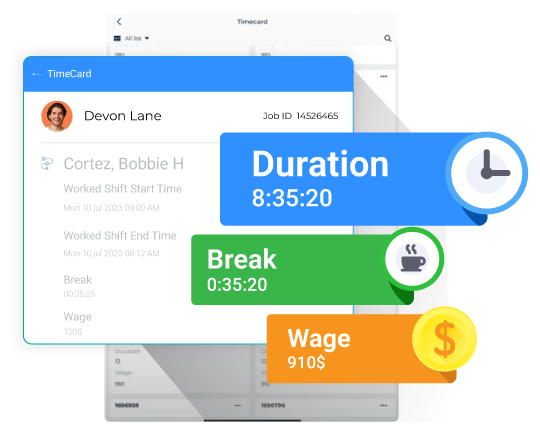
For reference, here’s what the experience looks like for an employee with standard access configured correctly.
From a desktop browser: The primary path is through the Time worklet on the Workday homepage. From there, employees navigate to This Week or Last Week to see entered time, or use Time Entry Calendar to view hours by day. For pay period totals, the Time Summary view (if enabled and surfaced) gives a cleaner breakdown.
From the Workday mobile app: Time access exists in the mobile app but is more limited than desktop. Employees can view and enter time, but the reporting depth is reduced. If your workforce is predominantly mobile, this is worth factoring into how you communicate expectations.
What managers can see: Managers with the appropriate security roles can access team time through My Team’s Time or via the Time worklet in their manager view. They can review submitted hours, approve timesheets, and run basic team-level summaries without needing admin access.
For admins running reports: The Time Summary report in Workday gives a configurable view of hours by worker, period, and time type. For more granular analysis, custom reports built on the Time Tracking domain can surface data that the standard worklets don’t expose. These are also the reports worth publishing to employee self-service dashboards if you want to reduce inbound questions.
Common Reasons Employees Can’t See Their Hours
When an employee says they can’t find their hours, these are the places worth checking first:
Security group misconfiguration
If an employee’s role doesn’t include view access to Time Entry or Time Summary, they’ll either see a blank screen or nothing at all. This happens more often after org changes, role transitions, or HCM migrations where security groups weren’t fully audited.
Time entry method mismatch
Employees clocking in via a third-party time clock integration may not see their punch data reflected in their Workday time views — especially if the integration writes to a different time type than the one their worklet is configured to display.
Pay period or time tracking period not set up
If a worker’s pay group or time tracking setup was misconfigured during onboarding, their time summary may show zero hours even when punches exist in the system. This one tends to surface during payroll review rather than when employees check their hours, which means it can go unnoticed.
The Time Summary worklet isn’t on their dashboard
This is the most fixable issue. Admins can configure which worklets appear on employee home pages. If Time Summary isn’t surfaced, employees who don’t know to look for it won’t find it — and the ones who do find it will have navigated through several layers to get there.
A practical fix: if you’re seeing a lot of “how do I see my hours” tickets from a specific department or location, run a quick security audit for that population and check whether their home dashboard includes the Time Summary worklet. More often than not, that resolves it.
Where Workday’s Native Experience Has a Real Ceiling
Fixing security configurations and surfacing worklets addresses most of the problem for office-based employees with individual Workday logins. But there’s a segment of the workforce where no amount of worklet configuration helps: frontline and deskless workers.
These are employees who don’t sit at a desk. They work on production floors, in warehouses, at healthcare facilities, in retail locations. Many of them don’t have company-issued devices, and a meaningful portion don’t have individual Workday credentials at all — they clock in via a shared kiosk or biometric terminal that writes to Workday on their behalf.
For this group, “go check your hours in Workday” isn’t a practical answer. They don’t have a login. Even if they did, they’d need a device and a quiet moment to use it — neither of which are common on a shift floor.
This is the gap that shared-device self-service solutions are designed to fill. The idea is straightforward: instead of expecting every employee to access the full Workday interface, you deploy a simplified kiosk interface at the clock location that lets employees see their own time data without a full Workday login.
What a Self-Service Layer Adds for Admins and Employees
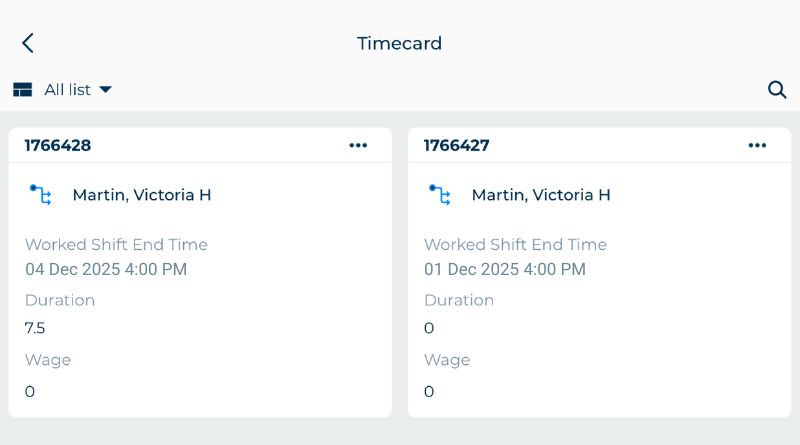
This is where something like CloudApper AI TimeClock becomes relevant from an admin perspective — not as a replacement for Workday, but as a self-service extension of it.
The setup is tablet-based: an iPad or Android tablet mounted at the clock location runs the CloudApper AI TimeClock app, which integrates directly with Workday. Employees authenticate via facial recognition, then can see their own hours, check their schedule, view PTO balances, and submit time-off requests — all without logging into Workday directly.
From the admin side, a few things change:
Helpdesk volume drops: Employees who previously couldn’t access their time data now have a physical touchpoint that answers the question for them, at the place they already go to clock in.
Security configuration stays clean: You’re not creating individual Workday logins for frontline workers who don’t need full system access. The kiosk handles identity verification (via biometrics) and surfaces only the time data relevant to that employee.
Workday remains the system of record: All data still lives in Workday. The kiosk is a display and input layer — it doesn’t create a parallel data system that needs to be reconciled.
For organizations with a significant frontline workforce running Workday, this is worth evaluating. The recurring cost of helpdesk tickets and HR time spent answering “how do I see my hours?” adds up faster than most admins realize until someone actually tracks it.
What Self-Service Time Visibility Looked Like in Practice
A retail chain running 5,000 employees was fielding a constant stream of “how many hours did I work?” queries that HR had to answer by hand. After putting a self-service layer in front of Workday, the company reported a 40% reduction in administrative workload, a 30% increase in employee engagement, and a 25% improvement in payroll accuracy — with employees checking their own hours, schedules and time-off balances at the clock instead of raising a ticket.
For customer security reasons, we cannot disclose the customer’s name.
A Note on Setting Employee Expectations
Even with good configuration and a self-service layer in place, some education is still needed. A short internal guide — one page, plain language — explaining where employees find their hours, what view shows pay period totals vs. daily breakdowns, and who to contact if something looks wrong goes a long way. It doesn’t replace system fixes, but it reduces the volume of questions that come in from employees who are just slightly lost rather than genuinely blocked.
The goal isn’t to make Workday simpler than it is. It’s to make sure the path to this one common answer is short enough that employees can find it without needing help every time.
For more on extending Workday’s time tracking capabilities, see:
- Time Clock Integration Between Workday Time Tracking & Payroll Systems
- Real-Time Time Clock Data Integration With Workday HCM & Payroll
- Ensuring Compliance With Labor Laws and Regulations — Workday Time Clocks
FAQ
How do I find my timesheet in Workday?
Open the Time application from the Workday home page and choose the week you want under Enter Time, or use the Time Summary worklet to see hours already recorded. If neither appears, your organization either uses a different time entry method or has not granted your security group access to the Time worklet.
Q1: How do employees see how many hours they’ve worked in Workday?
Employees with standard access can view their worked hours through the Time worklet on their Workday homepage. From there, they navigate to “This Week,” “Last Week,” or the Time Entry Calendar for daily breakdowns. The Time Summary view, if enabled by admins, shows pay period totals in one place.
Q2: Why can’t an employee see their hours in Workday?
The most common reasons are: the Time Summary worklet isn’t surfaced on their home dashboard, their security role doesn’t include view access to time data, or their time entry method doesn’t match the time type configured in their worklet. Admins should check security group assignments and dashboard configuration first.
Q3: How do managers view team hours in Workday?
Managers with the appropriate security role can access team time data through “My Team’s Time” or via the Time worklet in their manager view. This allows them to review submitted hours and approve timesheets without needing admin-level system access.
Q4: How can Workday admins run a time hours report?
Admins can use the Time Summary report in Workday to view hours by worker, pay period, and time type. For more detail, custom reports built on the Time Tracking domain can surface data not available in standard worklets. These reports can also be published to employee dashboards to reduce inbound support requests.
Q5: How do frontline workers see their hours if they don’t have a Workday login?
Frontline employees who clock in via a shared biometric terminal or kiosk typically don’t have individual Workday credentials. A self-service kiosk solution — like CloudApper AI TimeClock — lets these employees view their hours, schedule, and PTO balances at the clock location after authenticating via facial recognition, without requiring a full Workday login.
Q6: What is the Time Summary worklet in Workday?
The Time Summary worklet is a Workday dashboard component that shows an employee’s worked hours summarized by pay period or time type. It provides a cleaner overview than the Time Entry Calendar and is the most useful view for employees who simply want to know their total hours. Admins control whether it appears on employee home pages.
Q7: Can employees check their Workday hours from a mobile phone?
Yes, Workday’s mobile app includes time entry and viewing capabilities, but with less depth than the desktop version. Employees can view recent time entries and submit punches, but detailed time summary reports are more limited on mobile. For workforces that rely primarily on mobile access, this is a gap worth factoring into your configuration strategy.

What is CloudApper AI Platform?
CloudApper AI is an advanced platform that enables organizations to integrate AI into their existing enterprise systems effortlessly, without the need for technical expertise, costly development, or upgrading the underlying infrastructure. By transforming legacy systems into AI-capable solutions, CloudApper allows companies to harness the power of Generative AI quickly and efficiently. This approach has been successfully implemented with leading systems like UKG, Workday, Oracle, Paradox, Amazon AWS Bedrock and can be applied across various industries, helping businesses enhance productivity, automate processes, and gain deeper insights without the usual complexities. With CloudApper AI, you can start experiencing the transformative benefits of AI today. Learn More
- Useful Links:
- Agentic AI
- No-Code/Low-Code
- Custom Software
- HCM Personalization
- iPaaS
- FedRAMP
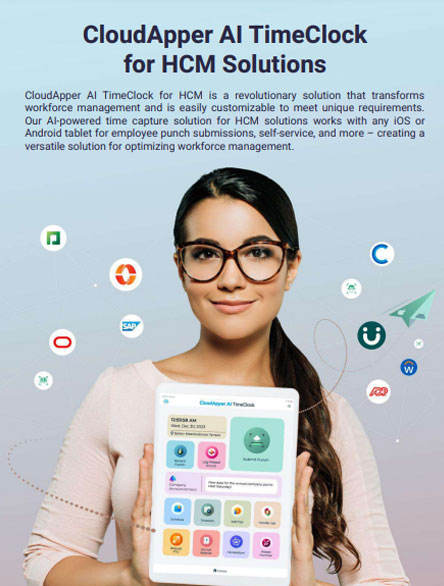
Brochure
CloudApper AI TimeClock
For accurate & touchless time capture experience.
Download Brochure
CloudApper AI Solutions for Workday


- Works with








- and more.
Similar Posts

Workday W-4 Updates for Hourly Workers: Exempt Renewals, Overtime Deductions,…

Workday Access for Former Employees: How to Deliver W-2s and…