Changing the Workday display language translates delivered screens, not the custom text frontline workers read most. Learn what Workday translates natively, where hourly workers still hit English, the reports and tasks that close the gap, and how CloudApper hrPad adds multilingual kiosk access.
TL;DR
Changing the Workday display language translates the screens Workday delivers, but custom text your team wrote, such as benefit descriptions and onboarding instructions, stays as written until someone translates it. Enable the languages your workforce speaks, use the Translation Status for User Language report to find gaps, translate the content hourly workers see most, and keep it current with Request Translation and the base value change audit. Translation does not help workers who never reach Workday, which is where CloudApper hrPad adds a verified, multilingual kiosk with an AI assistant that answers from your policies.
Table of Contents
- What Workday Translates Natively
- Where Frontline Workers Still Hit English
- What to Fix Inside Workday First
- Where Native Tools Run Out
Changing the Workday display language to Spanish takes one task, and the result is often a page that is half Spanish and half English. Workday translates the screens it delivers. The benefit plan descriptions, onboarding instructions and policy text your team wrote stay in whatever language they were written in, until someone translates them. For frontline workers who read English as a second language, that unfinished half is where self-service fails. CloudApper builds frontline self-service on top of Workday, and language is one of the first gaps we see on the floor.
What Workday Translates Natively
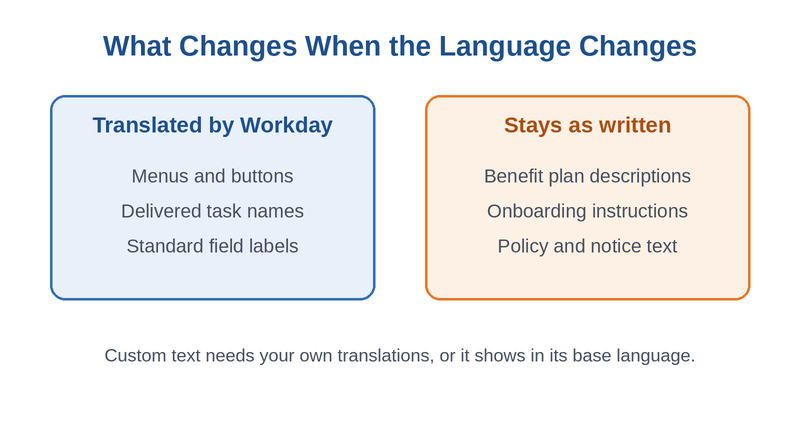
Workday delivers its user interface in many languages. Workers pick a Preferred Display Language in the Change Preferences task, then sign out and back in. Admins confirm which languages are enabled in Edit Tenant Setup – Global, and can allow mixed-language transactions so workers see English where no translation exists. The University of Texas at Austin, for example, tells employees they can choose from thirty-nine display languages. The delivered layer is broad and works well.
Where Frontline Workers Still Hit English
According to Workday’s translation documentation, customers create and maintain translations for their own configuration and business data. UT Austin’s notice makes the same point: text created for the university stays in English after a worker switches languages. That custom layer is exactly what hourly workers read most: enrollment instructions, onboarding tasks, and notices. It explains part of the gap behind low open enrollment completion and stalled onboarding tasks. A translated screen also does nothing for a worker who never receives the notification that sends them there.
What to Fix Inside Workday First
- Confirm the languages your workforce speaks are enabled in Edit Tenant Setup – Global.
- Run the Translation Status for User Language report to find untranslated attributes.
- Translate the custom text hourly workers see most, starting with benefits and onboarding.
- Use the Request Translation business process so new content gets translated as it is created.
- Review the Translation Base Value Change Audit report after edits so translations don’t fall out of date.
Where Native Tools Run Out
Translation solves the words on a screen a worker can already reach. It does not help the warehouse associate with no Workday login, the same access gap behind stale W-4 withholding, the worker whose language isn’t on your enabled list, or the one who needs a question answered rather than a page translated. Access, not translation, is the larger gap, and it is where CloudApper hrPad fits.
How CloudApper hrPad Helps
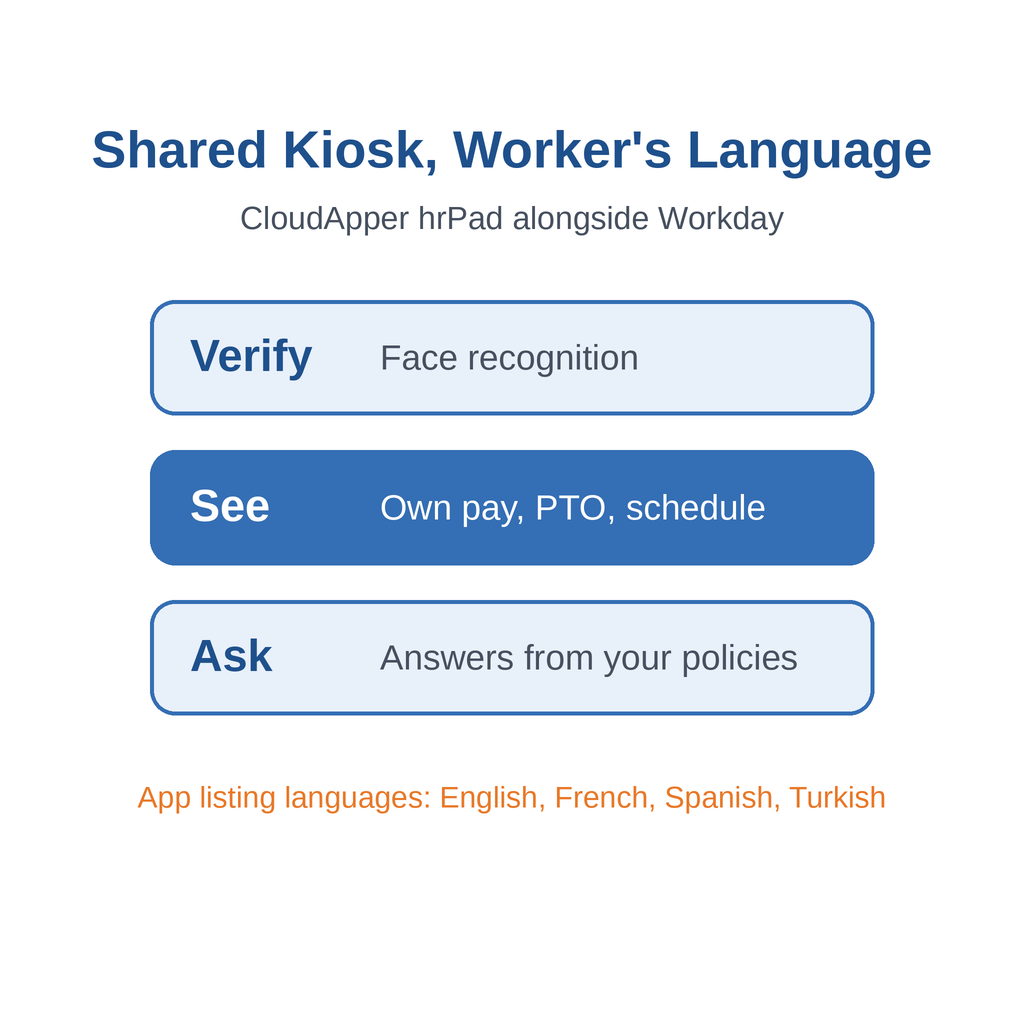
CloudApper hrPad turns a shared tablet into a Workday self-service kiosk where workers verify by face and see their own pay, PTO and schedule. CloudApper states that hrPad supports multiple languages, and its App Store listing shows English, French, Spanish and Turkish. Its AI assistant answers HR questions from your company’s policies, so a worker can ask instead of hunting through a half-translated page. Before rollout, review the pilot design we recommend.
Frequently Asked Questions
Q: How do I change the language in Workday?

Open the Change Preferences task, select a Preferred Display Language, then sign out and sign back in to see the translated interface.
Q: Why is some Workday text still in English after changing the language?
Workday translates the delivered interface, but custom text your organization created must be translated by your team. Untranslated items appear in their base language.
Q: How do admins find untranslated content in Workday?
Run the Translation Status for User Language report, which identifies translatable attributes that still need translations.
Q: Can workers see English where a translation is missing?
Yes. Admins can allow mixed-language transactions through Edit Workday Account or Manage Workday Accounts.
Q: How can frontline workers without Workday logins get self-service in their language?
A shared kiosk that verifies each worker and supports multiple languages can give them access to their own Workday information without a login.
If your frontline workforce reads Workday in more than one language, talk to the CloudApper team about self-service that meets them on the floor.

What is CloudApper AI Platform?
CloudApper AI is an advanced platform that enables organizations to integrate AI into their existing enterprise systems effortlessly, without the need for technical expertise, costly development, or upgrading the underlying infrastructure. By transforming legacy systems into AI-capable solutions, CloudApper allows companies to harness the power of Generative AI quickly and efficiently. This approach has been successfully implemented with leading systems like UKG, Workday, Oracle, Paradox, Amazon AWS Bedrock and can be applied across various industries, helping businesses enhance productivity, automate processes, and gain deeper insights without the usual complexities. With CloudApper AI, you can start experiencing the transformative benefits of AI today. Learn More
- Useful Links:
- Agentic AI
- No-Code/Low-Code
- Custom Software
- HCM Personalization
- iPaaS
- FedRAMP
Brochure
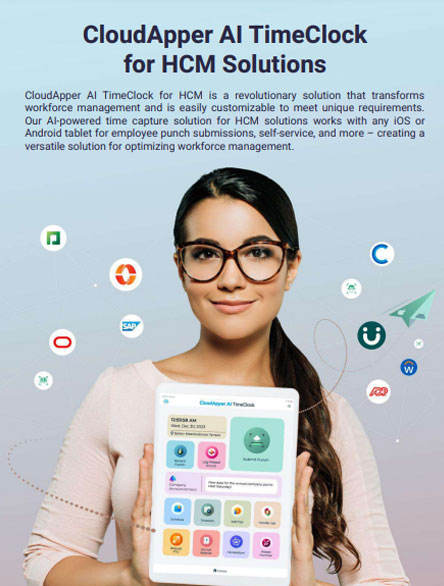
CloudApper AI TimeClock
For accurate & touchless time capture experience.
Download Brochure
CloudApper AI Solutions for Workday


- Works with







- and more.
Similar Posts

Workday Payroll Without Workday Time Tracking: How to Get Hourly…

Moving Acquired Employees into Workday: Service Dates, Year-to-Date Wages, and…