Workday offers five native ways to enter crew time, from Mass Enter Time to time clock events and imports. This guide lists the documented limit of each method, how to match one to a crew, and where field hours still reach payroll late.


TL;DR
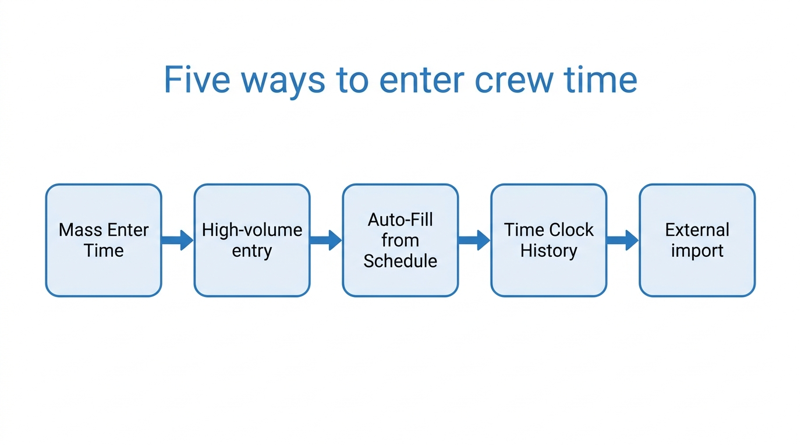
Workday supports five native ways to enter crew time: Mass Enter Time, Enter Time for Worker with high-volume entry, Mass Auto-Fill from Schedule, Time Clock History and external imports. Each has a documented limit, such as one date, code and worktag set per Mass Enter Time batch, no projects in high-volume entry, and blank worktags in schedule autofill. All of them start after the crew's hours exist in a usable form, which is a practitioner pattern worth confirming in your tenant. CloudApper Crew Punch captures crew time from a phone or tablet before it reaches the timekeeper.
Table of Contents
- Five Native Methods, and Where Each One Slows Down
- Matching the Method to the Crew
- Where Crew Time Still Reaches Payroll Late
- Capturing the Whole Crew in One Pass
For crew time in Workday, use Mass Enter Time when everyone shares one date, one time entry code and the same worktags, and one of four other methods when they do not. CloudApper runs alongside Workday for crews whose time has to be captured before a timekeeper can enter it.
Five Native Methods, and Where Each One Slows Down
- Mass Enter Time. Managers and timekeepers enter time for up to 100 workers at once, using the same day, time entry code and worktags, then submit through the Reported Time Batch Event business process. A crew split across jobs needs one batch per combination (a practitioner pattern).
- Enter Time for Worker with high-volume time entry. Quick Add and the auto-fill options work where the time entry template allows them. It is one worker at a time, and Workday documents that projects and project plan tasks are not supported.
- Mass Auto-Fill from Schedule. It builds time blocks for many workers from their schedules but does not populate worktag values, so workers must add them before submitting. That gap feeds the wrong cost center problem.
- Time Clock History. Managers with the right security add, edit or delete time clock events for a worker. An event stays unmatched until another event matches it, which is how punches go missing.
- External collection. Put Time Clock Events loads small batches often, and Import Reported Time Blocks loads time blocks from an outside system. Both assume something already captured the crew’s hours.
Matching the Method to the Crew
Use Mass Enter Time for holiday or training days when a group shares a code. Use Mass Auto-Fill for fixed schedules, then assign worktags before submission. Review before sign-off with Edit and Approve Time, which Workday recommends for groups of 50 workers or fewer. Bulk approval has its own cost, covered in what bulk sign-off costs payroll, and the wrong time entry code still gets picked at the keyboard.
Where Crew Time Still Reaches Payroll Late
The documented limits are shared inputs in Mass Enter Time, no projects in high-volume entry and blank worktags in schedule autofill. The practitioner pattern sits upstream: supervisors record crew hours on paper or by text, and a timekeeper keys them days later, so errors surface at payroll audit. Every native method starts after the hours exist in a usable form. CloudApper Crew Punch targets that capture step for supervisors who lose hours keying crew timecards.
Capturing the Whole Crew in One Pass
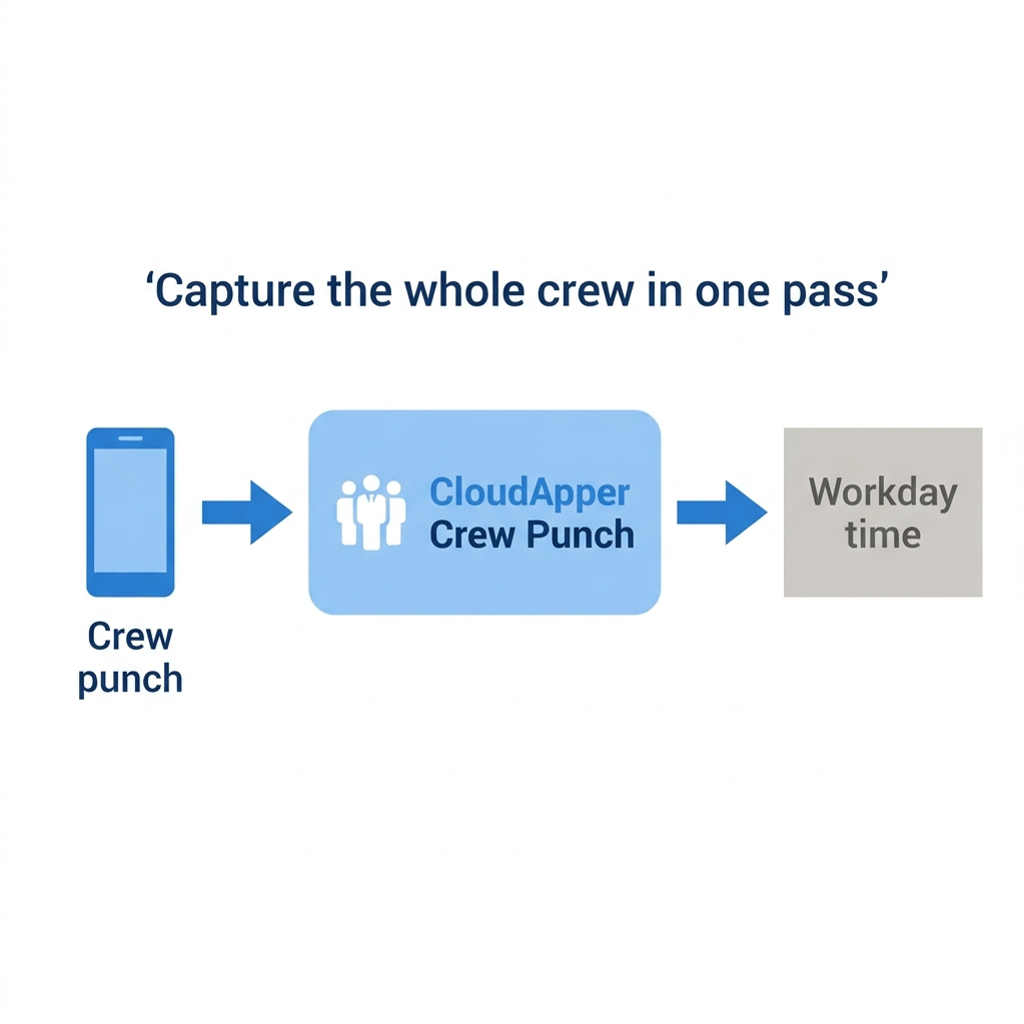
CloudApper Crew Punch lets a supervisor record time for a whole crew from a phone or tablet, with job codes or transfers captured in the same step. Entries can be recorded offline and held until the device reconnects, then sync in the structure the time system expects. Workday keeps approval, calculation and payroll. Confirm the Workday sync method with CloudApper before scoping.
Frequently Asked Questions
Q: How do I enter time for multiple employees in Workday?

Use the Mass Enter Time report. Select the workers, then one day, time entry code and worktags, and submit through the Reported Time Batch Event business process.
Q: What is the difference between Mass Enter Time and Mass Auto-Fill from Schedule?
Mass Enter Time applies the day, code and worktags you choose to the selected workers. Mass Auto-Fill from Schedule builds time blocks from each worker’s schedule and leaves worktag values blank.
Q: Can managers enter time clock events for workers in Workday?
Yes, with the right security. Managers use the Time Clock History report to add, edit or delete time clock events for a worker.
Q: Does Workday high-volume time entry support projects?
Workday documents that projects and project plan tasks are not supported in high-volume time entry.
Q: How do I review crew time before submitting it in Workday?
Use Edit and Approve Time or Review Time to approve several workers at once. Workday recommends Edit and Approve Time for groups of 50 workers or fewer.
If crew hours still arrive on paper and get keyed days later, talk with CloudApper about capturing crew time before it reaches Workday.

What is CloudApper AI Platform?
CloudApper AI is an advanced platform that enables organizations to integrate AI into their existing enterprise systems effortlessly, without the need for technical expertise, costly development, or upgrading the underlying infrastructure. By transforming legacy systems into AI-capable solutions, CloudApper allows companies to harness the power of Generative AI quickly and efficiently. This approach has been successfully implemented with leading systems like UKG, Workday, Oracle, Paradox, Amazon AWS Bedrock and can be applied across various industries, helping businesses enhance productivity, automate processes, and gain deeper insights without the usual complexities. With CloudApper AI, you can start experiencing the transformative benefits of AI today. Learn More
- Useful Links:
- Agentic AI
- No-Code/Low-Code
- Custom Software
- HCM Personalization
- iPaaS
- FedRAMP
Brochure
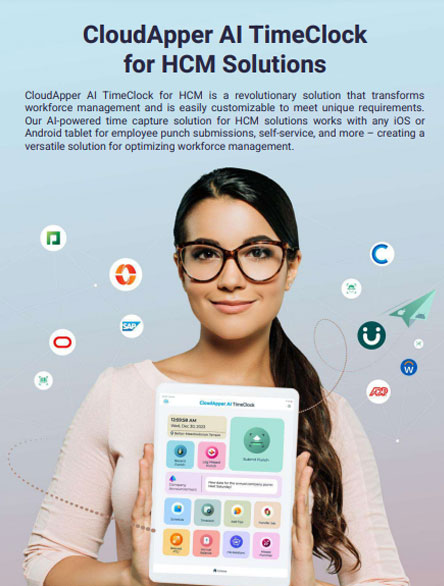
CloudApper AI TimeClock
For accurate & touchless time capture experience.
Download Brochure
CloudApper AI Solutions for Workday


- Works with








- and more.
Similar Posts

Workday Scheduled Reports: 7 Pay Period Spreadsheets to Stop Rebuilding

Workday Open Shift Bidding: 6 Decisions to Make Before You…