Workday Time Tracking records when a punch was submitted and under whose credentials — but not whether the person was physically present. Here is where the verification gap sits inside your Workday configuration, and what enforced biometric clock-in actually requires.

TL;DR
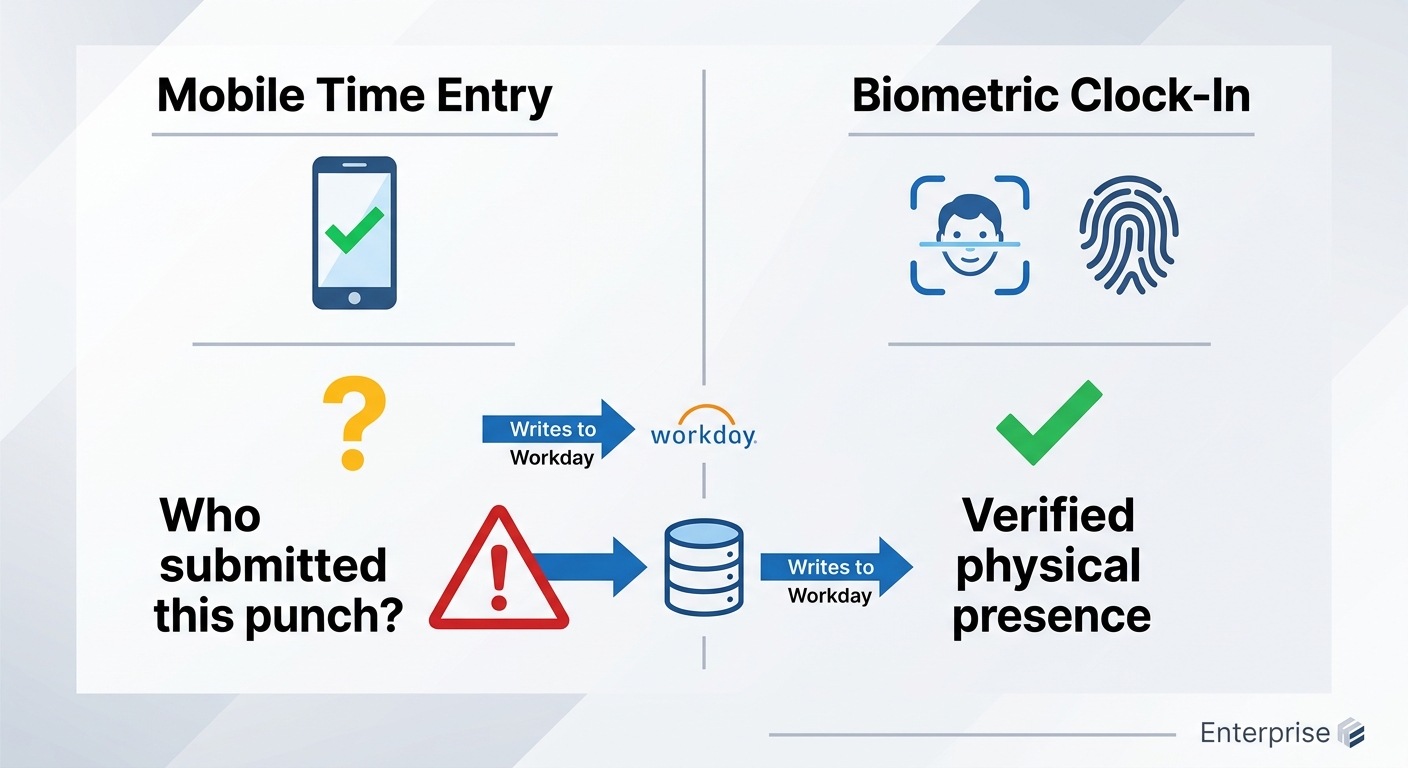
Workday Time Tracking records when a punch was submitted and under which worker's credentials — but it does not verify that the person who submitted the punch was physically present at the worksite. Mobile and web time entry in Workday is device-agnostic and cannot enforce biometric identity, meaning buddy punching and supervisor-entered time for absent workers produce records indistinguishable from legitimate clock-ins. The fix starts inside Workday: configure geolocation capture for mobile time entry, set validation rules that flag out-of-schedule submissions, and restrict manager time entry to documented exceptions. Where those controls end, CloudApper AI TimeClock extends Workday with biometric verification and enforced geofencing at a physical kiosk, writing confirmed punches directly to native Workday time records without creating a parallel time system.
Table of Contents
- What Workday Time Tracking Handles Natively
- Where the Punch Record Breaks Down
- What to Configure in Workday First
- Where Native Configuration Runs Out
Pull the mobile clock-in records for any ten hourly employees in your highest-overtime cost center from the last 90 days. Sort the punches by the device ID or IP address that generated each record. In most Workday tenants running mobile or web time entry for frontline workers, you will find punch events from devices you don’t recognize — and no Workday-native control that would have stopped them. That gap is not a configuration error. It’s the architecture of how Workday Time Tracking handles identity at the point of entry — and CloudApper AI TimeClock is built specifically to close it, writing biometric-verified punches directly back to native Workday time records without creating a parallel system.
What Workday Time Tracking Handles Natively
Workday Time Tracking is a complete workforce time management system. Time entry, approval workflows, overtime and shift differential calculations, payroll retrieval, and exception reporting are all native. Workers can submit time through the Workday mobile app, the web portal, or a third-party clock integrated via Workday’s APIs. Time rules — scheduled hours, overtime thresholds, break deductions, pay group assignments — are configured at the tenant level and applied consistently across every approved punch. For organizations where most workers access Workday from a known device under their own credentials, the native time collection workflow is accurate and appropriate.
Where the Punch Record Breaks Down
Workday records when a punch happened and under which worker’s credentials it was submitted. It does not record whether the person submitting the punch was physically at the worksite, whether the device used was that worker’s own, or whether a verified biological identifier confirmed their identity. A worker who shares credentials with a colleague — or whose supervisor enters time on their behalf for a shift they partially or fully missed — generates a Workday time record that is indistinguishable from a legitimate punch. The punch appears in the integration feed, clears the approval queue, and flows to payroll. There is no audit trail that reveals the verification method — or the lack of one.

The part most time-tracking articles skip is this: the supervisor entry problem is not primarily a policy failure. Plant and warehouse supervisors are measured on shift coverage and productivity, not on punch accuracy. When a worker arrives 20 minutes late and the supervisor marks them as clocked in on time, the motive is rarely fraud — it’s protecting a headcount number. The result for payroll is identical. The approval workflow that should catch this is often run in bulk at the end of a pay period, by the same supervisor who submitted the original entry.
What to Configure in Workday First
Before adding hardware, tighten what Workday’s native controls can do. Enable location services for mobile time entry through Workday’s geolocation configuration — this creates a location record alongside each punch, which HR and payroll can audit even if Workday doesn’t block a submission from outside the geofence by default. Set time entry validation rules that flag punches submitted outside scheduled hours or from unrecognized session patterns as exceptions requiring a second approval level. Require that workers submit their own time rather than relying on manager entry for anything beyond a documented exception. For time entry code accuracy, configure code defaults by job profile and shift type so the highest-variance inputs require explicit selection rather than defaulting to the last-used value. These steps reduce the surface area of the problem without resolving its root cause.
Where Native Configuration Runs Out
Workday’s geolocation data is a record, not an enforcement gate. A worker outside the geofence can still submit time through the Workday app — the location is logged, but the punch is not blocked. Workday does not natively bind time submissions to a specific registered device per worker, and it does not include a biometric verification layer. The supervisor entry pathway exists by design — it is a legitimate feature for handling genuine exceptions — and there is no native control that limits its use to documented circumstances. Where shift differential calculations depend on accurate punch-in times tied to specific locations, the absence of verified presence data can cause blended overtime calculations to run on numbers that were never confirmed against a real worker at a real site. The configuration work done inside Workday narrows the problem; it does not eliminate it.
CloudApper AI TimeClock for Workday
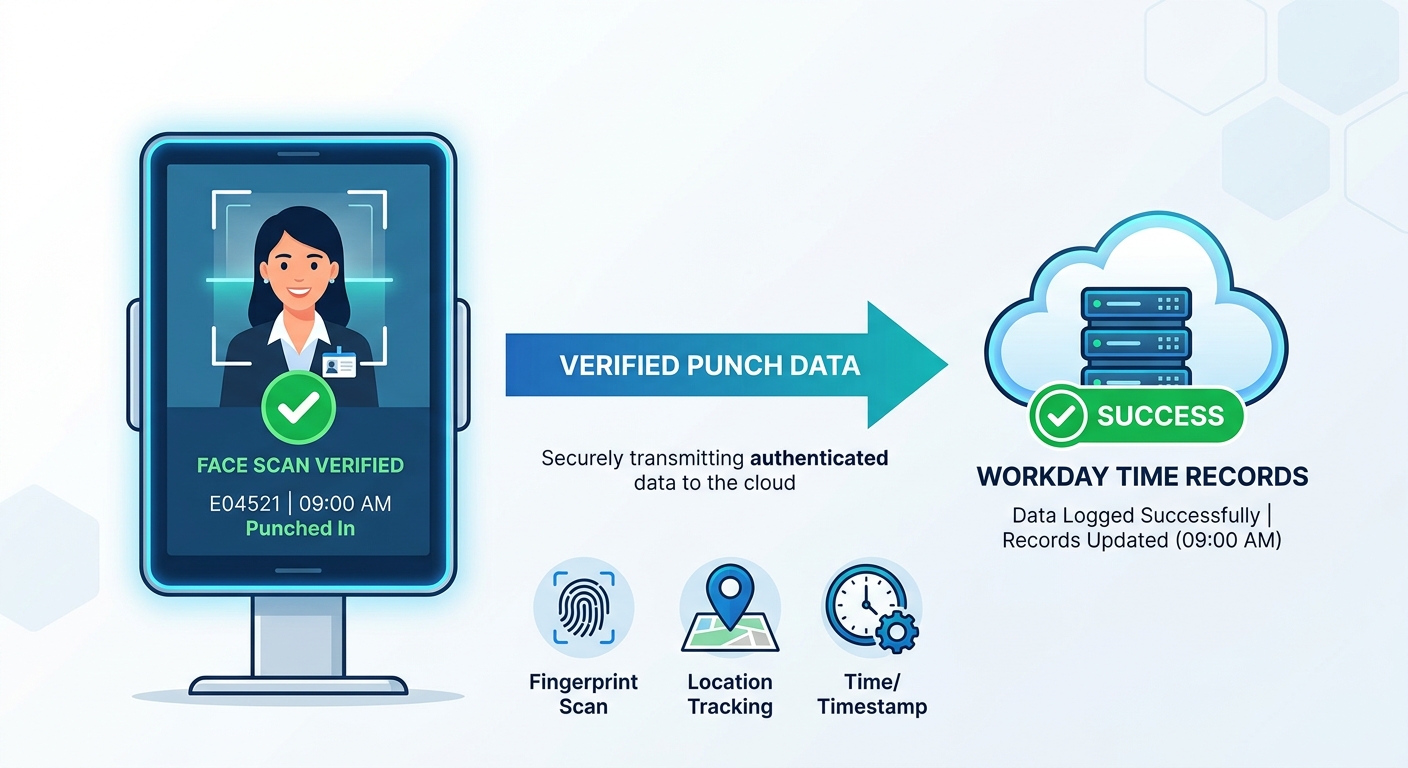
CloudApper AI TimeClock adds a physical, biometric-verified clock-in layer in front of Workday Time Tracking without replacing the time system. Workers clock in at a device-bound terminal using face recognition or fingerprint — not credentials another person can share. The geofence is enforced at the hardware level: a clock-in attempt from outside the approved radius does not generate a punch record. Every verified punch writes to native Workday time blocks through the integration — no parallel time system, no duplicate records, no reconciliation step at payroll close. The supervisor entry pathway remains available in Workday for genuine exceptions, but the biometric record for the shift exists or it doesn’t, and the absence of one becomes an auditable exception rather than an invisible gap. For organizations where frontline workers already struggle with Workday access, the kiosk removes the credential problem entirely: the worker’s face or fingerprint is the authentication, and the Workday record reflects a confirmed physical presence at a confirmed site.
Frequently Asked Questions
Q: Does Workday Time Tracking prevent buddy punching natively?
Workday Time Tracking does not include a native biometric verification layer. Workers can submit time through the Workday mobile app using any device with their credentials, and supervisors can enter time on behalf of direct reports. Workday records the submission details but does not verify that the worker whose credentials were used was physically present at the worksite at the time of entry.
Q: What is a biometric time clock for Workday?
A biometric time clock for Workday is a physical device that captures a verified biological identifier — typically face recognition or fingerprint — at the point of clock-in, then writes the confirmed punch directly to the worker’s native Workday time record via integration. The biometric capture replaces credential-based submission without replacing Workday as the system of record for time data, calculations, and payroll retrieval.
Q: How does geofencing work in Workday mobile time entry?
Workday’s mobile app can capture location data at the time of a punch if location services are enabled. This creates a location record in Workday that admins can review, but the standard configuration does not block a punch submission from outside the geofence — it logs the location rather than enforcing it as a gate. Enforced geofencing, where an out-of-range submission is rejected before a record is created, typically requires a third-party integration layer.
Q: Can supervisors enter time for workers in Workday?
Yes. Workday supports manager time entry for direct reports, which is a legitimate feature for handling situations where a worker was unable to submit their own punch — a system outage, a missed clock-in on a remote site. The same capability can be used to enter time for a worker who was absent or late, and the resulting Workday record is indistinguishable from a worker-submitted punch. Managing this gap requires policy controls and approval configuration, not just system settings.
Q: Does adding a biometric time clock change Workday’s time rules or calculations?
No. A properly integrated biometric clock writes the verified punch time to the native Workday time record. All of Workday’s existing time rules — overtime calculations, shift differentials, pay group assignments, approval workflows — apply to that punch exactly as they would to any other entry. The biometric layer changes how the punch is captured and verified; it does not change what Workday does with the data afterward.
Q: How does biometric time data get into Workday?
Biometric time clocks integrated with Workday use the Workday Time Tracking APIs to write punch events directly to the worker’s time record in the tenant. The integration maps each clock-in and clock-out event to the correct worker record, time block, and position. Workday processes the punch according to the worker’s time rules and payroll configuration — the source of the punch is the biometric device, but the record, calculation, and retrieval all happen natively in Workday.
If your highest-overtime cost centers are running on mobile or manager-submitted time entry, the punch records in your Workday tenant may not reflect who was physically on the floor. The CloudApper team can assess where the verification gap exists in your specific configuration and show you what biometric enforcement looks like in a Workday environment. Reach out at cloudapper.ai/contact-us.

What is CloudApper AI Platform?
CloudApper AI is an advanced platform that enables organizations to integrate AI into their existing enterprise systems effortlessly, without the need for technical expertise, costly development, or upgrading the underlying infrastructure. By transforming legacy systems into AI-capable solutions, CloudApper allows companies to harness the power of Generative AI quickly and efficiently. This approach has been successfully implemented with leading systems like UKG, Workday, Oracle, Paradox, Amazon AWS Bedrock and can be applied across various industries, helping businesses enhance productivity, automate processes, and gain deeper insights without the usual complexities. With CloudApper AI, you can start experiencing the transformative benefits of AI today. Learn More
- Useful Links:
- Agentic AI
- No-Code/Low-Code
- Custom Software
- HCM Personalization
- iPaaS
- FedRAMP
Brochure
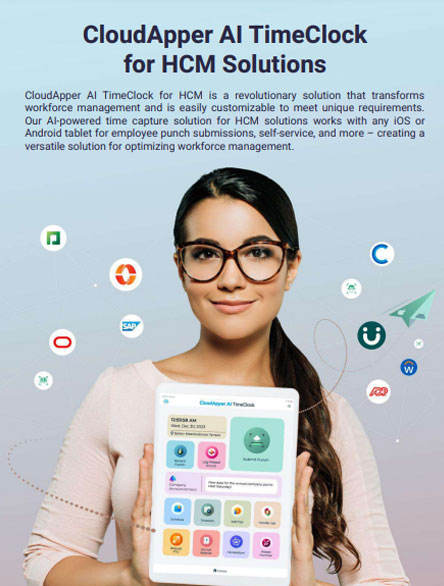
CloudApper AI TimeClock
For accurate & touchless time capture experience.
Download Brochure
CloudApper AI Solutions for Workday


- Works with








- and more.
Similar Posts

Workday W-4 Updates for Hourly Workers: Exempt Renewals, Overtime Deductions,…
Workday Access for Former Employees: How to Deliver W-2s and…