Workday Payroll Audit Rules catch calculation anomalies after pay results are generated, but frontline time data from external clocks and field apps can bypass those rules entirely. Learn how to build a pre-payroll exception review that validates upstream data before it reaches Workday.

TL;DR
Workday Payroll Audit Rules catch calculation anomalies after pay results are generated, but they only evaluate data that made it into the tenant. For organizations with frontline and hourly workers, the highest-risk exceptions sit upstream: missing punches, unmapped earning codes, and late interface files that never become valid Workday inputs. A pre-payroll exception review that combines Workday's native audit step with an iPaaS validation layer catches discrepancies at the source, so the data entering Workday is already clean when audit rules run.
Table of Contents
- How Workday Payroll Audit Rules Work After Pay Calculation
- Step 1: Confirm Your Audit Rules Cover Frontline Earning Types
- Step 2: Identify What Audit Rules Cannot Select
- Step 3: Reconcile Source Data Before It Enters Workday
- Step 4: Build a Pre-Payroll Exception Review Cadence
- What CloudApper iPaaS Adds to This Workflow
- Frequently Asked Questions
Every payroll cycle, Workday’s Payroll Audit Rules scan calculated results for anomalies: sudden spikes in gross pay, missing tax elections, duplicate earnings. For salaried populations, that checkpoint is usually enough. For organizations where 30% or more of the workforce clocks in from a time clock, a badge reader, or a field-service app, the harder problem sits upstream. The time records that feed Workday may arrive late, arrive mapped to the wrong earning code, or never arrive at all. Workday’s audit rules evaluate data that made it into the tenant. They cannot flag what never showed up. That gap between source-system punch data and Workday pay results is where frontline payroll exceptions live, and it is where organizations using CloudApper iPaaS alongside Workday add a pre-entry validation layer to catch discrepancies before pay calculation runs.
How Workday Payroll Audit Rules Work After Pay Calculation
Workday provides a configurable audit framework that runs after the Calculate Payroll step inside the Pay Cycle Event business process. Admins build their own audit rules (Workday does not ship a pre-built library) using the Create Payroll Audit Rules task. Each rule compares a current-period value against a threshold, a prior-period result, or an expected range. Workday assigns every triggered exception a severity level: Informational, Warning, or Critical. The Run Payroll Audit task executes these rules and surfaces results in the Pay Cycle Command Center, where the Exception Summary worklet shows counts by severity and lets payroll staff drill into individual records.

Admins can also route audit exceptions through an assignment and resolution workflow, so the right analyst reviews the right flag. Reports such as My Payroll Audit Exceptions, Payroll Audit Exceptions, and Exception Details provide additional drill-down, and Prior Period Comparison reports highlight period-over-period swings. Confirm the exact report names and availability in your tenant, as configuration varies by release.
Step 1: Confirm Your Audit Rules Cover Frontline Earning Types
Payroll audit rules apply to the pay group, company, or pay period they are scoped to. Many organizations configure rules for base salary variances but skip the earning codes most common in hourly pay: overtime premiums, shift differentials, callback pay, and meal-break premiums. Start by listing every earning type that flows through your frontline population and verifying that at least one audit rule evaluates each one. Keep in mind Workday limits each audit rule to 50 audit detail rows, so high-complexity frontline pay may require multiple rules.
Step 2: Identify What Audit Rules Cannot Select
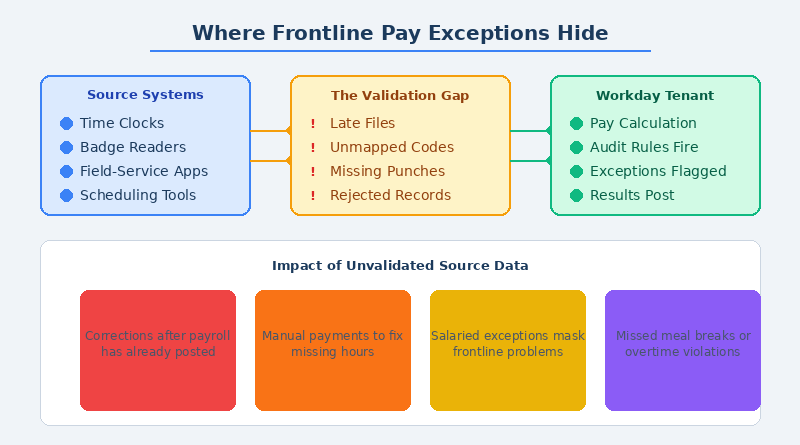
Workday payroll audit rules do not support worker selection by job family, job profile, worker type, active status, name, or employee ID. They also do not support worktag-based filtering. That means you cannot build an audit rule that targets only your manufacturing floor workers or only your clinical staff. Every rule fires across its entire scoped population. For organizations with distinct frontline earning structures, this creates noise: salaried exceptions dilute the frontline exceptions that carry the highest correction cost. It also means that if a time clock integration drops records for a single location, no audit rule will isolate that location’s missing punches from the broader results.
Step 3: Reconcile Source Data Before It Enters Workday
The most consequential frontline payroll exceptions never trigger a Workday audit rule because the problematic record never became a valid Workday input. A time clock punch that fails mapping and gets rejected by the integration sits in an error log on the middleware side. A late interface file that misses the pay calculation window means those hours simply do not appear in results. An earning code that the source system applies but that has no counterpart in Workday’s time entry code configuration produces either a silent drop or a default-code substitution that changes the worker’s pay.
These are the exceptions that cause retroactive adjustments, off-cycle correction runs, and the manual reconciliation hours that payroll teams absorb every cycle. Native Workday tools cannot catch them because the data never reached the audit’s scope. This is the specific gap where CloudApper iPaaS adds a validation checkpoint: before frontline time data syncs into Workday, the integration layer applies labor law rules, earning code mapping validation, and completeness checks. Records that fail validation are flagged and held for correction at the source, so the data that does enter Workday is already clean when audit rules evaluate it.
Step 4: Build a Pre-Payroll Exception Review Cadence
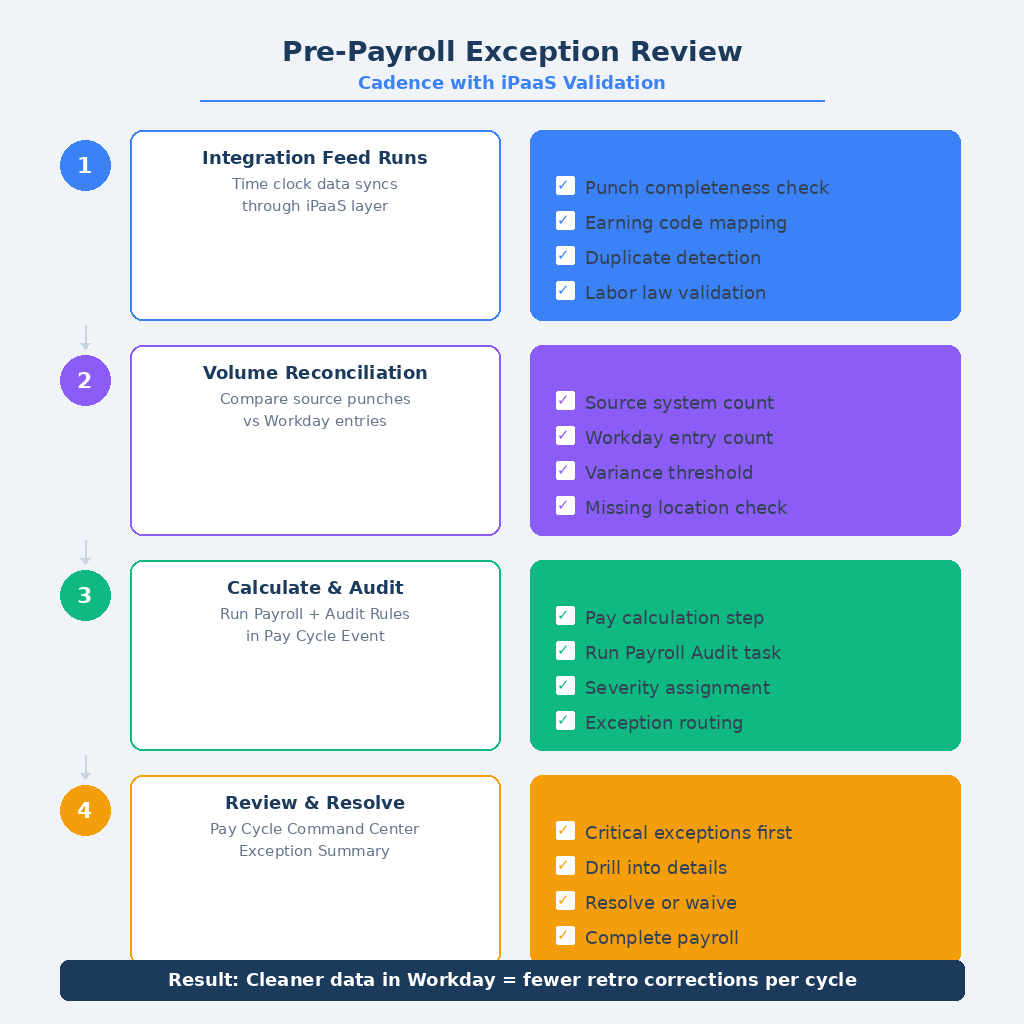
A pre-payroll exception review that covers both native Workday audit results and upstream data quality follows a consistent cadence each cycle. First, run the integration feed and review the middleware error and rejection log for failed records, unmapped codes, and missing punches. Second, compare the count of source-system punches against the count of Workday time entries to catch volume discrepancies. Third, run the Calculate Payroll step and then the Run Payroll Audit task. Fourth, review the Pay Cycle Command Center Exception Summary, filtering by Critical severity first. Fifth, resolve or waive each exception before completing the payroll. Organizations that run this cadence consistently find that the upstream review in the first two steps eliminates the majority of corrections that would otherwise surface as year-end reconciliation problems or retro pay adjustments after the fact.
What CloudApper iPaaS Adds to This Workflow
CloudApper iPaaS sits between frontline time capture systems and Workday, applying validation rules before data enters the tenant. It checks punch completeness, validates earning code mappings against Workday’s active time entry codes, enforces state-specific labor rules (meal breaks, overtime thresholds, rest period requirements), and flags duplicates or out-of-sequence entries. Records that pass validation sync to Workday automatically. Records that fail are surfaced in a pre-sync exception dashboard with enough detail for payroll or the timekeeper to correct at the source. Because the correction happens before pay calculation, the Workday audit step runs against cleaner data, and the exception counts that reach the Pay Cycle Command Center reflect genuine calculation anomalies rather than upstream data-quality failures. The result is fewer multi-state payroll compliance surprises and fewer off-cycle correction runs each period.
Frequently Asked Questions
Q: What do Workday Payroll Audit Rules check before payroll is completed?
Workday Payroll Audit Rules evaluate calculated pay results against admin-configured thresholds, prior-period comparisons, and expected ranges. They flag anomalies with Informational, Warning, or Critical severity levels. They run after the Calculate Payroll step and before payroll completion, giving payroll staff a window to investigate and resolve exceptions in the Pay Cycle Command Center.
Q: Can Workday audit rules filter exceptions by job family or worker type?
No. Workday payroll audit rules do not support selection by job family, job profile, worker type, employee ID, name, or active status. They also do not support worktag filtering. Rules fire across the entire scoped population (pay group, company, or pay period), which means frontline-specific exceptions cannot be isolated from salaried exceptions within a single rule.
Q: How do missing time clock punches affect Workday payroll audit results?
If a time clock punch never enters Workday due to an integration failure, mapping error, or late file, Workday’s payroll audit rules cannot flag it. The audit evaluates data that exists in the tenant. A missing punch results in missing hours, which may produce a lower-than-expected gross pay, but only if an audit rule is configured to compare against a prior period or expected threshold for that earning type.
Q: What is the Pay Cycle Command Center Exception Summary?
The Exception Summary is a worklet within the Pay Cycle Command Center that displays payroll audit exception counts grouped by severity level. Payroll staff use it to drill into individual exceptions, review details, and resolve or waive them before completing the pay cycle. It is the primary interface for reviewing audit results during a payroll run.
Q: How can an iPaaS layer reduce Workday payroll audit exceptions?
An iPaaS layer validates frontline time data before it syncs to Workday. It checks for missing punches, unmapped earning codes, duplicates, and labor law violations at the source. By catching and correcting these issues before pay calculation, fewer data-quality exceptions reach Workday’s audit step. The exceptions that remain in the Pay Cycle Command Center are genuine calculation anomalies rather than upstream integration failures.
Q: What is the maximum number of audit details per Workday payroll audit rule?
Each Workday payroll audit rule supports a maximum of 50 audit detail rows. Organizations with complex frontline pay structures that include multiple earning types, shift differentials, and premium calculations may need to create multiple audit rules to cover all relevant scenarios. Confirm the current limit in your tenant’s Workday documentation.
Q: Should payroll teams run the audit step every cycle or only at year end?
Workday recommends running payroll audits every cycle as part of the Pay Cycle Event business process. Waiting until year end means exceptions accumulate, corrections become retroactive, and the reconciliation effort grows. A per-cycle review catches anomalies when they are cheapest to fix and prevents compounding errors across multiple pay periods.
If your frontline time data crosses multiple systems before it reaches Workday, the exceptions that matter most are the ones Workday never sees. Talk to CloudApper about adding a pre-sync validation layer that catches discrepancies at the source, so your payroll audit step evaluates clean data every cycle.

What is CloudApper AI Platform?
CloudApper AI is an advanced platform that enables organizations to integrate AI into their existing enterprise systems effortlessly, without the need for technical expertise, costly development, or upgrading the underlying infrastructure. By transforming legacy systems into AI-capable solutions, CloudApper allows companies to harness the power of Generative AI quickly and efficiently. This approach has been successfully implemented with leading systems like UKG, Workday, Oracle, Paradox, Amazon AWS Bedrock and can be applied across various industries, helping businesses enhance productivity, automate processes, and gain deeper insights without the usual complexities. With CloudApper AI, you can start experiencing the transformative benefits of AI today. Learn More
- Useful Links:
- Agentic AI
- No-Code/Low-Code
- Custom Software
- HCM Personalization
- iPaaS
- FedRAMP
Brochure
CloudApper AI TimeClock
For accurate & touchless time capture experience.
Download Brochure
CloudApper AI Solutions for Workday



- Works with








- and more.
Similar Posts

Workday Seniority Date vs. Continuous Service Date: Which One Drives…

Workday Time Entry Cost Center Override: Why Hours Post to…