A Workday reference check stalls where no tenant setting reaches: the referee. This guide walks through the Reference Check business process, the Manage References task, the Reference Request Status report, four fixes to make first, and where recruiters still chase referees by hand in high-volume hiring.

TL;DR
A Workday reference check usually stalls at the referee, the one step tenant settings do not control, but admins should clear their own configuration first. Confirm the Reference Check business process steps are enabled as recruiter tasks, a reference template is assigned to every requisition, and notifications send immediately. Then use the Manage References task to resend links and the Reference Request Status report to find referees who have not submitted. For high-volume hiring where recruiters still chase referees through email and spreadsheets, CloudApper Reference Check Solution keeps requests and replies on the candidate record alongside Workday Recruiting.
Table of Contents
- Check Your Own Tenant Before Blaming the Referee
- What Workday Sends and What Referees Can Do With It
- Four Fixes to Make Inside Workday First
- When the Referee Never Opens the Link
A Workday reference check stalls at the one step no tenant setting controls: the referee. Workday emails each referee a link, and the referee can accept, decline, or decline and ask Workday to remove their contact information. Every setting an admin owns sits on the recruiter’s side of that email. CloudApper Reference Check Solution runs alongside Workday Recruiting for teams that still chase referees by hand.
Check Your Own Tenant Before Blaming the Referee
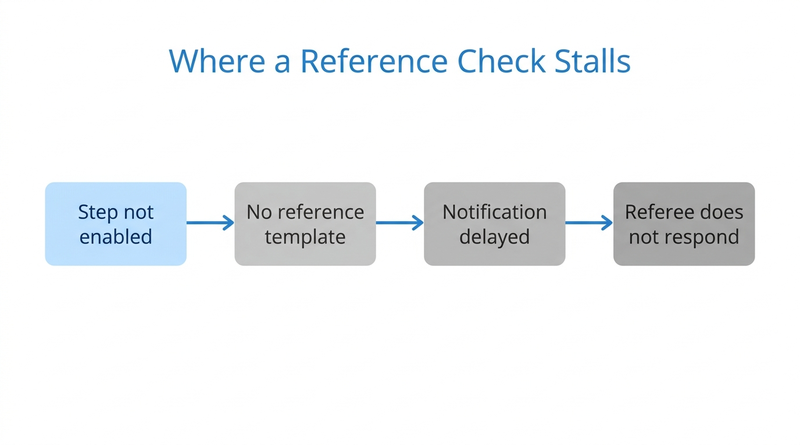
The Reference Check business process has four steps: Add References, Manage References, Reference Check Decision (optional) and Review Add References. If a step is not enabled as a recruiter task, nobody sees the prompt. If email notifications are not set to Immediately on the Business Process tab, the request waits. A requisition with no assigned template has no questionnaire to send, so confirm in your tenant what a referee sees then. Only after those are clean does a silent referee deserve the blame.
What Workday Sends and What Referees Can Do With It
Workday collects referees through the Add References step and emails each one a link. Recruiters use the Manage References task to collect more references and resend links. Per Workday documentation, a resend sends all notifications for that step again: step delays are ignored and notification delays are respected. Reference Request Status lists referees who have not yet submitted, and Reference Check Results covers completed events. The decision step follows your business process approvals.
Four Fixes to Make Inside Workday First
- Run Reference Request Status weekly and give every open referee an owner.
- Use Maintain Reference Template Rules so every requisition type gets a template.
- Review Edit Tenant Setup – Notifications so notifications read clearly and send on time, as with notifications that never reach frontline workers.
- Set Maintain Referee Relationship Types so supervisors and peers get the right questions.
When the Referee Never Opens the Link
This is a practitioner pattern, not a documented Workday limit: the person who must act is an outside referee who gets a system email and has no tie to your team. In high-volume hourly hiring, that becomes a loop of resends and calls, running beside background check results and I-9 steps. Whether Workday offers a per-referee reminder cadence beyond notification delays, confirm in your tenant. CloudApper’s reference check page names the target as keeping feedback connected to the candidate record instead of “buried across emails, documents, spreadsheets, and recruiter inboxes,” and CloudApper Reference Check Solution is built for that follow-up work.
Keeping Referee Replies on the Candidate Record
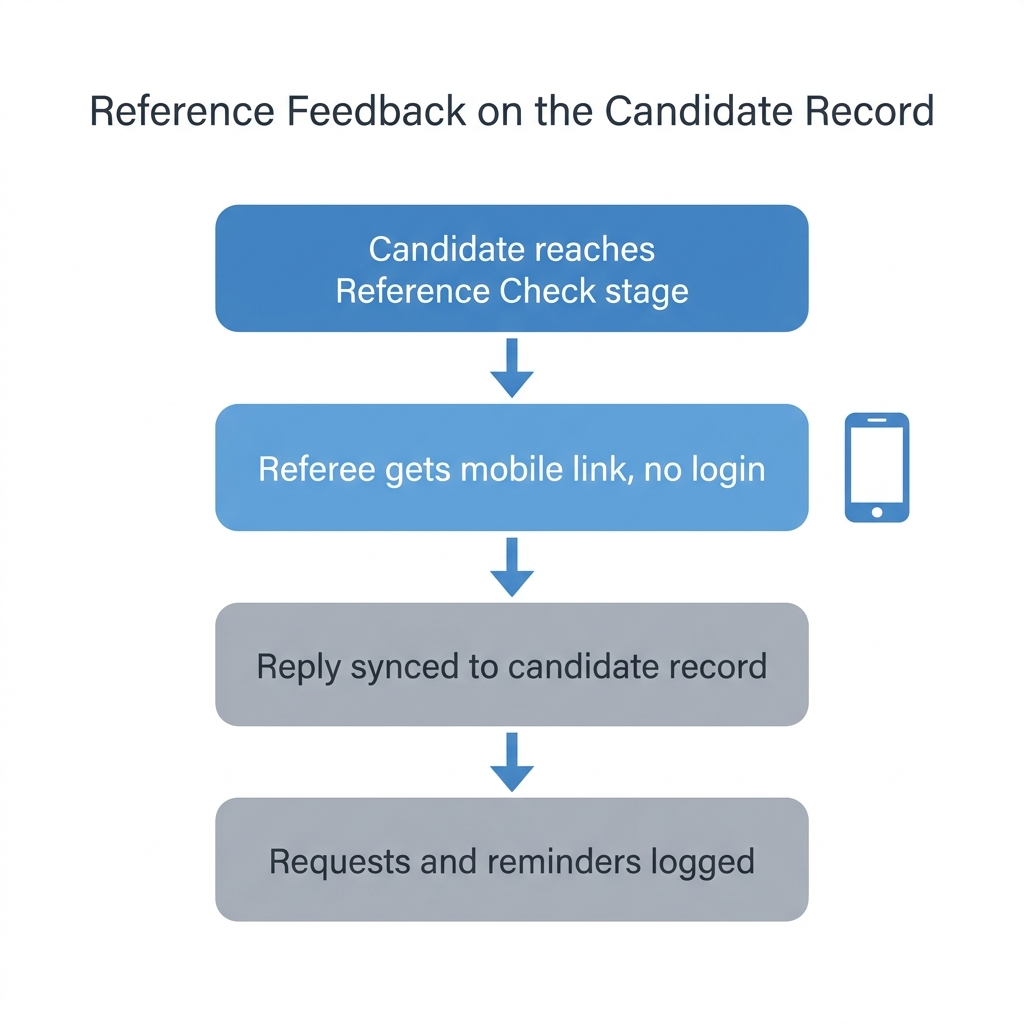
CloudApper Reference Check Solution builds on the stages you already run. Its page describes requests triggered at stages such as Reference Check or Offer Pending, a mobile-friendly referee link with no login, responses syncing to candidate records, and a log of requests, reminders and submissions. Seasonal warehouse hiring and nursing assistant pipelines are where recruiter follow-up piles up. The page lists Workday among supported HR systems, so confirm the setup with CloudApper.
Frequently Asked Questions
Q: How do I resend a reference check in Workday?

Recruiters use the Manage References task in My Tasks. Workday documents that a resend sends all notifications for that step again, ignoring step delays and respecting notification delays.
Q: Where can I see which Workday references are still outstanding?
Run the Reference Request Status report, which lists referees who have not yet submitted. Reference Check Results covers completed reference check events.
Q: What is the Reference Check business process in Workday?
It collects references from external candidates through Add References, Manage References, Reference Check Decision (optional) and Review Add References, and Workday emails each referee a link.
Q: Can a referee decline a reference request in Workday?
Yes. Workday documents that a referee can accept, decline, or decline and ask Workday to remove their contact information.
Q: How do I assign a reference template to a job requisition in Workday?
Create condition rules with Maintain Reference Template Rules so templates assign automatically. The optional Assign Reference Template task overrides the rule for one requisition.
If recruiters still chase referees through email and spreadsheets, talk with CloudApper about keeping reference feedback on the candidate record alongside Workday Recruiting.

What is CloudApper AI Platform?
CloudApper AI is an advanced platform that enables organizations to integrate AI into their existing enterprise systems effortlessly, without the need for technical expertise, costly development, or upgrading the underlying infrastructure. By transforming legacy systems into AI-capable solutions, CloudApper allows companies to harness the power of Generative AI quickly and efficiently. This approach has been successfully implemented with leading systems like UKG, Workday, Oracle, Paradox, Amazon AWS Bedrock and can be applied across various industries, helping businesses enhance productivity, automate processes, and gain deeper insights without the usual complexities. With CloudApper AI, you can start experiencing the transformative benefits of AI today. Learn More
- Useful Links:
- Agentic AI
- No-Code/Low-Code
- Custom Software
- HCM Personalization
- iPaaS
- FedRAMP
Brochure
CloudApper AI TimeClock
For accurate & touchless time capture experience.
Download Brochure
CloudApper AI Solutions for Workday


- Works with








- and more.
Similar Posts

Workday Mileage Reimbursement: Set Up Expense Items and Rate Tables…

Workday Seniority Date vs. Continuous Service Date: Which One Drives…