- How Workday’s Business Process Framework Works
- Setting Up a Workday Business Process: Configuration Decisions That Matter
- Troubleshooting Workday Business Process Problems
- Where Approval Complexity Outgrows the Native Framework
- How CloudApper AI Addresses Complex Approval Scenarios
- A Diagnostic Checklist for Stuck Workday Business Processes
- Frequently Asked Questions
- What to Do Next
When Workday business process approvals stall, misroute or fire a step that should have been skipped, the cause usually sits in the business process definition: routing logic, condition rules, or a step order that made sense to whoever built it two years ago. Business processes are Workday’s automation engine, so every hire, termination, compensation change and time off request depends on that configuration being right.
Configured well, approvals run unnoticed. Configured badly, HR spends more time chasing approvals than processing them. For approval logic that has outgrown native configuration, CloudApper extends Workday’s workflow capability alongside the core tenant, personalizing routing to match how the business operates. The first step is understanding how the framework behaves and where it runs out.
How Workday’s Business Process Framework Works
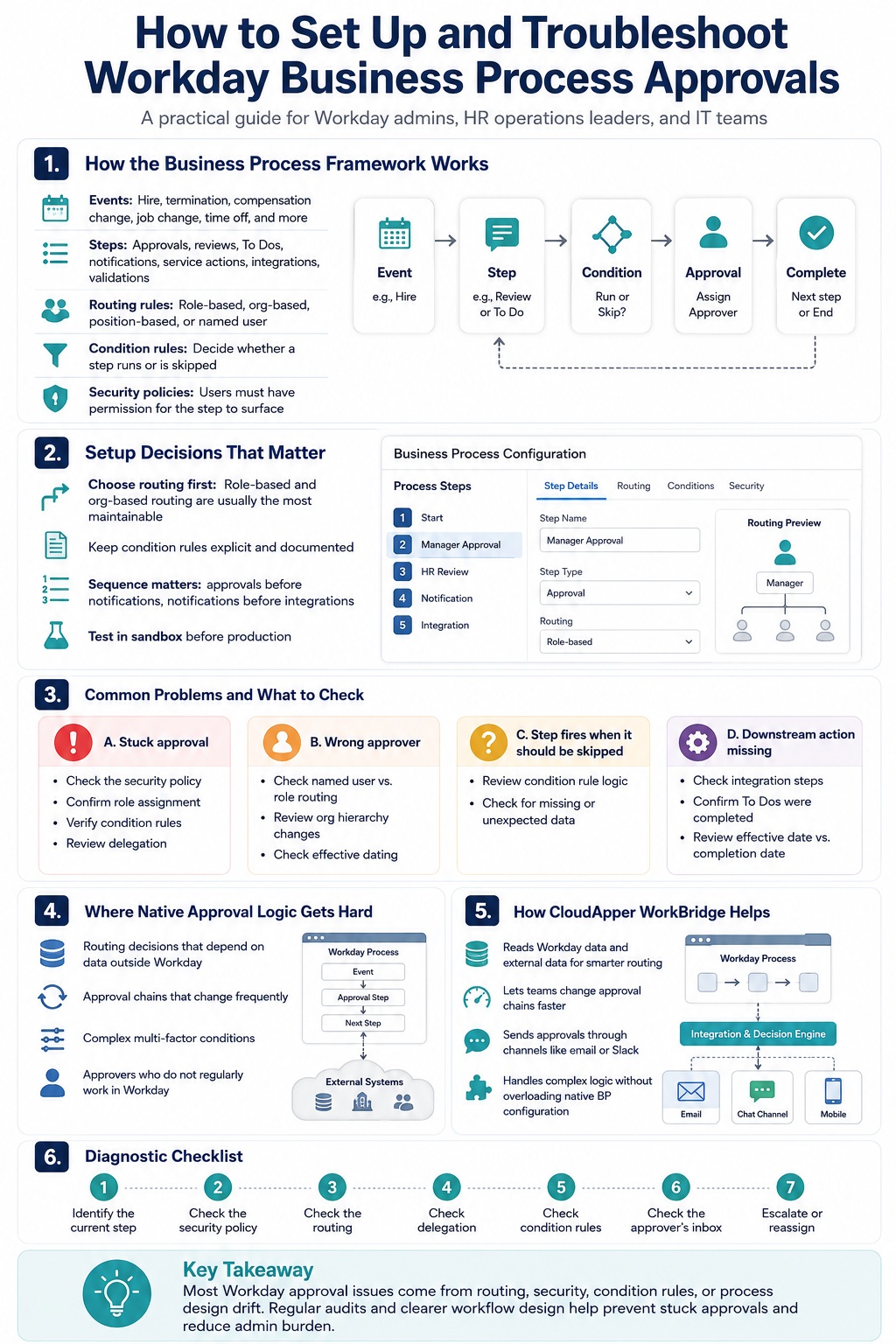
Workday’s Business Process Framework (BPF) is a runtime engine that evaluates process definitions, roles, steps, and condition rules to determine routing logic for each event. Every time a Workday event is initiated — a hire, a termination, a manager change, a pay rate update — Workday loads the corresponding BP template, attaches worker data, and creates a unique instance that moves through defined steps until completion.
Understanding the architecture is the starting point for both configuration and troubleshooting.
The Core Components
Events: A BP starts with a triggering event — Hire Employee, Change Job, Terminate Employee, Request Compensation Change, and dozens of others. Each event type has its own BP definition, separate from the others.
Steps: Steps are the units of work within a BP. They can be approvals (a person must approve before the process continues), reviews (a person is notified but doesn’t gate the process), To Dos (a task that must be manually marked complete), notifications (automated alerts), service actions (system-executed operations), integration steps (data is pushed to or pulled from an external system), and validations (rules checked before the step completes).

Routing rules: Each step specifies who receives it. Routing can be to a named role (HR Partner, Finance Partner, Direct Manager), an organizational owner (Cost Center Manager, Supervisory Org Manager), a specific user, or a dynamic rule based on worker data. Role-based and org-based routing are almost always preferable to named-user routing — when someone changes roles or leaves, role-based routing updates automatically, while named-user routing breaks silently.
Condition rules: Conditions determine whether a step runs or is skipped based on data available at the time of initiation — worker type, location, compensation level, job profile, supervisory organization, and many others. Conditions are what allow a single BP definition to behave differently for different populations without requiring separate BP definitions.
Security policies: Each step in a BP is secured by a security group. Workday checks permissions at every step, not just at the point of initiation. If the security policy for an approval step doesn’t include the approver’s security group, the step won’t route correctly — it simply won’t surface to them.
Rule-based BP configuration: For BP types where different populations genuinely need different process definitions — not just different routing within a single definition — Workday allows separate BP definitions to be triggered based on condition rules at the process type level. A hiring BP for faculty positions can be a completely different definition from the one for staff positions. This makes complex, multi-population processes significantly easier to maintain and troubleshoot than a single definition with dozens of conditional steps.
How Workday Executes a BP Instance
Workday doesn’t maintain a static copy of the workflow — each instance is assessed dynamically. The sequence at runtime is:
- Event triggers; Workday loads the BP template
- Worker data is attached to the instance
- Workday reads the step order and evaluates which step runs first
- Condition rules are checked; steps that don’t match conditions are skipped
- Security is verified before the step surfaces to a user
- The step is completed by approvers, reviewers, or system action
- The process continues until no further steps are pending
This dynamic evaluation is what makes Workday’s BPF powerful — the same process can produce different outcomes for different workers based on real-time data, without requiring separate workflows. It’s also what makes troubleshooting non-obvious: when a step isn’t behaving as expected, the issue could be at the condition rule level, the security level, the routing level, or the data level, and each requires a different diagnostic approach.
Setting Up a Workday Business Process: Configuration Decisions That Matter
Choose Routing Approach Before You Build
The most consequential early configuration decision is how approval steps will be routed. For most standard routing patterns, Workday’s native options are sufficient — but organizations with complex, frequently-changing, or cross-system approval requirements often find that CloudApper AI provides a more maintainable path, keeping intricate logic outside the Workday tenant where it can be updated without a configuration deployment. For routing patterns that do belong in native Workday, the options are:
Role-based routing: assigns the step to whoever holds a defined role (HR Partner, Compensation Partner) relative to the worker or organization. This is the most maintainable approach because it updates automatically when role assignments change. It’s appropriate for most approval steps.
Organizational owner routing: assigns to whoever owns a specific org type (Cost Center Manager, Supervisory Organization Manager). Useful when the correct approver is determined by the organizational structure rather than a functional role.
Position-based routing: sends to whoever holds a specific position, regardless of the current worker in that position. Used when the approval is genuinely position-specific rather than person-specific.
Named user routing: routes to a specific individual. Use this sparingly, if at all. Named-user routing is the single most common source of broken approval workflows — the moment that person changes roles, transfers, or leaves, the process routes to someone who either can’t or won’t act on it.
Keep Condition Rules Explicit and Documented
Condition rules determine whether a step runs, who it routes to, or which version of a process fires. The most common configuration error with condition rules is building them on implicit assumptions — the condition works because of a relationship between data elements that isn’t visible in the condition rule itself, but that everyone understands at configuration time and nobody documents.
When that implicit assumption changes — a new location is added, a job family is restructured, a custom field is renamed — the condition rule breaks in a way that’s difficult to trace.
The practice that prevents this is documentation at the rule level: a note in the condition rule or the BP step that explains what the rule is testing, why, and what happens if it evaluates to false. This sounds obvious. It’s consistently skipped under implementation deadline pressure and consistently regretted later.
Sequence Matters More Than It Looks
Workday executes steps in the order they’re defined in the BP. This is critical for steps that depend on earlier steps completing — a payroll notification step that fires before a compensation approval is complete, or an integration step that pushes data before all approvals are collected, creates problems that are difficult to trace after the fact.
As a general principle: approvals before notifications, notifications before integrations, integrations before completion. Deviations from this pattern require explicit justification in the configuration documentation.
Test in Sandbox, Always
This should go without saying, but it doesn’t. Business process changes made in production without prior sandbox testing consistently produce the most severe stuck-process and broken-workflow incidents. Workday releases testing tools specifically to allow BP changes to be validated before promotion to production. Use them.
Testing should cover not just the happy path — where all approvers approve and the transaction completes — but denial scenarios, cancellation scenarios, and the conditional routing edge cases that only surface when a specific combination of worker data and organizational context is present.
Troubleshooting Workday Business Process Problems
Process Is Stuck: Nobody Has Received the Approval Task
This is the most common BP complaint. A transaction was initiated, but nothing is happening — the approval isn’t in anyone’s inbox, and the process is just sitting.
First check: Security policy: The most frequent cause of stuck approvals is a mismatch between the routing rule (who the step is supposed to go to) and the security policy (who is allowed to approve that step). Workday won’t surface an approval task to someone who doesn’t have the security permission to act on it. Check the Business Process Security Policy for the relevant BP and confirm that the security group assigned to the approver role has the Approve action permitted for that step.
Second check: Role assignment: If routing is role-based, confirm that someone actually holds the specified role in the correct organizational context. A step routed to the HR Partner for a worker’s Supervisory Organization will sit unrouted if no HR Partner is assigned to that org — or if the role is assigned to the wrong level of the org hierarchy.
Third check: Condition rules: If the step has condition rules, verify that the relevant data actually meets the conditions. A step configured to fire only for full-time workers that’s supposed to fire for a part-time worker on a contract assignment won’t fire — not because the configuration is wrong, but because the worker’s data doesn’t match the condition.
Fourth check: Delegation: If the expected approver has set up delegation, the task may have routed to their delegate instead. Delegation misconfigurations — particularly expired or misconfigured delegations — are a common source of “approval went missing” reports.
Approval Routed to the Wrong Person
Check named user vs. role routing: If the step was configured with named-user routing and the named user has changed roles or transferred, the approval may have routed to the former role holder’s replacement or fallen into an orphaned state. Converting named-user routing to role-based routing is the fix, not a one-time reassignment.
Check org hierarchy changes: If the Supervisory Organization or Cost Center structure changed recently, routing rules based on org ownership may now be pointing to a different org owner than intended. Org restructuring is a common trigger for routing surprises in existing BP configurations.
Check effective dating: Workday evaluates routing rules based on the effective date of the transaction, not the current date. If a hire is effective-dated to a future date when a different manager will own the org, the routing may be correct for the future state rather than the current one.
A Step That Should Be Skipped Is Firing
Check the condition rule logic: Condition rules evaluate to true (step fires) or false (step is skipped). If a step is firing when it shouldn’t, the condition rule is likely evaluating to true based on some data element that isn’t obvious. Use Workday’s view of the specific transaction instance to see exactly which condition rules applied and what their values were at evaluation time.
Check for missing data: Condition rules that test for a field being empty or null behave differently than rules that test for a specific value. A step configured to fire when a field is not populated will fire for any worker where that field hasn’t been completed — which may include more workers than intended if the data quality assumption behind the condition isn’t accurate.
The Process Completed But the Expected Downstream Actions Didn’t Happen
Check integration steps.
If the BP includes integration steps — EIB exports, Workday Studio integrations, outbound API calls — confirm that these steps completed successfully rather than completing with errors. Integration step errors don’t always fail the BP; they sometimes allow the BP to complete while the integration itself fails silently.
Check To Do steps.
To Do steps require a user to manually mark them complete. If a BP completed but a downstream action that was supposed to follow a To Do didn’t happen, confirm that the To Do was actually marked complete rather than bypassed.
Check effective date vs. completion date.
Some BP actions — particularly those that affect compensation, payroll, or leave balances — are effective-dated and only take effect on the effective date, not the date the BP completes. If the effective date is in the future, the expected state change in Workday won’t be visible until that date.
Where Approval Complexity Outgrows the Native Framework
Workday’s BPF handles a wide range of approval routing scenarios well. The places where it runs into difficulty are consistent across organizations — and they’re also the places where platforms like CloudApper are built to fill the gap: extending Workday’s capability, closing its functional limits, and personalizing approval logic to match your organizational structure without burdening the core tenant configuration.
Approval logic that depends on data outside Workday.
If the routing decision for a step depends on a value that lives in a separate system — a contract type tracked in an ERP, a certification status in a separate compliance tool, a custom classification in a data warehouse — Workday’s condition rules can’t read it natively. The workaround is either pulling that data into Workday as a Custom Object (which carries its own maintenance overhead) or routing via a different mechanism.
Approval chains that need to change frequently.
BP configuration changes in Workday require admin access and should be tested in sandbox before production deployment. For organizations where approval authority genuinely changes frequently — reorganizations, new legal entities, changing regulatory requirements — maintaining the BP configuration in real time is resource-intensive.
Complex multi-factor conditions.
Condition rules that need to evaluate multiple intersecting criteria — worker type AND location AND compensation level AND union membership AND effective date — are technically possible in Workday but produce configurations that are difficult to test comprehensively and difficult to explain when they produce unexpected results.
Visibility for non-Workday participants.
Workday’s approval tasks live in the Workday inbox. Approvers who don’t regularly log into Workday — external stakeholders, occasional approvers, managers who work primarily in other systems — miss approval tasks unless email notifications are configured correctly, which is itself a configuration that has to be maintained.
How CloudApper AI Addresses Complex Approval Scenarios
CloudApper AI for HCM Extensibility & Personalization allows organizations to build approval workflows that sit alongside Workday rather than inside it — connecting to Workday via API to read triggering events and write back results, while managing the approval logic externally.
This matters for specific scenarios where Workday’s native BPF is the wrong tool:
Approval logic that requires external data.
When the routing decision depends on data that lives outside Workday — a system that tracks contract types, certifications, or custom classifications that don’t belong in the Workday tenant — CloudApper AI can read from both Workday and the external system to make the routing decision, then push the outcome back to Workday.
Approval chains that need to change without a configuration deployment.
CloudApper AI’s no-code workflow builder allows approval chain modifications by HR operations staff rather than requiring a Workday admin to update the BP definition, test in sandbox, and deploy to production. For organizations where approval authority changes frequently, this reduces the maintenance cycle from days to minutes.
Approval visibility for participants outside Workday.
CloudApper AI can route approval notifications to email, Slack, or other channels that non-Workday users interact with — removing the dependency on the Workday inbox for approvers who don’t log in regularly.
Complex conditions that would produce unmaintainable Workday BP configurations.
Multi-factor approval logic that would require dozens of condition rules in a Workday BP definition can be expressed more cleanly in CloudApper AI’s workflow builder — and updated without a Workday configuration deployment when the underlying rules change.
The honest scope: CloudApper AI complements Workday’s BP framework rather than replacing it. For approval workflows that fit cleanly within Workday’s native routing capabilities — role-based approvals, standard org-hierarchy routing, straightforward condition logic — native BP configuration is almost always the simpler choice. CloudApper AI earns its place when the approval logic is complex enough that the native framework would be difficult to maintain, or when the process involves data or participants that live outside Workday.
A Diagnostic Checklist for Stuck Workday Business Processes
When a BP is stuck and you’re not sure where to start, work through these checks in order:
1. Identify the current step: Use the business process instance view to find exactly which step is pending and what action is required.
2. Check the security policy: Confirm that the security group for the pending step has the Approve (or relevant action) permission in the Business Process Security Policy.
3. Check the routing: Verify who the step is routed to and whether that person/role actually exists in the correct organizational context.
4. Check delegation: Confirm whether the expected approver has active delegation in place that would redirect the task.
5. Check condition rules: If the step has conditions, verify that the worker’s data matches the conditions as intended.
6. Check the approver’s inbox: Search directly for the transaction in the expected approver’s inbox — sometimes tasks are present but buried or filtered out of view.
7. Escalate or reassign: If the approver is unavailable, use Workday’s administrative capability to reassign the approval task to an appropriate substitute, rather than canceling and reinitiating the process.
Frequently Asked Questions
Why is my Workday business process stuck?
The most common causes are: a security policy mismatch (the approver’s security group doesn’t have permission to act on the step); a role assignment gap (no one holds the routed role in the correct org context); a misconfigured condition rule (the step isn’t routing because a condition evaluates unexpectedly); or a delegation misconfiguration (the task has routed to a delegate who isn’t acting on it). Check security policy first, then role assignments, then conditions.
How do I find who has a pending Workday approval?
Use the Business Process instance view for the specific transaction — accessible through the worker’s related actions or via the Business Process Administration worklet. The current step and its assigned approver or role group will be visible there. You can also use the “Business Process: Remaining Steps” report for a broader view of pending approvals across transactions.
Can you change approvers in a Workday business process that’s already in progress?
Yes. Workday allows administrative reassignment of pending approval tasks to a different person or role without canceling and reinitiating the process. This requires appropriate security access. For recurring routing problems, however, reassignment is a workaround — the underlying configuration issue should be addressed to prevent the same problem from recurring.
What is a condition rule in Workday business process?
A condition rule is a logical test that determines whether a BP step runs or is skipped, based on data available at the time the process is initiated. Conditions can test worker type, location, job profile, compensation grade, supervisory organization, and other fields. A step configured with a condition only executes when the condition evaluates to true; otherwise it’s skipped automatically.
What is rule-based business process configuration in Workday?
Rule-based BP configuration allows separate BP definitions to be triggered for the same event type based on condition rules evaluated at the process type level. Rather than having a single BP definition with dozens of conditional steps, organizations can configure distinct definitions for distinct populations — one hire process for faculty, another for staff — making each definition shorter, more readable, and easier to troubleshoot.
How do I stop Workday approval workflows from going to the wrong person?
Audit your routing configuration for named-user routing and convert it to role-based or org-owner-based routing wherever possible. Named-user routing breaks silently when the named person changes roles or leaves. Role-based routing updates automatically when role assignments change. Also audit the role assignments in your organizational hierarchy to confirm that the right people hold the right roles in the right org contexts.
What happens when a Workday approver is on leave or unavailable?
Workday allows approvers to set up delegation — routing their inbox tasks to a designated substitute for a defined period. If delegation isn’t configured, pending approvals will sit in the absent approver’s inbox until they return or an administrator reassigns them. For critical approval chains, building a designated backup into the routing configuration (rather than relying on individual delegation setup) is more reliable.
What to Do Next
The business process problems that surface most visibly — stuck approvals, wrong routing, unexpected step behavior — are usually symptoms of configuration decisions that seemed reasonable at the time but haven’t been maintained as the organization changed. Org restructuring, role reassignments, new populations, and Workday updates all affect how existing BP configurations behave.
A periodic BP audit — reviewing routing logic, security policies, and condition rules for your highest-volume business processes — catches drift before it produces a support ticket. For organizations with complex multi-population approval requirements or approval logic that frequently changes, the question worth asking is whether those requirements belong inside the Workday tenant at all, or whether a more flexible external layer would reduce the ongoing maintenance burden.
If you’d like to discuss a specific BP configuration challenge or explore whether complex approval logic would be better managed outside the Workday tenant, the CloudApper team is available here.

What is CloudApper AI Platform?
CloudApper AI is an advanced platform that enables organizations to integrate AI into their existing enterprise systems effortlessly, without the need for technical expertise, costly development, or upgrading the underlying infrastructure. By transforming legacy systems into AI-capable solutions, CloudApper allows companies to harness the power of Generative AI quickly and efficiently. This approach has been successfully implemented with leading systems like UKG, Workday, Oracle, Paradox, Amazon AWS Bedrock and can be applied across various industries, helping businesses enhance productivity, automate processes, and gain deeper insights without the usual complexities. With CloudApper AI, you can start experiencing the transformative benefits of AI today. Learn More
- Useful Links:
- Agentic AI
- No-Code/Low-Code
- Custom Software
- HCM Personalization
- iPaaS
- FedRAMP