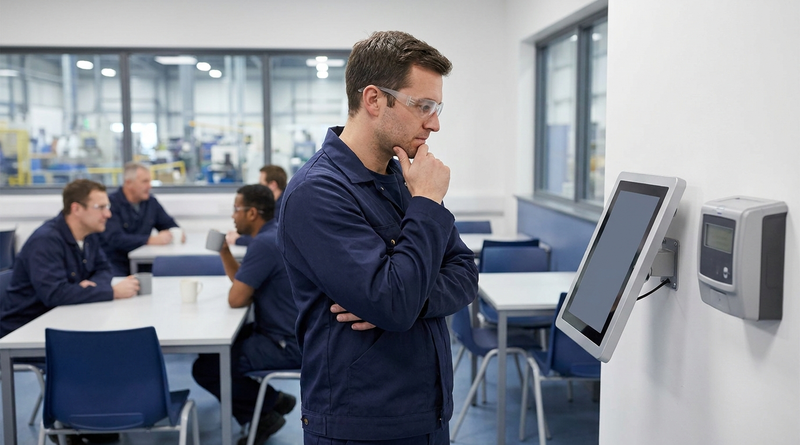
Shared Workday kiosks expose pay slips and PII when sessions stay open. Learn what Workday Time Kiosk covers, how to set session timeouts and authentication policies for shared devices, where browser-based self-service still leaks data, and how CloudApper hrPad gives frontline workers face-verified access.
TL;DR
The biggest risk on a shared Workday kiosk is not sign-in but sign-out: sessions tuned for desk workers stay open for the next person in line. Workday Time Kiosk keeps punches safe because it never shows pay data, and admins can shorten timeouts with Maintain Password Rules and network-based authentication policies. Browser self-service on shared screens still leaks through open sessions, saved files and typed passwords, which is the gap CloudApper hrPad closes with face-verified, role-based access to each worker's own Workday data.
Table of Contents
- What Workday Offers for Shared Devices
- Where Shared Devices Leak Data
- What to Configure in Workday First
- Where Native Tools Run Out
Most Workday kiosk security reviews focus on how a worker signs in. The exposure sits at the other end: how the session ends on a screen that the next person in line will touch thirty seconds later. Session guidance such as NIST SP 800-63B, which recommends an inactivity timeout of no more than one hour, assumes a device that belongs to one person. A break room tablet belongs to everyone. CloudApper builds shared-device self-service on top of Workday, and the design starts from that assumption.
What Workday Offers for Shared Devices
Workday covers time capture well. The Workday Time Kiosk app runs on approved iOS and Android tablets, and workers check in and out with their employee ID. Because it handles time events only, a shared tablet never displays a pay slip. For full self-service, admins can set the tenant session timeout in Maintain Password Rules, override it per account in Edit Workday Account, and use Manage Authentication Policies to require different sign-in rules by network or IP range.
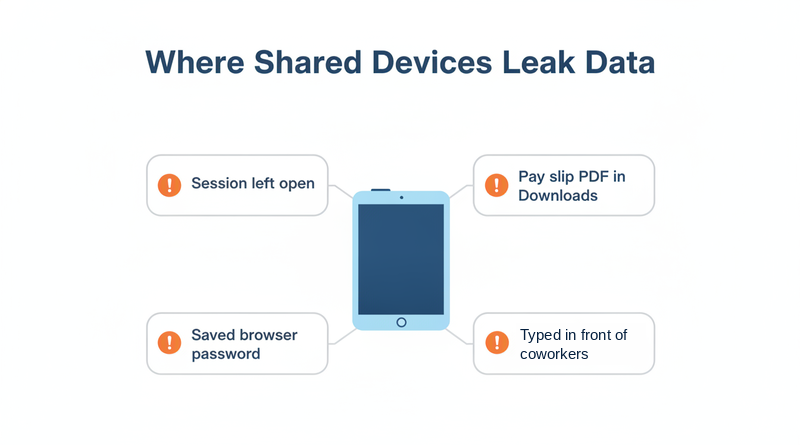
Where Shared Devices Leak Data
Trouble starts when a site wants more than punches. Pay slips, PTO balances, and tax forms mean a full Workday session in a browser on a shared PC or tablet. A tenant timeout tuned for desk workers leaves that session open long after the worker walks away. Downloaded pay slip PDFs stay in the Downloads folder, and browsers offer to save passwords. An open session is also the shortest path to the account takeover behind direct deposit fraud. Shared screens also drive the reset volume behind frontline password and MFA resets.
What to Configure in Workday First
- Create an authentication policy for kiosk network ranges with a shorter session timeout than desk users get.
- Keep time capture on the Time Kiosk app so most visits never open a full session.
- Lock shared browsers to private mode with downloads and password saving disabled.
- Require MFA for sensitive tasks such as payment election changes.
- Post a visible sign-out reminder at every kiosk and audit sign-in history from kiosk IP ranges.
Where Native Tools Run Out
These settings shrink the exposure. A browser session still depends on a password typed in front of coworkers, and sign-out still depends on the worker remembering it. Workers who just want to check pay stubs or PTO balances end up with full desktop sessions. This is where CloudApper hrPad changes the shared-device model rather than tightening it.
How CloudApper hrPad Handles Shared-Device Self-Service
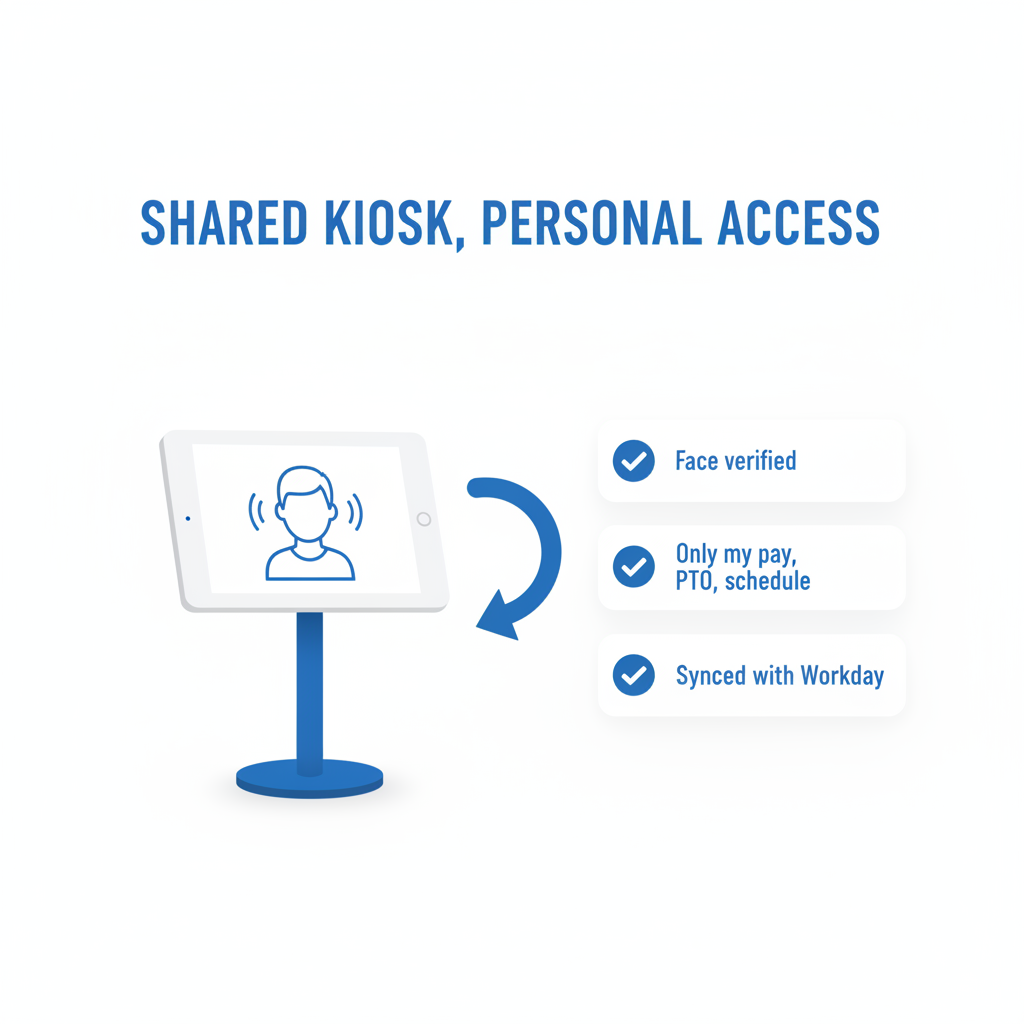
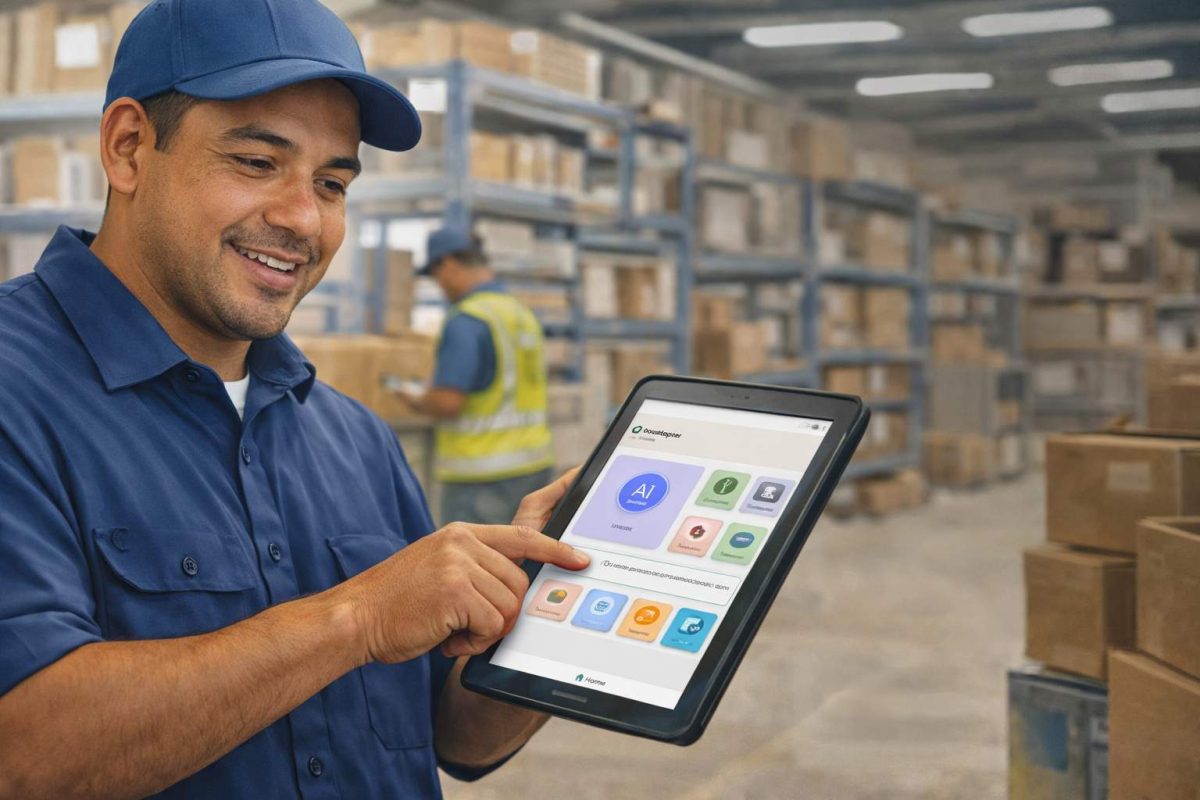
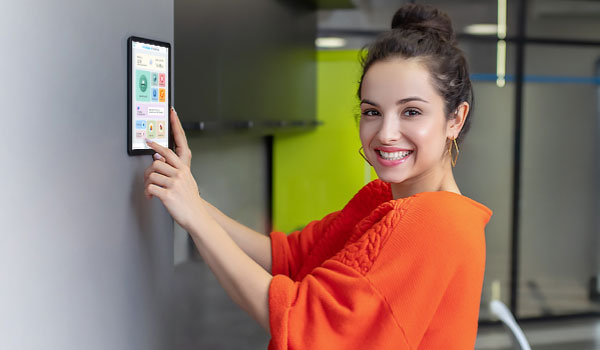
CloudApper hrPad turns an iOS, Android, or Windows tablet into a Workday self-service kiosk where each interaction starts with biometric face recognition rather than a typed password. Role-based access limits what each worker sees to their own pay details, PTO balances, and schedules, pulled from Workday. Because it connects through a scoped integration, IT reviews it like any other app, using the checks in our integration system user security review.
Frequently Asked Questions
Q: Does Workday have a kiosk mode?

Yes. The Workday Time Kiosk app runs on approved iOS and Android tablets and lets workers check in and out with their employee ID. It handles time events, not pay slips or PTO requests.
Q: How do I change the session timeout in Workday?
Set the tenant default in the Maintain Password Rules task and override individual accounts with Edit Workday Account. Authentication policies can apply stricter rules to specific networks.
Q: Is it safe to let employees access Workday on a shared computer?
It can be, with a short timeout, private browsing, disabled downloads, and MFA for sensitive tasks. The remaining risk is a worker who walks away without signing out.
Q: How do frontline workers view pay slips without a work computer?
Options include the Workday mobile app, a shared browser kiosk, or a self-service tablet that verifies each worker before showing their data.
Q: Can Workday restrict sign-in by location or network?
Yes. Define networks with Maintain IP Ranges and reference them in Manage Authentication Policies to apply different sign-in requirements by network.
If your shared devices are carrying more Workday data than they were set up to protect, talk to the CloudApper team about a kiosk model built for the frontline.

What is CloudApper AI Platform?
CloudApper AI is an advanced platform that enables organizations to integrate AI into their existing enterprise systems effortlessly, without the need for technical expertise, costly development, or upgrading the underlying infrastructure. By transforming legacy systems into AI-capable solutions, CloudApper allows companies to harness the power of Generative AI quickly and efficiently. This approach has been successfully implemented with leading systems like UKG, Workday, Oracle, Paradox, Amazon AWS Bedrock and can be applied across various industries, helping businesses enhance productivity, automate processes, and gain deeper insights without the usual complexities. With CloudApper AI, you can start experiencing the transformative benefits of AI today. Learn More
- Useful Links:
- Agentic AI
- No-Code/Low-Code
- Custom Software
- HCM Personalization
- iPaaS
- FedRAMP
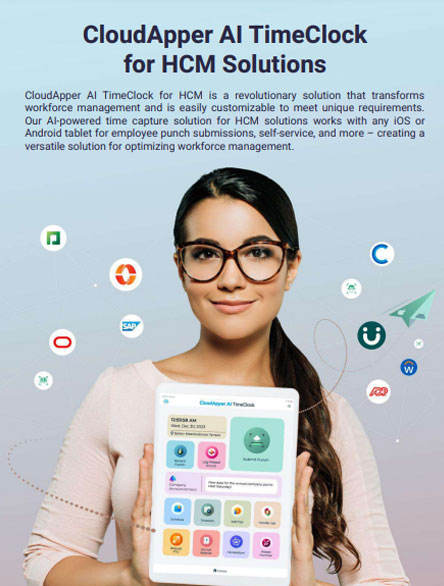
Brochure
CloudApper AI TimeClock
For accurate & touchless time capture experience.
Download Brochure
CloudApper AI Solutions for Workday
- Works with







- and more.
Similar Posts
Workday Biometric Time Clock Compliance: Consent, Retention, and Deletion Rules…
Workday Integration System User Security: What to Review Before Approving…