Workday total rewards statements show what employers spend on pay, benefits and payroll taxes, but hourly workers rarely open them. This guide covers the native template setup, why frontline workers drop out, what to fix in Workday first, and how CloudApper hrPad shows total rewards at a shared kiosk.

TL;DR
Workday builds total rewards statements from compensation, benefits and payroll data through Create Total Rewards Template, and workers view them under Compensation on their profile. Hourly workers rarely see them, because the statement sits behind a login, the notice goes to email, and templates built for salaried packages leave out shift pay. Build an hourly template, show hourly values and employee costs, and time the release before open enrollment. CloudApper hrPad shows total rewards figures at a shared kiosk after badge or face sign-in.
Table of Contents
- What Workday Handles Natively
- Where Hourly Workers Drop Out
- What to Fix in Workday First
- Where Native Delivery Stops
The sign at the warehouse across the road says $1.00 more an hour. Your associate reads it on the drive home. She has never read her Workday total rewards statement, which shows what you spend on her health coverage, retirement match and payroll taxes. According to the Bureau of Labor Statistics, benefits averaged $14.07 of the $46.89 private employers spent per hour worked in June 2026, about 30% of compensation. Workday can show each worker their share. The hourly worker weighing that $1.00 usually never sees it. CloudApper works alongside Workday on that last step, getting the statement in front of the frontline.
What Workday Handles Natively
Workday builds total rewards statements from data it already holds. Admins with the Set Up: Total Rewards domain use Create Total Rewards Template to define sections for base pay, incentives, employer-paid benefits and employer payroll contributions, with a rule that controls which workers see each template. They can also show the employee-paid portion next to the employer cost. Workers open the statement from the Compensation area of their profile. The Total Rewards Template Audit report flags workers matched to more than one template.
Where Hourly Workers Drop Out
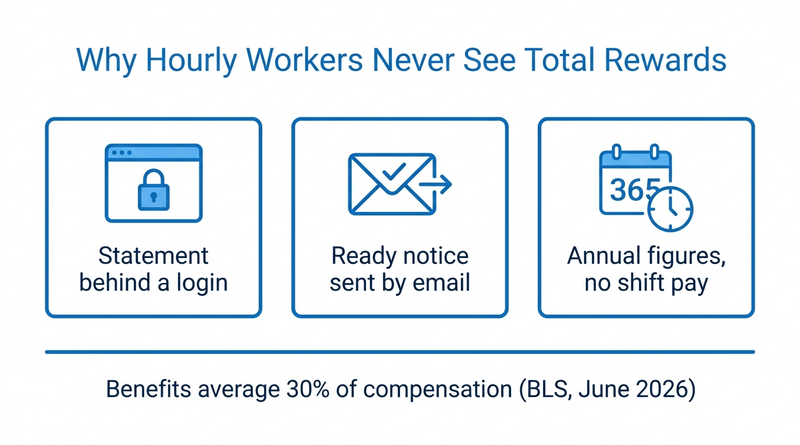
The statement sits behind a login most hourly workers rarely use. The access problems behind paystub requests from hourly workers also keep the statement unseen, and the announcement that it is ready goes to email, which is why Workday notifications rarely reach frontline employees. Templates built around salaried packages add a second gap: shift differentials, overtime and benefits for variable-hour workers are left out or shown as annual figures that confuse someone paid weekly.
What to Fix in Workday First
- Build a separate template for hourly populations, with sections for shift premiums and overtime earned, as covered in shift differential configuration.
- Use the summary display override to show hourly or weekly values where annual figures mislead.
- Turn on employee cost display so workers see both sides of their benefits.
- Run the template audit before release, and time the statement for moments that matter, like open enrollment or after a minimum wage increase.
Where Native Delivery Stops
A good template still needs a login. For frontline staff on shared devices, who often face the problems in password reset and MFA for frontline workers, that login rarely happens. This is where CloudApper brings the statement to a screen the worker already uses each shift.
How CloudApper hrPad Puts Total Rewards in Front of the Frontline
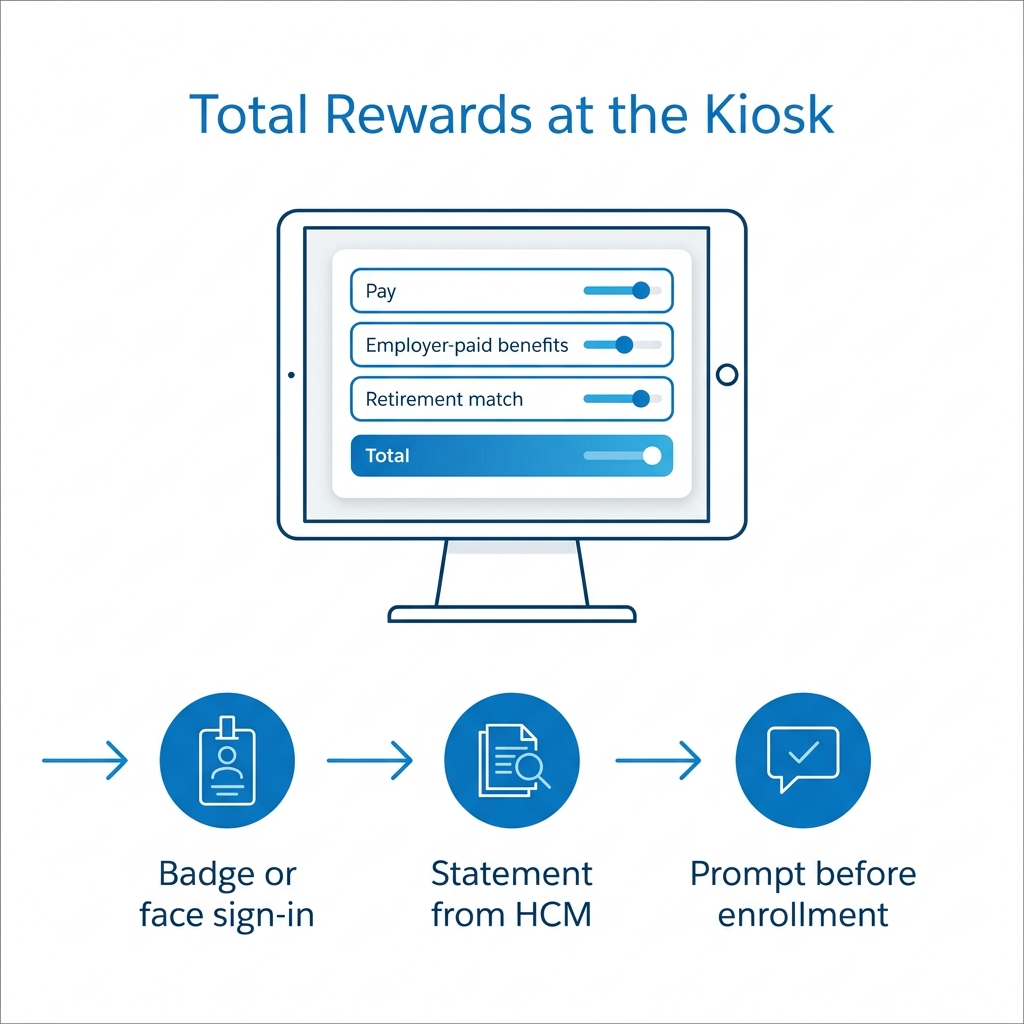
CloudApper hrPad for Workday is a tablet kiosk at the time clock or break room. After signing in with a badge or face, a worker can see their total rewards figures from Workday next to their pay and PTO balance without a Workday password. HR can prompt workers to review it at sign-in before open enrollment or during peak turnover months. The data stays in Workday.
Frequently Asked Questions
Q: How do I see my total rewards statement in Workday?

Open your profile, go to Compensation, and select Total Rewards. If it does not appear, you are not included in a total rewards template rule.
Q: How do I set up a total rewards statement in Workday?
Use Create Total Rewards Template to define sections and a rule for which workers see it. You need the Set Up: Total Rewards security domain.
Q: What is included in a Workday total rewards statement?
Typically base pay, incentives, employer-paid benefits and employer payroll contributions, depending on the sections your template includes.
Q: Can a Workday total rewards statement show employee costs?
Yes. The template can display the employee-paid portion of each component alongside the employer cost.
Q: How much do benefits add to hourly pay?
The Bureau of Labor Statistics reported benefits averaged $14.07 per hour worked for private industry in June 2026, about 30% of total compensation.
Q: How can hourly workers without regular Workday access see total rewards?
A shared kiosk that signs workers in by badge or face can display their Workday total rewards figures each shift.
If your total rewards statements are built but your hourly workers have never opened them, talk to the CloudApper team about putting them where the frontline already is, alongside Workday.

What is CloudApper AI Platform?
CloudApper AI is an advanced platform that enables organizations to integrate AI into their existing enterprise systems effortlessly, without the need for technical expertise, costly development, or upgrading the underlying infrastructure. By transforming legacy systems into AI-capable solutions, CloudApper allows companies to harness the power of Generative AI quickly and efficiently. This approach has been successfully implemented with leading systems like UKG, Workday, Oracle, Paradox, Amazon AWS Bedrock and can be applied across various industries, helping businesses enhance productivity, automate processes, and gain deeper insights without the usual complexities. With CloudApper AI, you can start experiencing the transformative benefits of AI today. Learn More
- Useful Links:
- Agentic AI
- No-Code/Low-Code
- Custom Software
- HCM Personalization
- iPaaS
- FedRAMP
Brochure
CloudApper AI TimeClock
For accurate & touchless time capture experience.
Download Brochure
CloudApper AI Solutions for Workday


- Works with







- and more.
Similar Posts

Workday Biometric Time Clock Compliance: Consent, Retention, and Deletion Rules…

Workday Kiosk Security: Protecting Pay Slips and PII on Shared…