Workday Payroll without Time Tracking works when every hour arrives already calculated. Learn how payroll input loads external hours, why overtime and premium rules must be applied first, the limits on processed inputs and retro, a setup checklist, and how CloudApper keeps inputs traceable.

TL;DR
Workday Payroll without Time Tracking can pay hourly workers correctly only if every hour arrives already calculated, because payroll input carries totals, not punches. Overtime, premium and penalty rules must be applied before the load, processed inputs can't be overridden, and retro processes don't update existing inputs, so map earning codes, document where calculation happens, and reconcile before every payroll lock. CloudApper AI TimeClock captures verified punches and CloudApper iPaaS validates them with an audit log, so each payroll input traces back to its source.
Table of Contents
- What Workday Payroll Accepts Natively
- Where Hours Go Wrong
- What to Set Up in Workday First
- Where Native Tools Run Out
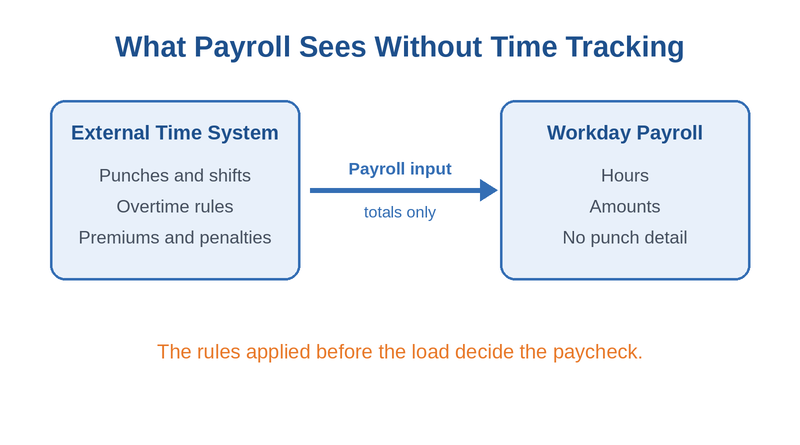
Workday Payroll without Time Tracking can pay hourly workers correctly, on one condition: every hour has to arrive already calculated. Without Workday Time Tracking, payroll never sees a punch or a shift, only the totals another system sends, so overtime, premiums and meal penalties have to be right before they reach the tenant. CloudApper captures hourly time and sends it to Workday, which is why we see where this setup holds up and where it quietly breaks.
What Workday Payroll Accepts Natively
Workday Payroll takes outside hours through payroll input. According to Workday’s payroll input documentation, inputs can be loaded with the Import Payroll Input web service, EIBs, payroll input workbooks, or the user interface, and Request Payroll Inputs can route them for approval. Inputs can carry hours or amounts, as one-time or ongoing entries, and time from an external source is one of the listed use cases. That is a supported, workable path.
Where Hours Go Wrong
Payroll input is a result, not a calculation. The time calculation tags that build overtime and shift premiums from reported time belong to Time Tracking, so without it those rules live in the outside system or in a spreadsheet. Under the FLSA, overtime is owed at one and a half times the regular rate for hours over 40 in a workweek, as the Department of Labor explains, and multiple jobs complicate the regular rate, the problem behind blended overtime. Workday’s own guidance adds two limits: a processed input can’t be overridden by a new one, and retroactive processes don’t update existing input amounts. Corrections become new inputs, which is where retro pay and off-cycle corrections pile up.
What to Set Up in Workday First
- Map every earning code in the time system to a Workday pay component before the first load.
- Decide which system calculates overtime and premiums, and document that rule.
- Send inputs by worker and pay period so each line can be traced.
- Route inputs above a set threshold through Request Payroll Inputs for review.
- Reconcile hours sent against hours loaded before every payroll lock.
Recurring loads belong in an integration, not a monthly upload, as our guide to EIB versus a real integration explains.
Where Native Tools Run Out
Workday Payroll will process whatever hours it receives, but it cannot tell whether those hours were captured from the right person or calculated under the right rule. When the time system is an aging clock with manual exports, errors reach payroll with no trail back to the punch. This is where CloudApper fits, at the capture and handoff points before payroll runs.
How CloudApper Closes the Gap
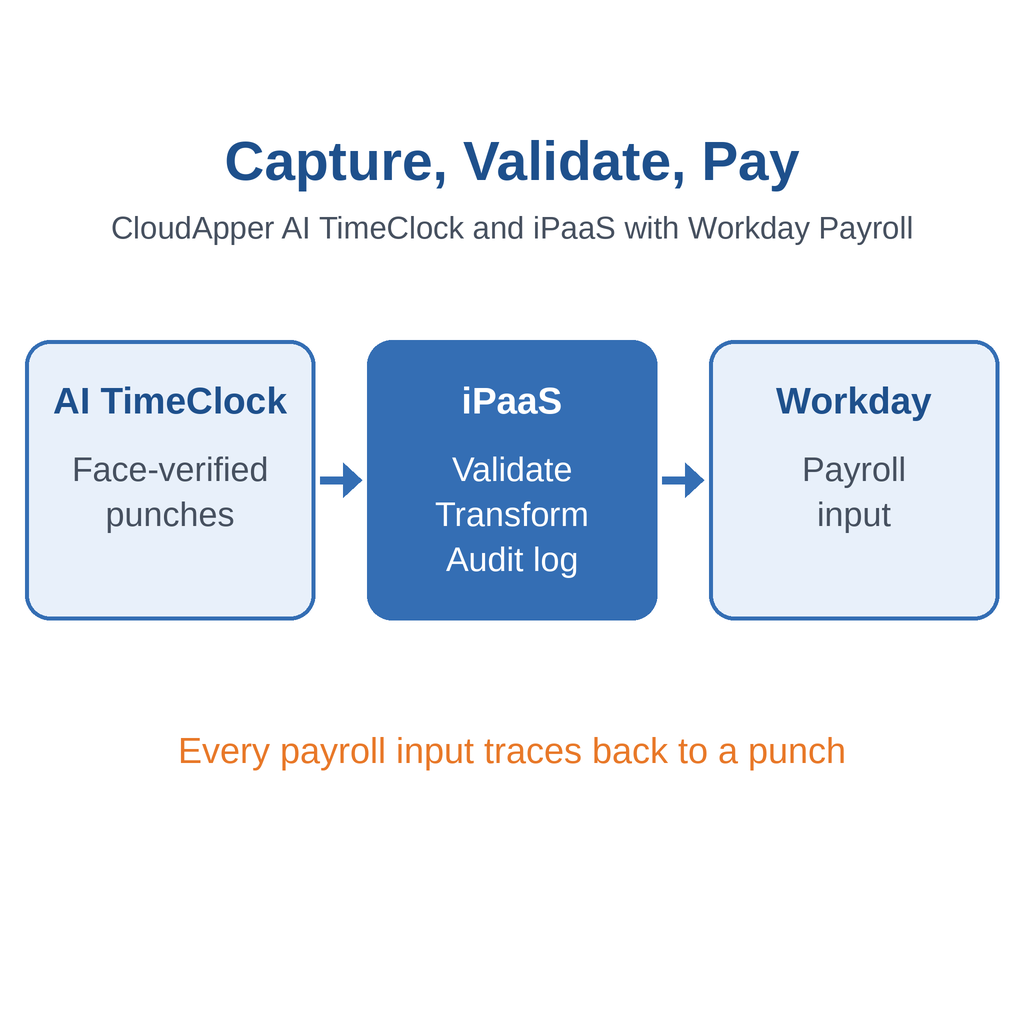
CloudApper AI TimeClock runs on standard tablets, captures punches with facial recognition, and syncs time with Workday Payroll. CloudApper iPaaS validates and transforms the data on the way in and keeps an audit log for every integration, so each payroll input traces back to its source. If you later add Time Tracking, plan the switch with our time clock cutover guide.
Frequently Asked Questions
Q: Can you use Workday Payroll without Workday Time Tracking?

Yes. Hours from an external time system can be loaded as payroll input through the Import Payroll Input web service, EIBs, or payroll input workbooks.
Q: How do I import hours into Workday Payroll?
Use payroll input. Import Payroll Input handles bulk loads, and Request Payroll Inputs can route inputs for approval before payroll runs.
Q: Does Workday Payroll calculate overtime from imported hours?
Not from punches. Without Time Tracking, overtime and premium rules have to be applied before the hours are loaded as payroll input.
Q: Can a processed payroll input be changed in Workday?
No. A processed input can’t be overridden by a new input, and retro processes don’t update existing input amounts, so corrections are entered as new inputs.
Q: Should we buy Workday Time Tracking?
It depends on the complexity of your overtime, premium and correction rules. If those rules live in spreadsheets today, the case for moving calculation into Workday is stronger.
If hourly time reaches Workday Payroll through manual exports today, talk to the CloudApper team about capture and handoff that leave a trail back to every punch.

What is CloudApper AI Platform?
CloudApper AI is an advanced platform that enables organizations to integrate AI into their existing enterprise systems effortlessly, without the need for technical expertise, costly development, or upgrading the underlying infrastructure. By transforming legacy systems into AI-capable solutions, CloudApper allows companies to harness the power of Generative AI quickly and efficiently. This approach has been successfully implemented with leading systems like UKG, Workday, Oracle, Paradox, Amazon AWS Bedrock and can be applied across various industries, helping businesses enhance productivity, automate processes, and gain deeper insights without the usual complexities. With CloudApper AI, you can start experiencing the transformative benefits of AI today. Learn More
- Useful Links:
- Agentic AI
- No-Code/Low-Code
- Custom Software
- HCM Personalization
- iPaaS
- FedRAMP
Brochure
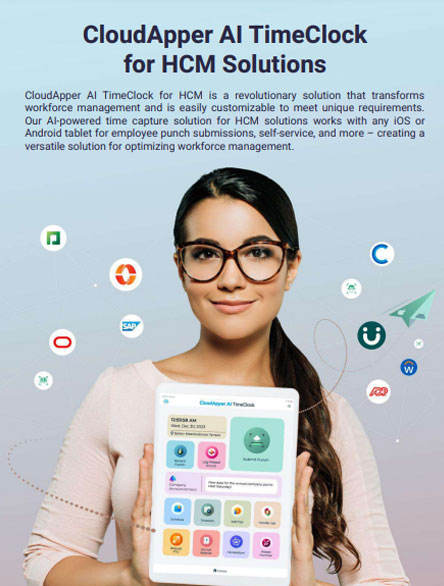
CloudApper AI TimeClock
For accurate & touchless time capture experience.
Download Brochure
CloudApper AI Solutions for Workday


- Works with








- and more.
Similar Posts

Moving Acquired Employees into Workday: Service Dates, Year-to-Date Wages, and…

Replacing Time Clocks for Workday Time Tracking: A Cutover Plan…