A Workday time entry cost center override only holds when the time block carries the right worktag or a costing rule matches it. This guide shows timekeeping admins, payroll, and controllers where hours go wrong, how to correct them after payroll retrieves time, and where punch capture fills the gap.

TL;DR
A Workday time entry cost center override only works when the time block carries the intended worktag or a costing rule matches it; otherwise the worker's default costing allocation wins. Timekeeping admins own the worktag setup, payroll owns rule order and post-retrieval corrections through Enter Time for Worker, and controllers own what reaches the ledger. When punches arrive with no costing context, configuration cannot fix it. Capturing the project code at the punch with CloudApper AI TimeClock gives Workday's rules the input they need.
Table of Contents
- Timekeeping Admins: The Worktag Has to Exist on the Block
- Payroll: The Rule Must Match, and Timing Decides the Fix
- Controllers: What Reaches the Ledger Before Close
- When the Punch Arrives Without a Cost Center
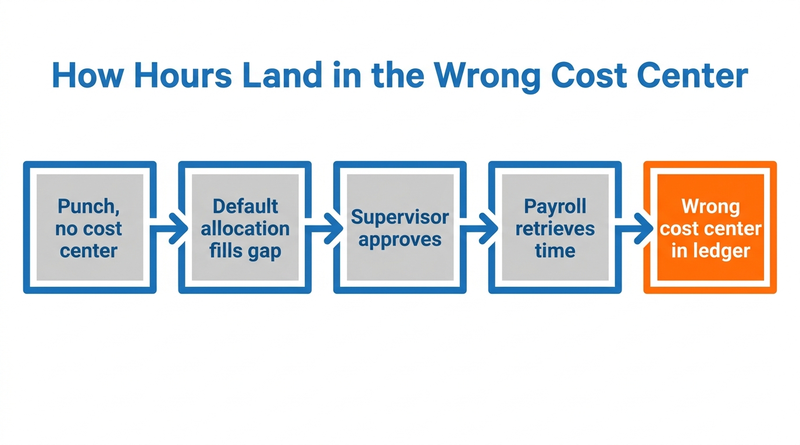
A Workday time entry cost center override only holds when the time block carries the intended worktag or a costing rule matches it. When neither happens, the worker’s default costing allocation fills the gap, and approved hours post to the home cost center with nothing flagged. CloudApper AI TimeClock for Workday runs alongside Time Tracking and can assign project codes at the punch, where most of these corrections start.
Timekeeping Admins: The Worktag Has to Exist on the Block
Time blocks carry worktags, and the task Set Up Worktags for Time Entry controls which ones workers or imports can supply. Workday documents that values entered or imported with time take precedence over defaulting rules, so a missing value is the usual root cause. Confirm Cost Center appears on the entry template and is required for workers who cross cost centers. Check which time entry codes workers pick alongside it.
Payroll: The Rule Must Match, and Timing Decides the Fix
Maintain Payroll Costing Company Overrides applies override worktags only when a rule exists, and rules are evaluated in sequence. Run the All Workers Costing Allocations report to see each worker’s default, then Payroll Accounting by Period or Pay Group to see what posted.

Before payroll retrieves the time, fix the block. After retrieval, Workday’s guidance is to correct it with Enter Time for Worker rather than editing the costing allocation. The block shows as Paid once payroll completes, so plan a retro or off-cycle correction and rerun your pre-payroll exception review.
Controllers: What Reaches the Ledger Before Close
A wrong cost center is a labor distribution error in the general ledger. Compare payroll costing by cost center with where each site or crew worked before close. Confirm in your tenant how override rules behave in multi-entity setups, and review multi-location configuration before changing rule order.
When the Punch Arrives Without a Cost Center
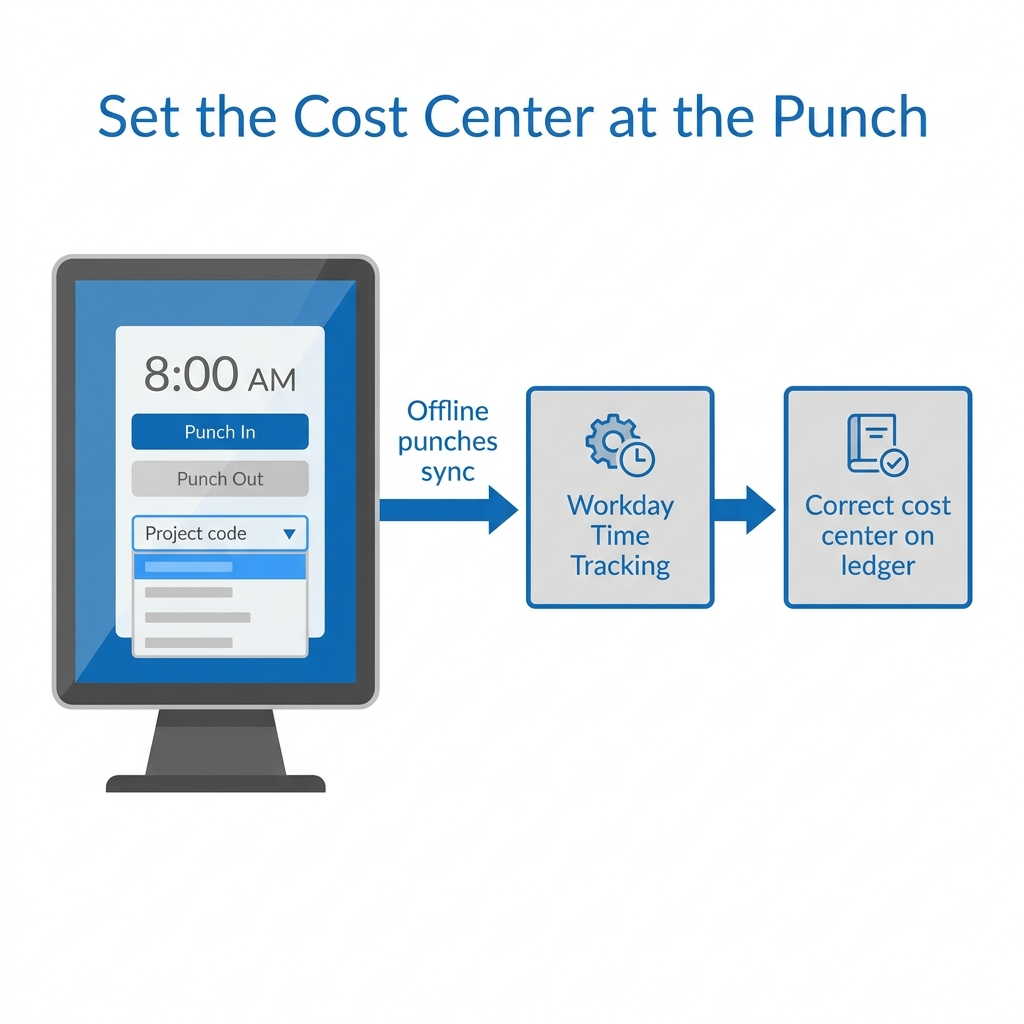
Workday cannot apply a value nobody entered. This is a practitioner pattern, not a documented Workday limit: public customer help pages describe override worktags not reaching the earning that drives accounting, and Community requests describe traveling technicians’ hours landing in the default cost center. The common thread is a punch with no costing context, bulk approvals that pass it through, and time clock events arriving late from weak-signal sites. CloudApper’s Workday page describes collecting biometric punches offline at the line and assigning project codes without supervisor intervention, which targets this gap.
Setting Costing at the Punch with CloudApper AI TimeClock
CloudApper AI TimeClock builds on what Workday Time Tracking already does. It supplies the missing input before Workday’s costing rules run.
- Field crews clock in without signal, and queued punches sync when the device reconnects.
- Project codes can be assigned at the punch, so supervisors correct fewer blocks later.
- Crews can punch together with group time entry.
Where reporting needs go past standard configuration, CloudApper AI for HCM Personalization targets labor cost visibility.
Frequently Asked Questions
Q: Why does Workday use my worker’s default cost center instead of the override?
The time block carried no cost center, or no costing override rule matched it. Values entered or imported with time take precedence, so a missing value falls back to the default allocation.
Q: How do I correct a cost center after payroll retrieves the time?
Use Enter Time for Worker to correct the time block instead of changing the worker’s costing allocation.
Q: Where do I configure which worktags appear on time entry?
Use the Set Up Worktags for Time Entry task, then check the time entry template so Cost Center is visible and, where needed, required.
Q: What does Maintain Payroll Costing Company Overrides do?
It lets payroll apply override worktags, such as a different cost center, when a defined rule matches. Overrides apply only where a rule exists, and rules are evaluated in sequence.
Q: How can I see what costing a worker defaults to?
Run the All Workers Costing Allocations report, then compare it with Payroll Accounting by Period or Pay Group.
If hours from field or frontline crews keep landing in the wrong cost center, talk with CloudApper about how AI TimeClock can work alongside your Workday costing rules.

What is CloudApper AI Platform?
CloudApper AI is an advanced platform that enables organizations to integrate AI into their existing enterprise systems effortlessly, without the need for technical expertise, costly development, or upgrading the underlying infrastructure. By transforming legacy systems into AI-capable solutions, CloudApper allows companies to harness the power of Generative AI quickly and efficiently. This approach has been successfully implemented with leading systems like UKG, Workday, Oracle, Paradox, Amazon AWS Bedrock and can be applied across various industries, helping businesses enhance productivity, automate processes, and gain deeper insights without the usual complexities. With CloudApper AI, you can start experiencing the transformative benefits of AI today. Learn More
- Useful Links:
- Agentic AI
- No-Code/Low-Code
- Custom Software
- HCM Personalization
- iPaaS
- FedRAMP
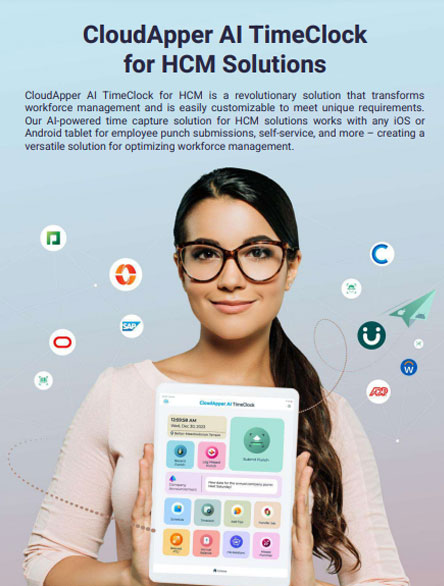
Brochure
CloudApper AI TimeClock
For accurate & touchless time capture experience.
Download Brochure
CloudApper AI Solutions for Workday


- Works with








- and more.
Similar Posts

Workday Seniority Date vs. Continuous Service Date: Which One Drives…

Tipped Employee Payroll in Workday: Where Shortfalls Hide Until a…