Workday step progression can skip a worker without raising an error. This guide lists seven checks, from grade profile steps and parallel compensation events to leave mapping, last step grades and manager holds, and where contract rules that count hours or tenure still need a separate check.


TL;DR
Workday's automatic step progression moves workers only when they have a step, sit in the right grade and are not in a parallel compensation change. Seven checks cover the documented causes of a miss: wrong step object, open compensation events, unmapped leave, last step of a grade, a manager hold, a reset step date and an unscheduled run. The two eligibility reports and the Schedule Automatic Step Progression task are the fixes to start with. Whether the native rule can count hours or tenure for a union contract is a confirm in your tenant item, and CloudApper Step Pay Progression handles that check outside the spreadsheet.
Table of Contents
- How the Daily Run Decides Who Moves
- Seven Reasons a Worker Stays on the Same Step
- When the Contract Counts Hours or Tenure the Run Does Not Show
- Moving the Contract Grid Out of the Spreadsheet
Workday step progression skips a worker for seven reasons, and none of them raises an error. The daily process only moves workers who have a step, sit in the right grade and are not mid-change. The first sign of a miss is usually a paycheck one step low, then retro pay and a grievance. CloudApper Step Pay Progression runs alongside Workday for union and tenure based pay grids that teams still check by hand.
How the Daily Run Decides Who Moves
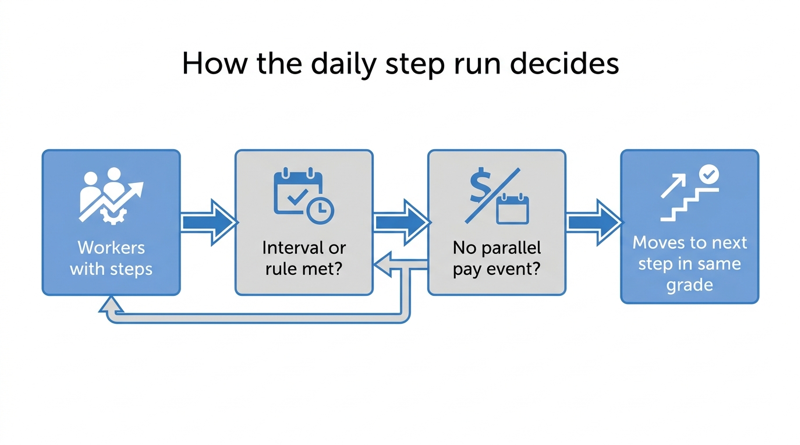
Workday’s automatic step progression process scans workers with compensation steps and checks whether the interval, period or step progression rule on the current step applies. If it does, the worker moves to the next step in the same grade. Employees Eligible for Next Compensation Step and Employee Compensation Step Progression show who it sees.
Seven Reasons a Worker Stays on the Same Step
- No step, or steps on the wrong object. Workday assigns the first step only when the worker has an eligible grade that has steps. If the package uses a grade profile, Workday reads the profile’s steps, not the grade’s.
- A parallel compensation event is open. Workers in one are not progressed.
- Leave is not mapped. Only time offs and leave types configured in hours map to step progression impact, and the grace period sits on Maintain Compensation Steps. Review FMLA tracking leave types too.
- The worker is on the last step. Automatic progression stays inside one grade. Use Request Compensation Change.
- A manager withheld the step. Within Grade Increase notifications let managers grant or withhold progression. After a reorganization, confirm in your tenant who receives them, starting with security roles.
- A pay change reset the step date. The preserve option on Edit Step Progression Configuration keeps the date through dated changes such as January minimum wage updates.
- The run is not scheduled daily. After any fix, rerun Schedule Automatic Step Progression before payroll. A miss that reaches payroll becomes retro pay.
When the Contract Counts Hours or Tenure the Run Does Not Show
Workday documents that the process evaluates the interval, period or rule on the current step. Whether your rule can count hours from timecards or tenure across jobs, confirm in your tenant. The practitioner pattern is a spreadsheet check before every run, the gap CloudApper’s page names: “One missed step = payroll disputes, retro calculations, union grievances.” That check sits beside your union work rules and seniority date setup, and CloudApper Step Pay Progression is built for it.
Moving the Contract Grid Out of the Spreadsheet
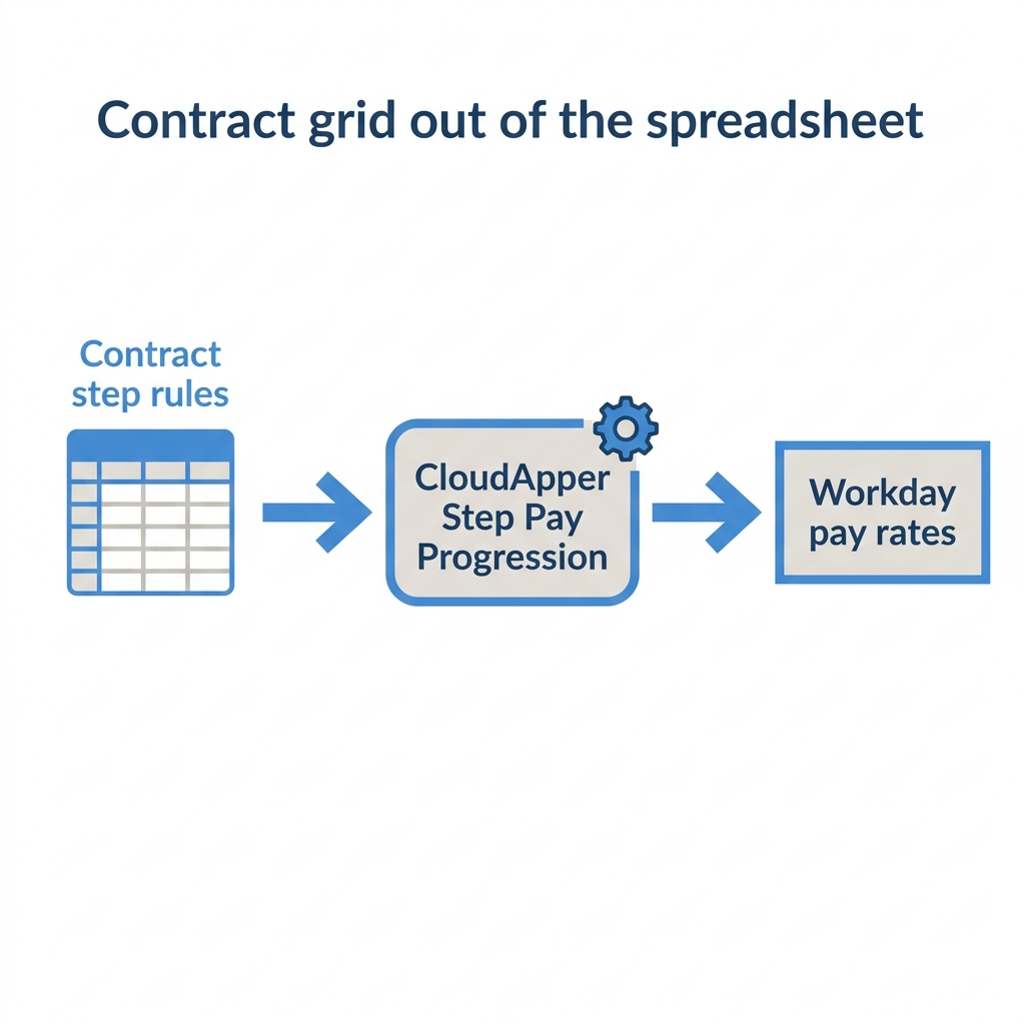
CloudApper Step Pay Progression builds on the grades and steps already in Workday. Its page describes configuring rules once, with step calculations, updates and notifications handled automatically and updated rates syncing to the HR system. A plant on a contract pay grid or a hospital unit with tenure steps can retire its Excel eligibility exports. The page lists Workday among supported systems, so confirm the setup with CloudApper.
Frequently Asked Questions
Q: How do I see which workers are eligible for the next step in Workday?

Run the Employees Eligible for Next Compensation Step report. Employee Compensation Step Progression shows step and grade progression details.
Q: How often should automatic step progression run in Workday?
Workday recommends scheduling it daily with the Schedule Automatic Step Progression task, so workers progress as soon as they are eligible.
Q: Why was a worker on the last step of a grade not progressed?
Automatic step progression only moves workers within the same grade. Use the Request Compensation Change task for the next grade.
Q: Does a leave of absence delay step progression in Workday?
It can. Time offs and leave types configured in hours can map to step progression impact, with an optional grace period. Types configured in days cannot be mapped.
Q: How do I keep a step progression date after a raise?
Select the preserve option in the Edit Step Progression Configuration task. The date and schedule then stay the same through a pay increase or other dated change.
If step increases still depend on spreadsheets and manager reminders, talk with CloudApper about running contract step rules alongside Workday.

What is CloudApper AI Platform?
CloudApper AI is an advanced platform that enables organizations to integrate AI into their existing enterprise systems effortlessly, without the need for technical expertise, costly development, or upgrading the underlying infrastructure. By transforming legacy systems into AI-capable solutions, CloudApper allows companies to harness the power of Generative AI quickly and efficiently. This approach has been successfully implemented with leading systems like UKG, Workday, Oracle, Paradox, Amazon AWS Bedrock and can be applied across various industries, helping businesses enhance productivity, automate processes, and gain deeper insights without the usual complexities. With CloudApper AI, you can start experiencing the transformative benefits of AI today. Learn More
- Useful Links:
- Agentic AI
- No-Code/Low-Code
- Custom Software
- HCM Personalization
- iPaaS
- FedRAMP
Brochure
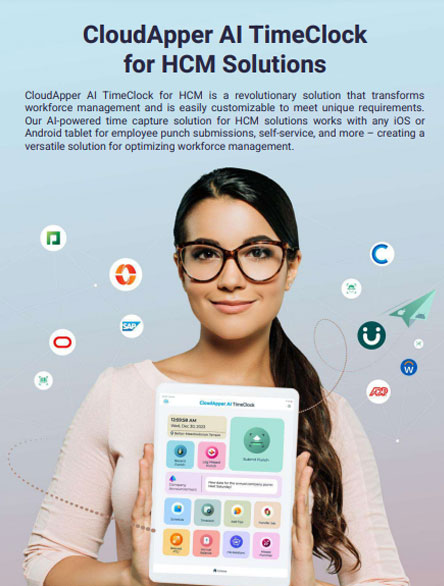
CloudApper AI TimeClock
For accurate & touchless time capture experience.
Download Brochure
CloudApper AI Solutions for Workday


- Works with








- and more.
Similar Posts
Workday ATS: Strengths, Gaps and Fixes for Recruiters

Workday Reference Check Stalled: Where Requests Break and What Admins…