Workday reports on its own execution, not on what happened downstream, so a Completed status confirms only that Workday finished sending. Here is what Process Monitor and integration notifications actually cover, and how to catch the zero-record run, the expired credential, and the schedule that quietly stopped existing.

TL;DR
Workday reports on its own execution rather than on the outcome, so an integration event marked Completed confirms only that Workday finished sending, not that the destination accepted anything. The failures that cause real damage are the quiet ones: the zero-record run that matched nothing after a field was renamed, the Completed with Errors status that dropped the rows that mattered, the Integration System User whose password expired overnight, and the scheduled process that stopped existing after a tenant refresh and now generates no event at all. Native tooling covers more than most teams use, including Process Monitor with its Messages tab, integration notifications configured per integration system, Workday Alerts on custom reports, and the Scheduled Future Processes report. What remains structural is that Workday cannot verify an outcome in a system it does not control, has no heartbeat for integrations that simply did not run, and sends notifications without escalating them. CloudApper iPaaS reads back from the destination, reconciles sent against accepted, monitors expected run cadence, and escalates by rule.
Table of Contents
- What Workday Does Natively
- Where the Friction Shows Up
- What to Do Within Workday First
- Where Native Tools Run Out
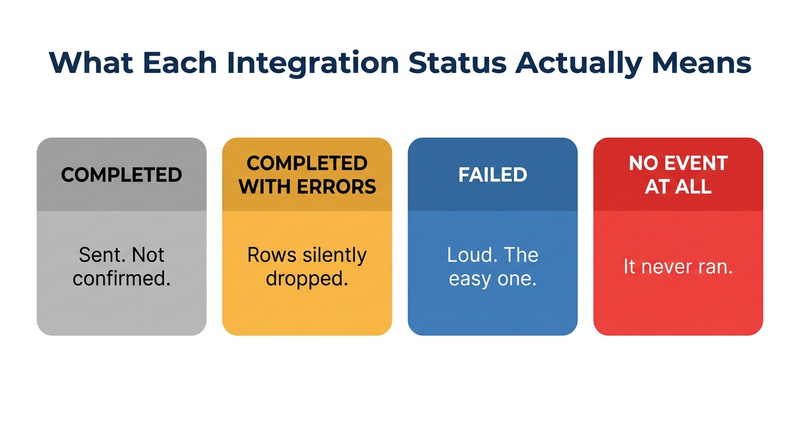
For Workday integration monitoring, the status that matters most is the one nobody alerts on: Completed with Errors. Workday reports on its own execution, not the outcome, so Completed means Workday finished its part, not that the file arrived or that any record was written in the receiving system.
In most tenants, a thirty-day Process Monitor search for that status returns rows nobody was told about, and those integrations run again tonight with the same defect. Many organizations learn this during a payroll cycle. Closing the gap between what Workday reports and what happened downstream is where an integration layer like CloudApper does its work.
What Workday Does Natively
Workday’s monitoring tooling is better than its reputation suggests, and most of the complaints about it come from teams that have not configured it.
Process Monitor is the central view. You filter by date range and Process Type, with Integration as its own category alongside batch files, jobs, reports, and web services. Each run produces an integration event with a status, and the useful detail lives one level down: opening the event and going to the Messages tab gives you the actual error rather than the summary. Runtime and record counts are visible there too, which matters more than people expect.

Statuses are more granular than pass and fail. An integration event can be Processing, Completed, Completed with Warnings, Completed with Errors, Failed, or Terminated. That granularity is a feature, provided somebody is looking at it.
Integration notifications can be configured on the integration system itself, with recipients and conditions tied to event status, so a failure can email a person or a group without anyone opening the tenant. This is the single most underused piece of native functionality in this area.
Workday Alerts built on custom reports give you a second lever. A scheduled report over integration events, filtered to problem statuses and delivered on a cadence, turns an invisible log into something that arrives in an inbox.
The Scheduled Future Processes report shows what is queued to run and when, which is how you catch a schedule that quietly stopped existing.
For the integrations themselves, EIB, Core Connectors, and Workday Studio cover simple file movement, common templated patterns, and complex transformation logic respectively. The tradeoffs among them are covered in syncing Workday with Salesforce, ServiceNow, and other enterprise tools. Any of them can be relaunched from the integration event once the underlying problem is fixed.
Where the Friction Shows Up
The failures that hurt are not the loud ones. A Failed status with a red message is a good day, because somebody sees it.
Consider the zero-record run. An outbound integration executes, applies its filter or effective-date logic, matches nothing, and reports Completed. Nothing moved. If the filter broke because a supervisory organization was restructured or a custom field was renamed, Workday has no opinion about whether zero was the expected number. The status is accurate and the outcome is wrong.
Partial rejection is the same story with more subtlety. Completed with Errors usually means most rows went and some did not. The ones that did not are frequently the interesting ones: the employee whose new address failed validation, the terminated worker whose record did not reach the identity provider. That last case turns an integration warning into an access control problem, which is the same failure described in what happens to Workday access when an employee is terminated.
Then there is the credential expiry that nobody scheduled around. Integration System User accounts are subject to password policy like any other account, and an ISU whose password expires takes the integration down at whatever hour the policy decides. The same applies to SFTP keys and OAuth tokens on the receiving end. These are calendar events masquerading as outages.
Schedules disappear more often than people believe. A scheduled future process owned by someone who has since left, or one that did not survive a tenant refresh, simply stops running. Nothing fails, because nothing ran. Process Monitor shows no errors for a period because it shows no activity at all, and an empty result looks reassuring at a glance.
Notification routing decays on its own. Integration notifications configured three years ago point at named individuals, and named individuals change roles. The alert fires perfectly into a mailbox nobody reads.
And the largest gap sits past Workday’s boundary entirely. The receiving system accepts the file, returns a success acknowledgment, then rejects half the rows during its own overnight processing. Workday recorded a clean run. The payroll provider has a rejection report nobody pulled. This is the specific hazard in connecting Workday to a third-party payroll system, and it is why the discovery usually happens when employees report short paychecks and someone starts running retro pay and off-cycle corrections.
What to Do Within Workday First
Configure integration notifications on every integration system you own, and confirm they fire on Completed with Errors and Completed with Warnings rather than only on Failed. Most tenants have this set for outright failure and nothing else, which filters out the category that causes the most damage.
Point notifications at a role-based group or a shared mailbox rather than named people. This one change survives every reorganization that follows.
Build a scheduled exception report on integration events, filtered to problem statuses, running daily and delivered before the business day starts. Include record counts. A run that moved four records when it normally moves four hundred deserves attention even when its status says Completed.
Set expected record count ranges for your critical integrations and check against them, since Workday will not do this for you. This is what catches the zero-record run.
Review Scheduled Future Processes monthly and after every tenant refresh. Confirm ownership sits with an account that will still exist next year.
Put ISU password expiry and certificate renewal dates on a calendar that somebody owns. Treat them as change events, not as maintenance trivia.
Maintain an inventory of every integration with its owner, its schedule, its downstream consumer, and what breaks when it does not run. Auditors ask for a version of this, as covered in preparing for a Workday audit, and the exercise of building it usually surfaces two or three integrations nobody could account for.
Where Native Tools Run Out
Three limits are structural rather than configuration failures.
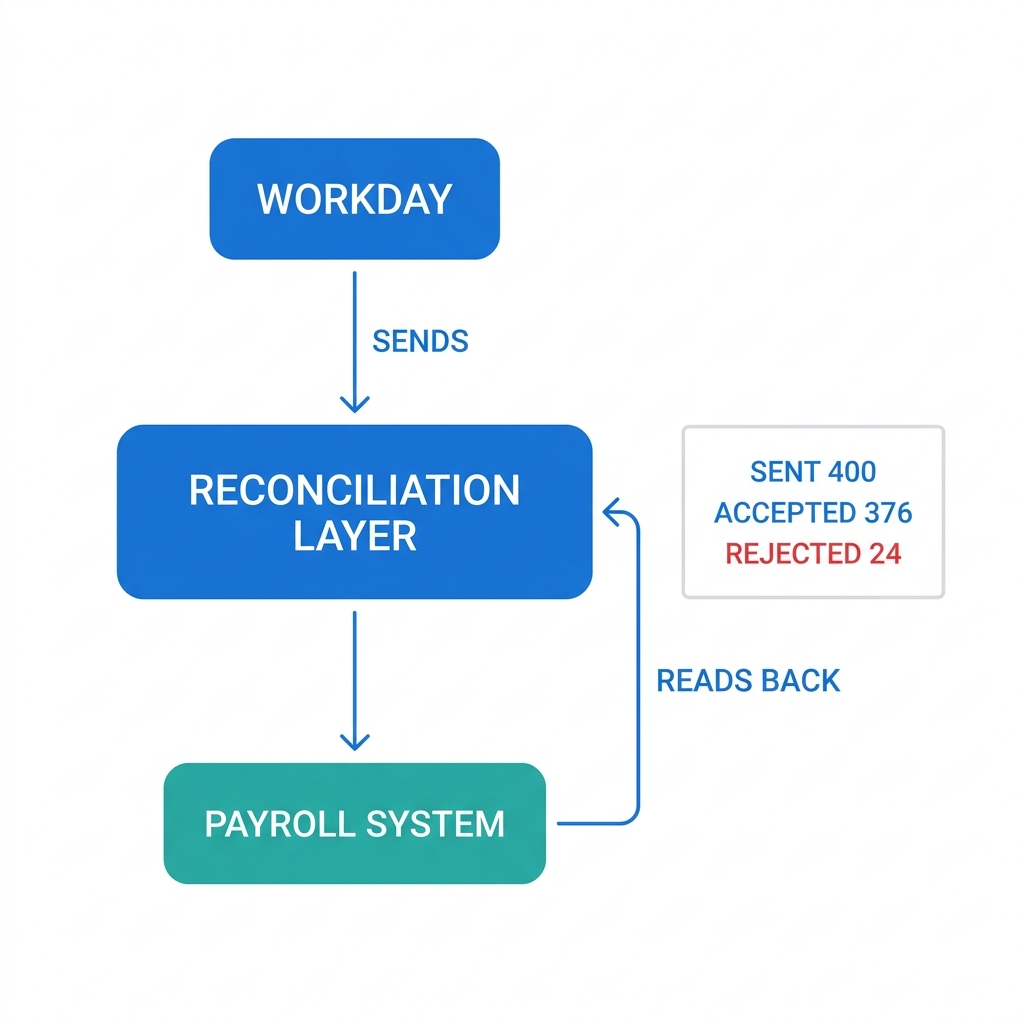
Workday cannot confirm an outcome in a system it does not control. It knows what it sent. Whether those records were accepted, transformed correctly, or silently dropped is knowledge that lives in the other system, and closing that loop requires reading back from the destination and comparing. Nothing in Workday does this.
Workday has no heartbeat concept. It will tell you an integration failed. It will not tell you that an integration which normally runs every night has not run for four days, because absence is not an event. The tooling is built around things that happened, and the most expensive integration problems are things that did not.
And notification is not escalation. Native alerts send a message. They do not track whether anyone acted on it, do not retry on a schedule, and do not escalate when a payroll-critical feed has been broken for six hours. For integrations where the consequence is a missed paycheck or an active account belonging to a terminated employee, a message in an inbox is a weak control.
Closing the Gap with CloudApper iPaaS
CloudApper iPaaS sits between Workday and the systems it feeds, which is the position required to see both sides of a transfer.
Outcome verification is the core of it. Rather than treating a successful send as the end of the transaction, CloudApper iPaaS reads back from the destination and reconciles what arrived against what was sent, so a payroll file that Workday reported as Completed and the provider rejected in part surfaces as a discrepancy the same morning rather than at pay close.
It also applies heartbeat monitoring, tracking expected run cadence per integration and raising an alert when a scheduled transfer does not appear. That covers the deleted schedule and the deactivated owner, neither of which generates an event in Workday.
Escalation runs on rules rather than on hope. A failure in a benefits feed can email the HRIS group, while a failure in a payroll or deprovisioning feed can page a duty owner and keep escalating until someone acknowledges it. Retries are automatic where a retry is safe, which resolves transient endpoint and credential problems without a human touching anything.
Because CloudApper iPaaS holds both sides of every transfer, it produces a reconciliation record showing what was sent, what was accepted, what was rejected, and what was done about it. That artifact is what auditors want and what Workday’s process log cannot supply on its own.
The same monitoring applies to integrations Workday does not originate, including contingent worker data flowing between Workday and a VMS and screening vendor status updates, where a stalled transfer looks identical to a candidate who simply has not finished.
None of this replaces Workday’s integration tooling. EIB, Core Connectors, and Studio keep doing what they do well. CloudApper iPaaS covers the part Workday was never positioned to see.
Frequently Asked Questions
Q: How do I check if a Workday integration failed?
Search for Process Monitor, set Process Type to Integration, and choose a date range. Each run appears as an integration event with a status, and opening the event and selecting the Messages tab shows the underlying error rather than the summary. Statuses to watch are Failed, Terminated, Completed with Errors, and Completed with Warnings.
Q: What does Completed with Errors mean in Workday?
It means the integration finished processing but some records did not succeed. The run is not treated as a failure, so it will not stand out in a status list, and the rejected records are often the ones that matter most. Open the integration event’s Messages tab to see which records were affected and why.
Q: How do I get email alerts when a Workday integration fails?
Configure integration notifications on the integration system, setting recipients and the event statuses that should trigger a message. Include Completed with Errors and Completed with Warnings rather than only Failed, and send to a role-based group or shared mailbox so the alert survives staff changes.
Q: Why did my Workday integration run successfully but transfer no data?
The integration executed and its filter or effective-date logic matched no records, which Workday reports as a successful run. Common causes include a changed supervisory organization, a renamed or removed field, or a date range that no longer aligns with the schedule. Workday has no expected record count, so a zero-record run looks identical to a correct one.
Q: Does Workday know if the receiving system accepted the data?
No. Workday reports on its own execution, so a Completed status confirms that Workday finished sending. Whether the destination accepted, transformed, or silently rejected those records is only visible in that system unless something reads the result back and compares it.
Q: Why did my scheduled Workday integration stop running?
The most common causes are a scheduled future process that was deleted, a schedule owned by an account that has since been deactivated, and a schedule lost during a tenant refresh. Check the Scheduled Future Processes report, since an integration that never ran produces no error and leaves no trace in Process Monitor.
Q: How do I rerun a failed Workday integration?
Open the integration event in Process Monitor, identify the root cause on the Messages tab, correct the underlying data or configuration issue, and relaunch the integration. Rerunning before fixing the cause generally reproduces the same result, and for inbound integrations it is worth confirming whether a partial load already committed records that a rerun would duplicate.
If you cannot currently answer how you would learn that last night’s payroll feed did not run, that is the gap worth closing before the next cycle. The CloudApper team can review your integration inventory and show where a failure would go unnoticed today. Start that conversation at https://www.cloudapper.ai/contact-us.

What is CloudApper AI Platform?
CloudApper AI is an advanced platform that enables organizations to integrate AI into their existing enterprise systems effortlessly, without the need for technical expertise, costly development, or upgrading the underlying infrastructure. By transforming legacy systems into AI-capable solutions, CloudApper allows companies to harness the power of Generative AI quickly and efficiently. This approach has been successfully implemented with leading systems like UKG, Workday, Oracle, Paradox, Amazon AWS Bedrock and can be applied across various industries, helping businesses enhance productivity, automate processes, and gain deeper insights without the usual complexities. With CloudApper AI, you can start experiencing the transformative benefits of AI today. Learn More
- Useful Links:
- Agentic AI
- No-Code/Low-Code
- Custom Software
- HCM Personalization
- iPaaS
- FedRAMP
Brochure
CloudApper AI TimeClock
For accurate & touchless time capture experience.
Download Brochure
CloudApper AI Solutions for Workday


- Works with








- and more.
Similar Posts

How to Rehire in Workday: Service Dates, I-9 and ACA…

The Workday Mobile App and Off-the-Clock Work: Which Hourly Tasks…